How to Stop a Scanner: A Practical Guide
Learn how to stop a scanner safely, whether it's a hardware document scanner or a software security tool. Follow tested shutdown steps, safety checks, and troubleshooting tips to minimize data loss and device wear.


Today you’ll learn how to stop a scanner safely, whether you’re halting a physical document scanner or pausing a software scanner. This quick answer outlines essential safety checks, proper shutdown sequences, and when to escalate to professional help. According to Scanner Check, following a clear step-by-step shutdown reduces data loss, wear on the device, and downtime.
Why stopping a scanner correctly matters
Stopping a scanner the right way is about protecting your data, extending the life of the device, and avoiding downtime. When you abruptly cut power or force a shutdown, you risk corrupted files, partial scans, and firmware glitches that can require costly resections or recalibration. For professionals and hobbyists alike, adopting a consistent shutdown routine minimizes wear on moving parts, reduces the chance of head crashes in flatbed models, and keeps your driver and firmware states clean. The Scanner Check team emphasizes that a deliberate, documented stoppage is a form of preventive maintenance that pays dividends over weeks and months. If you’re dealing with a scanning workflow that includes sensitive documents, a proper stop protects privacy and reduces exposure to data leaks. In short: a calm, well-executed stop beats a hurried, error-prone one every time.
Different scanner families and their stop nuances
Scanners come in several flavors, and each type has its own shutdown rhythm. Hardware document scanners—flatbed, sheet-fed, or portable—depend on a predictable power-down sequence and a safe way to eject a jammed sheet if necessary. Software scanners, such as antivirus or malware scanners, stop based on queue management, service states, and user-initiated pauses. Some hybrid devices combine both elements, requiring you to close scanning software first, then power down hardware. Across all types, the core principle remains the same: close active jobs, prevent data loss, and then cut power in a controlled manner. As you learn how to stop a scanner, keep a simple checklist handy to quickly guide you through the safest sequence every time. The approach should be model-agnostic but adaptable to your exact make and firmware version.
Safety and readiness checks before stopping
Before you initiate a stop, verify that you won’t lose data. Check the scanner’s queue for any pending scans and cancel or complete them if possible. Save any ongoing results or images to a secure location. If you’re working in a shared environment, notify teammates that you’re stopping the device to avoid interrupting someone else’s job. For electrical safety, ensure your hands are dry, you’re standing on a stable surface, and you’re using the proper power adapter. If the device is connected to a network, inform staff about any temporary downtime so users aren’t surprised by a brief outage. Adopting these precautions is a practical way to learn how to stop a scanner without creating follow-up issues.
Step-by-step shutdown workflows (high-level guide)
This section provides a high-level workflow for stopping a scanner safely. The exact steps may differ by model, but the sequence below is broadly applicable to most consumer and small-business devices. Always refer to your user manual for model-specific details. After following this, you’ll be well-prepared to perform a clean shutdown and have a clear path if you need to restart the device quickly.
Troubleshooting common stop issues
If a scanner resists stopping, don’t panic. In many cases you can resolve the issue by retrying the shutdown sequence, ensuring all software windows are closed, and waiting a few moments for background processes to finish. If the device is unresponsive, you may need to perform a forced shutdown as a last resort, but be aware of potential data loss and calibration needs. Persistent issues could indicate a firmware bug or a failing component, which warrants consulting the manufacturer’s support site or reaching out to an authorized service center. By understanding common failure modes, you’ll know when a problem is systemic rather than user error and whether you should escalate to professional help.
Authoritative sources and further reading
To deepen your understanding of safe device handling and data integrity during shutdown, consult authoritative guidance from leading institutions. These sources provide safety principles, best practices for electronics, and standards that apply broadly to scanners and imaging devices. While not all content is scanner-specific, the underlying management of electronics, firmware, and data aligns with best practices recommended by regulators and academics. Use these references to validate your process and tailor it to your particular hardware and use case.
Verdict: a concise, practical conclusion
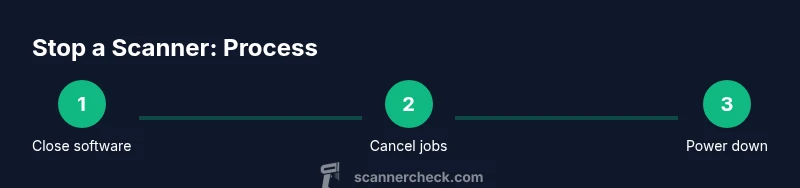
When you stop a scanner, follow a disciplined shutdown sequence that prioritizes closing jobs, saving data, and powering down in a controlled order. This approach minimizes risk, extends the device lifespan, and keeps your workflow predictable. The Scanner Check team recommends maintaining a personal shutdown checklist so you can execute the same steps every time, regardless of the model. Consistency is your best defense against data loss and hardware wear.
Tools & Materials
- Original power adapter and cable(Check model compatibility and connector type)
- User manual(Keep for model-specific steps)
- Administrative access / admin credentials(Needed to pause/delete queues for software scanners)
- USB-C or USB-A cable (optional for reinitialization)(Used when reconfiguring or testing after shutdown)
- Anti-static wrist strap(Optional safety step when opening hardware panels)
Steps
Estimated time: 15-25 minutes
- 1
Power down safely
Close all scanning apps and stop any active jobs. If your device queues scans, allow current items to complete or cancel them through the software interface. This reduces the risk of corrupt data or partially saved files when you turn off.
Tip: Always save any in-progress work and note the last completed scan in a log. - 2
Inspect the queue and media
Check the scan queue for pending tasks. If a job is stuck, use the software control to cancel it. Remove any paper jams if safe to do so and confirm there are no bios or firmware prompts awaiting your input.
Tip: Never force a jam clear while the device is powered or plugged in. - 3
Disconnect power
Unplug the power cable from the wall outlet and disconnect any auxiliary cables that could energize the device. If you’re using an on/off switch, switch it off and wait 30 seconds before the next step.
Tip: If the device is part of a powered rack, switch off at the main device break before unplugging. - 4
Shut down software and firmware
Ensure the scanner software is fully closed and that any background services have stopped. If you have a firmware-based stop option, use it per the manufacturer’s guide before powering down the hardware.
Tip: Avoid abrupt hardware resets; always perform a clean software shutdown first. - 5
Wait for indicators to calm
Wait until all indicator lights go dark and any fans stop, typically 15–60 seconds for most devices. This ensures the internal state is settled and prevents data write-back during the final step.
Tip: If lights remain active or the device hums, recheck for hidden tasks or software processes still running. - 6
Reconnect power and test
Plug the device back in and power it on. Run a quick test scan to confirm the device boots cleanly and that the queue is empty. Confirm basic functionality before resuming regular work.
Tip: Keep a minimal, repeatable test sequence to verify stability after shutdown. - 7
Document the shutdown
Record the shutdown steps you took, including any anomalies. This log helps with future stop procedures and supports troubleshooting if issues arise later.
Tip: Use a standard form or checklist so colleagues follow the same steps.
Common Questions
What should I do first to stop a scanner safely?
Begin by closing all scanning applications and ensuring the scan queue is empty. Save any in-progress work and cancel pending jobs if needed. Then proceed with the power-down steps to minimize data loss.
First, close all scanning apps and ensure there are no active jobs. Save your work and then follow the shutdown steps.
Can I forcibly stop a scanner if it won’t respond?
Forcing a shutdown should be the last resort. If the device is completely unresponsive after safe shutdown attempts, unplug the power supply carefully and reassess. Expect possible data loss or need for reinitialization.
Only use a forced shutdown as a last resort if the device is completely unresponsive.
Is it safe to unplug a scanner while a job is in progress?
No. Unplugging during an active job can corrupt files and damage firmware. Always cancel or finish active tasks before removing power.
Never unplug during an active scan; cancel the job first.
Does firmware update affect stop procedures?
Firmware updates can alter shutdown behavior. Check the release notes for any new shutdown steps and ensure you follow the updated procedure after updating.
Firmware updates may change shutdown steps; review the notes after updating.
What if the scanner is USB connected and won’t eject safely?
Try safely ejecting from the OS first. If the device still won’t eject, shut down the computer, unplug the scanner, then reconnect after power is restored.
Eject safely, then if needed, power down and unplug and reconnect later.
Watch Video
Key Takeaways
- shutdown should be deliberate, not abrupt
- Close software, save data, and verify queues are empty
- Power down in a controlled order to protect firmware
- Document the process for future use
- When in doubt, consult the manufacturer or support