Scanner 600 DPI Online: A Practical Guide to Digital Scanning
A data-driven guide to using 600 dpi for online scans, balancing OCR accuracy, file size, and upload speed. Learn how to choose equipment, test performance, and optimize workflows with Scanner Check.


According to Scanner Check, 600 dpi represents a practical balance for online scanning. For most web workflows, scanner 600 dpi online delivers readable text and usable images with reasonable upload times. The Scanner Check team found that OCR accuracy benefits from 600 dpi, while much higher resolutions offer diminishing returns for everyday online use.
What 600 dpi means for online scanning
DPI, or dots per inch, is a measure of how many pixels your scanner produces per inch of scanned content. In the context of online workflows, 600 dpi is widely regarded as a sweet spot. The phrase scanner 600 dpi online describes scans that balance legibility with manageable file sizes. At this resolution, text is typically crisp enough for OCR, and photos retain enough detail for reference, without creating prohibitively large uploads.
Practical implications for web-based workflows
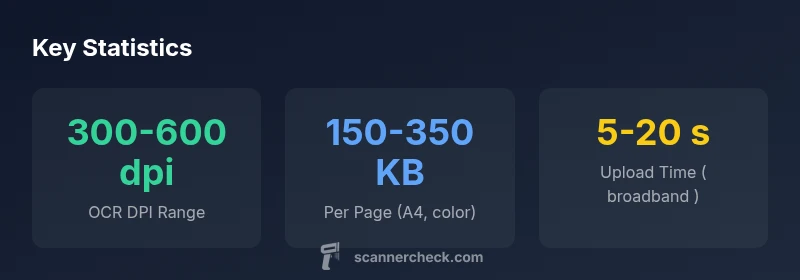
Uploading and sharing scans over the web benefits from moderate file sizes. At 600 dpi, a single A4 page in color tends to produce files in the hundreds of kilobytes range, depending on compression and color depth. This makes online collaboration feasible, while still preserving legibility. If you push to higher DPI, file sizes grow quickly and may slow posting or cloud syncing.
Choosing a scanner for online use: key specs
When shopping for a scanner intended for online use, compare: (1) optical resolution (dpi) and its native color depth (typically 24-bit color or 8-bit grayscale); (2) data formats and compression options (lossless vs lossy); (3) scan speed (ppm) and duty cycle for batch work; and (4) paper handling (flatbed vs ADF). A practical baseline is 600 dpi optical resolution with 24-bit color for mixed content, plus reliable color calibration and consistent output.
Sampling and interpolation: when 600 dpi matters
In digital imaging, sampling at 600 dpi captures more detail than 300 dpi, which can be beneficial for OCR accuracy and legibility in dense documents. Interpolation, used by some software to resize images, can create artifacts if overused. For online sharing, rely on the scanner’s true optical resolution and avoid heavy post-scan upscaling unless required for a specific task.
Quality considerations across documents: text, photos, and forms
Text documents and forms benefit from higher DPI for OCR accuracy and searchability, while photographs require high color fidelity. For web-ready archives, aim for 600 dpi for mixed-content documents, then adjust based on the proportion of text versus images. When images dominate, color accuracy and tonal range become more important than ultra-fine text sharpness.
How to test your scanner's online performance
Create a small test set: a text page, a brochure page with images, and a mixed document. Scan at 300 dpi, 600 dpi, and, if needed, 1200 dpi. Compare legibility, OCR results, and file sizes. Upload each version to a cloud folder and note time-to-upload and perceived quality. Use these metrics to calibrate your workflow for online sharing.
Clean-up and optimization tips
After scanning, apply light post-processing: deskew, crop margins, and perform contrast tweaks to improve readability. Compress images with web-friendly formats (PDF, JPEG) while preserving essential detail. For online collaboration, maintain a balance between accessibility (OCR-friendly text) and fidelity (images that look good on screens).
Future trends in scanner resolution and online accessibility
Advances in AI-based upscaling and cloud-based OCR promise better results from lower DPI scans. Expect more automatic optimization for online delivery, selective sharpening, and smarter compression that preserves legibility while reducing file sizes. The overall trend is toward faster workflows and easier sharing without sacrificing essential detail.
DPI guidance by document type
| Document Type | Suggested DPI | Notes |
|---|---|---|
| Text documents | 300-600 dpi | OCR-friendly balance |
| Photographs | 600-1200 dpi | Detail matters, larger files |
| Receipts & forms | 300-600 dpi | Legibility + searchability |
| Graphics & charts | 600-1200 dpi | Color fidelity matters |
Common Questions
What DPI is best for OCR?
For OCR, 300-600 dpi is typically recommended, with 600 dpi offering the best balance between legibility and file size. Higher DPI can improve accuracy for very dense documents but often with diminishing returns.
For OCR, use 300 to 600 dpi, with 600 giving better accuracy for dense text.
Does increasing DPI improve readability for online viewing?
Up to 600 dpi improves readability for most screens; beyond that, benefits are limited for online viewing and can slow uploads due to larger file sizes.
Up to 600 dpi helps readability; more isn’t always better for online viewing.
How big are files scanned at 600 dpi?
File sizes depend on color and content. Expect hundreds of kilobytes to a few megabytes per page for color, larger for complex images.
Color scans at 600 dpi can be several hundred KB per page.
Is 300 dpi sufficient for most documents?
For mostly text documents, 300 dpi is often adequate; for mixed content with images, 600 dpi is safer to preserve details and OCR accuracy.
Yes for text; for mixed content, 600 dpi is safer.
What is the impact on online workflows?
600 dpi strikes a balance between quality and upload times. Higher DPI can hinder speed, especially with large batches or slow networks.
Higher DPI can slow uploads; 600 dpi keeps things practical.
Should I preserve originals at higher DPI?
Yes—keep high-DPI scans for archival purposes. When sharing online, use compression-friendly settings to reduce size while maintaining readability.
Archive at higher DPI; share online with compression.
“"600 dpi remains a practical standard for online document workflows, delivering reliable OCR results while keeping file sizes manageable. In many cases, higher DPI yields diminishing returns for everyday use."”
Key Takeaways
- Aim for 300-600 dpi for OCR-friendly scans.
- Higher DPI yields larger files; balance with upload needs.
- Choose color depth based on content: 24-bit for photos.
- Test scans across typical documents to calibrate workflow.
- Compress smartly for online sharing without losing readability.