Scanner Download Guide: Safe Driver & App Downloads 2026
Learn how to safely download scanner drivers and apps, verify compatibility, install correctly, and maintain security. This step-by-step guide covers sources, platforms, troubleshooting, and best practices for reliable scanner performance in 2026.


In this guide you’ll learn how to safely download a scanner driver or app, verify compatibility with your device, and complete a clean install. You’ll identify official sources, understand platform nuances, and perform basic post-install tests to ensure reliable scanning.
What the term
scanner download
covers and why it matters
When people talk about a scanner download, they’re usually referring to two things: drivers (or firmware) that let your computer communicate with the scanner, and companion apps that enable scanning from a device or manage scanned files. A robust download ensures feature support (like duplex scanning, color depth, and OCR), better reliability, and fewer security risks than grabbing a driver from an third-party site. This guide focuses on official sources and best practices so you can get a healthy, up-to-date setup without compromising security or performance. Whether you’re pairing a USB-connected device with Windows, a networked scanner in a mixed-OS office, or a mobile app for on-the-go scanning, understanding what to download, where to download it from, and how to verify integrity is essential for long-term reliability.
Safety first: why you should vet downloads
A safe scanner download protects your data and devices. Malware-laden installers can masquerade as drivers or apps and compromise credentials, install unwanted software, or degrade scan quality. Always prefer official vendor pages or recognized app stores, verify the URL before clicking, and check digital signatures or hash values when available. In addition to security, you’ll prevent driver conflicts that can cause devices to disappear from Device Manager or System Preferences. This section also covers common red flags like missing company names, mismatched file sizes, or warnings about “unknown publishers.”
Official sources vs. third-party mirrors
Official sources are your best bet for reliability and compatibility. Most brands publish drivers and apps on their support portals, sometimes grouped by OS (Windows, macOS, Linux, Android, iOS). Third-party mirrors may offer the same file names but can host outdated or tampered installers. Quick checks include the URL’s domain (brand name in the domain), the presence of a support/drivers page, and a legitimate certificate. If a page looks suspicious, close it and navigate via the brand’s homepage or documented support routes. This approach reduces the risk of accidentally installing adware or malware.
Step-by-step download flow (universal overview)
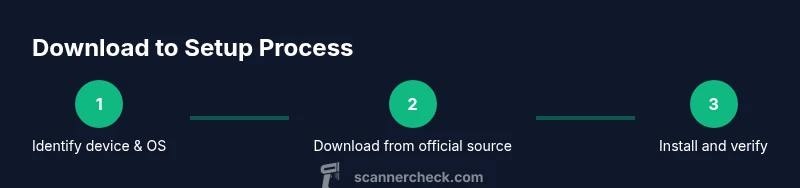
While details vary by platform, the core flow is consistent: identify your device and OS, locate the official download, review release notes, download the installer, run the installer, follow prompts, and perform a test scan. Always back up any important settings or profiles before major installs. If a vendor provides a driver cleanup utility, consider running it afterward to avoid conflicts from older components.
Platform-specific considerations: Windows, macOS, Linux, Android, iOS
Windows users often install drivers via a setup wizard, with optional components like scan software. macOS devices rely on Air Scan or native macOS drivers and may require adding printers or scanners in System Preferences. Linux users typically use CUPS and may install packages like sane or foomatic, depending on the model. Mobile users download companion apps from the App Store or Google Play; these apps often control basic scanning tasks but may require your scanner be on the same network. Cross-platform devices sometimes support over-the-network updates and firmware updates via a web interface.
After installation: testing and basic maintenance
After install, perform a quick test to verify color depth, resolution, and document feeder settings if available. Run a few scans of different document types (text, photo, mixed) to confirm fidelity. Keep drivers up to date by checking vendor portals for newer releases. Periodic maintenance includes clearing caches, reviewing firmware notes for security patches, and re-validating OCR accuracy after major OS updates.
Security and post-download hygiene
Always verify the integrity of downloaded files (hash or signature when provided). Use a firewall and keep OS security features enabled. Disable auto-run for installers and review any bundled software before installation. If you use enterprise devices, follow IT policies for application whitelisting and driver deployment. Regularly review device permissions and revoke access for apps you no longer use.
Troubleshooting common issues with downloads
If the scanner doesn’t appear after installation, re-plug the device, restart the computer, and re-run the installer with elevated privileges. For missing drivers, check the exact model number and OS version, then search the official support portal. If scans are blurry, verify cleaning of the glass surface, correct document settings, and device calibration options. Consult the vendor’s knowledge base for model-specific quirks and known issues.
Verify download integrity and updates
Always compare the downloaded file’s hash against the vendor-provided value. Enable automatic updates where available and monitor release notes for fixes or new features. Consider subscribing to vendor newsletters or support feeds to stay informed about firmware patches, security advisories, and compatibility changes with new OS versions.
AUTHORITY SOURCES
For authoritative guidance, consult official docs and reputable outlets:
- https://learn.microsoft.com/en-us/windows-hardware/drivers/install-windows-printer-and-scanner-drivers
- https://www.pcmag.com/how-to/how-to-install-printer-drivers
- https://www.tomsguide.com/how-to/how-to-download-install-printer-drivers
Tools & Materials
- Computer or mobile device(Ensure the device is compatible with your scanner and OS version)
- Active internet connection(Stable connection recommended for large downloads)
- Scanner model and documentation(Model number, hardware revision, and serial if required)
- Admin access on device(Needed to install drivers or apps)
- USB cable or network access(USB for direct connection; network for network scanners)
- Hash value or digital signature (optional)(Compare against vendor-provided checksums)
Steps
Estimated time: 20-45 minutes
- 1
Identify your scanner and OS
Locate the exact model number and confirm your computer's operating system version. This ensures you download the correct driver or app variant. If you’re unsure, consult the product label or the manufacturer’s support page for the exact specifications.
Tip: Record the model number in a notes app for quick reference. - 2
Open official support page
Navigate to the brand’s official support portal and select your scanner model. Verify the page shows the correct OS and device family (Windows, macOS, Linux, Android, iOS). Avoid pages that aren’t clearly tied to the logo or brand name.
Tip: Bookmark the official support page for future updates. - 3
Download the correct package
Choose the driver or app package that matches your OS. Review release notes for compatibility and new features. Avoid downloading multiple packages at once to prevent conflicts.
Tip: If in doubt, pick the latest stable release rather than beta versions. - 4
Run installer with admin rights
Launch the installer and approve any User Account Control prompts. Follow the on-screen instructions, selecting only the components you need. Do not skip calibration or test scan prompts if offered.
Tip: Close other applications to reduce installation errors. - 5
Restart and connect the scanner
Restart your device if prompted, then reconnect the scanner via USB or confirm network discovery. Ensure the device is powered on and not in sleep mode during setup.
Tip: Use the official cable and port recommended by the manufacturer. - 6
Test a basic scan
Open the bundled scanning software or OS imaging tools and perform a test scan. Check scan quality settings (color vs grayscale, resolution) and ensure you can save or export the file.
Tip: Start with a standard 300 dpi document to evaluate baseline quality. - 7
Update and verify
Check for firmware or driver updates after installation and re-scan to confirm improvements. Monitor for any issues reported by the vendor and apply patches as needed.
Tip: Enable auto-update if available, but review changes first.
Common Questions
What is the difference between a scanner driver and a scanning app?
A scanner driver enables the computer to communicate with the device, while a scanning app provides user-facing features like scan settings, file export, and OCR. Some devices combine both in a single package, while others require separate downloads. Always install the driver first, then the app if needed.
A driver talks to the scanner, and the app helps you scan and manage files.
Can I download drivers from any site?
Only download from the official vendor site or trusted app stores. Third-party mirrors can host tampered installers or outdated versions that cause instability or security risks.
Stick to official sources to avoid malware and compatibility problems.
What should I do if my scanner isn’t detected after installation?
Check USB connections or network visibility, confirm driver installation completed successfully, and restart the device. Verify device visibility in the operating system’s device manager or printer/scanner preferences, then re-run the installer if needed.
Make sure the device is connected, recognized, and try reinstalling if it isn’t detected.
Are there security risks with scanner downloads?
Yes, potential risks include malware and bundled unwanted software. Use official sources, enable real-time protection, and verify integrity with checksums when available.
Security-wise, avoid shady sites and verify files before installing.
Do I need administrator rights for all scanners?
Most drivers require admin rights to install system-wide components. Some apps may work in user mode, but full functionality often needs administrator access.
Admin access is typically required for driver installation.
Watch Video
Key Takeaways
- Identify model and OS before downloading.
- Use official sources to avoid malware.
- Follow a clear install flow and test after setup.
- Keep drivers up to date and monitor for issues.