Why Is My Scanner Not Connecting to Computer? A Complete Troubleshooting Guide
Urgent, practical guide to fix why your scanner won’t connect to your computer. Step-by-step checks, drivers, and safety tips from Scanner Check. Quick wins.


If your scanner won’t connect to your computer, the most common causes are connection issues (USB/USB-C, Wi‑Fi/Ethernet), driver problems, or security settings blocking the device. Start with basic checks: reconnect cables, restart devices, and update drivers. In most cases, these steps restore a reliable link quickly.
Why connectivity fails in scanners and what to watch for
If you’re wondering why is my scanner not connecting to my computer, you’re not alone. The most common failures are loose cables, powered-on devices with conflicting USB modes, outdated drivers, and misconfigured network settings. According to Scanner Check, these patterns often repeat across brands and operating systems, so recognizing them helps you act fast. In this guide, we’ll lay out a clear diagnostic path that covers USB and network connections, driver health, and software permissions. The goal is to turn confusion into a proven sequence you can follow step by step, with practical tips and safe fixes. The Scanner Check team found that most users resolve issues by verifying physical connections first and then updating software, rather than jumping to radical changes.
Quick checks you can run before diving deeper
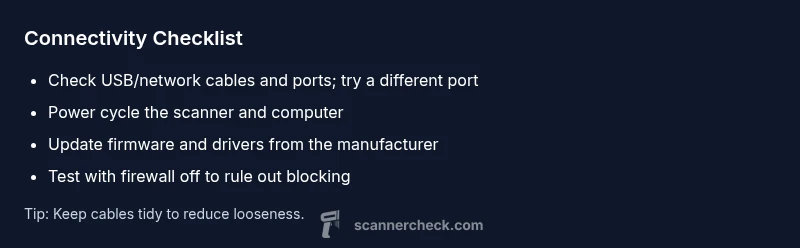
Start with the simplest fixes. Re-seat every cable, unplug and reconnect, and confirm the scanner is powered on. Try a different USB port or a different cable to rule out a faulty lead. If you’re using a network scanner, verify the device shows up on your router’s device list and check the scanner’s IP address in its control panel. Reboot the scanner and the computer after making any change; many conflicts resolve with a clean restart. Also confirm that the computer and scanner are on the same network when using wireless connections.
,
Steps
Estimated time: 30-45 minutes
- 1
Verify power and cables
Unplug the scanner, then reconnect the power cable and USB/ethernet cable firmly. Use a different USB port or cable to rule out a faulty lead. Power cycle the scanner and the computer after reconnecting, then try to scan a test page.
Tip: Use known-good cables if available; don’t force connections into loose ports. - 2
Check for alternate connections
If you have a network scanner, confirm the device’s IP address matches what appears in your router or scanner control panel. If USB, try a direct PC connection rather than a hub. Document the ports you tested for reference later.
Tip: Avoid using USB hubs as a long-term solution; they can introduce latency or power draw issues. - 3
Update or reinstall drivers
Go to the manufacturer’s site and download the latest driver package for your OS. Uninstall any older driver suites first, then install the fresh package and reboot. Ensure the scanner appears in Device Manager (Windows) or System Information (macOS).
Tip: Always restart after driver installation to complete the setup. - 4
Check firewall and security settings
Temporarily disable firewall or antivirus protections to test if they block the scanner. If the connection works, reconfigure the security software to allow the scanner’s executable or ports. Re-enable protections after testing.
Tip: Only disable protections briefly and revert to a safe configuration after testing. - 5
Verify OS and firmware compatibility
Ensure your operating system version is compatible with the scanner’s firmware. Check for OS updates and firmware releases from the manufacturer. Install any available updates and reboot.
Tip: Compatibility gaps are a common cause of USB/driver conflicts. - 6
Test on a second device
If available, connect the scanner to another computer to determine whether the issue is device-side or network/PC-side. A working second device usually points to PC-specific settings or profiles.
Tip: A quick second-device test can save hours of troubleshooting.
Diagnosis: Scanner won't connect to computer or is intermittently disconnecting
Possible Causes
- highPower/cable issues or loose connections
- highOutdated or corrupted drivers
- mediumFirewall/antivirus blocking device or network
- lowIncompatible OS or firmware
Fixes
- easyCheck and reseat USB/Network cables; try alternative ports
- easyUpdate or reinstall scanner drivers; reboot after install
- easyTemporarily disable firewall/antivirus to test connectivity
- mediumUpdate firmware or OS compatibility; ensure latest software
Common Questions
What should I do first when my scanner won’t connect to my PC?
Begin with basic hardware checks: reseat cables, power cycle the devices, and try another USB port or cable. Then verify the scanner appears in your OS device list and check for driver updates.
Start with unplugging and re-plugging the cables, rebooting everything, and checking for driver updates.
Why do drivers matter for scanner connectivity?
Drivers are the bridge between your scanner and computer. Outdated or corrupted drivers can prevent recognition or cause frequent disconnects. Installing the latest drivers from the manufacturer usually resolves the issue.
Drivers link the scanner to your computer, so keep them up to date.
Can firewall software block a scanner from connecting?
Yes. Security software can block ports or executables used by the scanner. Temporarily disabling the firewall or adding an exception often reveals if it’s the culprit.
Security software can block the scanner; test with a temporary exception to confirm.
Is a network scan different from USB, and how do I fix it?
Network scanning requires proper IP configuration and router visibility. Check the scanner’s network settings, ensure it’s on the same subnet as your PC, and verify port forwarding if needed.
Network setup needs the scanner to be reachable on your network.
When should I contact support or a professional?
If the scanner still won’t connect after all basic and intermediate steps, there may be a hardware fault or deeply-rooted compatibility issue. Contact the manufacturer or a qualified technician.
If you’ve tried everything and it still won’t connect, professional help is advised.
Watch Video
Key Takeaways
- Start with simple hardware checks first
- Update drivers before rearranging OS settings
- Temporarily disable security software to test connectivity
- Verify device and PC are on the same network (for wireless)