Why Is Your Scanner Taking So Long? A Troubleshooting Guide
Urgent troubleshooting for slow scanner performance. Learn quick checks, diagnostics, and a step-by-step plan to speed up scans and prevent future delays.


Most slow scans stem from a few common culprits: outdated drivers or firmware, high DPI or color settings, and weak connections. Start with fast fixes: update software, lower scan resolution, and test a direct USB connection or a quick network reboot. If needed, follow the diagnostic flow for targeted, precise fixes.
Why slow scanners happen in real life
If you’re asking why is scanner taking so long, you’re not alone. In most setups the lag isn’t a defective device; it’s a bottleneck somewhere in software, configuration, or the connection. This quick reality check helps you focus on fixes that move the needle fast. The Scanner Check team has tested dozens of speed scenarios and found that most delays trace back to a handful of predictable issues: outdated drivers, overly aggressive scan settings, busy host computers, or unstable links to the scanner. By targeting these areas first, you can cut wait times substantially without replacing hardware. In this article we’ll walk you through practical checks, diagnostic steps, and a safe, repeatable plan to restore fast, reliable scanning. We’ll also cover prevention so slow scans don’t become a recurring problem.
Common culprits behind slow scanning
- Outdated driver or firmware: When software isn’t current, your scanner might not communicate efficiently with the host PC, causing delays.
- High DPI, color mode, or page size: Ultra-high resolutions and color modes increase data that must be processed and saved.
- Slow or unstable connection: USB hubs, long cables, or congested networks can throttle throughput.
- Resource-heavy workflow: Many open apps, antivirus scans, or background indexing steal CPU and RAM that the scanner relies on.
- Queued jobs and stored preferences: A long print queue or saved presets can add latency at the start of every scan.
- Firmware or security features: Some devices run extra checks or encryption that slow throughput.
To speed things up, focus on the simplest items first: update, reduce settings, and test with a direct connection.
Immediate checks you can perform now
- Verify power and cable integrity: ensure the device is powered, cables are intact, and the port is not loose.
- Try a direct USB connection: connect the scanner directly to the computer, avoid hubs, and test with a short cable.
- Cross-check DPI and color settings: temporarily reduce DPI (e.g., 200-300 dpi) and switch to grayscale or black-and-white if color isn’t required.
- Update software quickly: run the official driver updater, or reinstall the latest driver from the manufacturer’s site.
- Restart the scanner and computer: a simple reboot clears stuck processes that slow throughput.
- Check for background jobs: close nonessential apps and pause any disk or cloud backups during scanning.
The role of DPI, color mode, and file formats on speed
Data size drives speed. DPI controls detail; higher values multiply pixels and result in larger files and longer processing. Color mode adds even more data than grayscale, so if color isn’t essential, switch to grayscale or black-and-white to reclaim speed. File formats affect throughput too: multi-page PDFs or TIFFs with layers take longer. For quick checks, batch common one-page black-and-white scans as PDFs and compare the save times to a few color TIFFs to see the difference.
Software vs hardware bottlenecks: signs to differentiate
If the scanner seems slow only at the start of a session but the first page prints quickly after a brief warm-up, the bottleneck is usually software or settings rather than a failing sensor. If every page drags after a few seconds or you hear unusual fan noise or heating, you may have a hardware or power issue. Compare performance with another computer or another USB port to isolate the cause. Hardware bottlenecks often improve with firmware updates, while software bottlenecks improve with settings changes and cleanup.
How to document and escalate issues
Keep a simple log when troubleshooting: record date/time, operating system, driver version, DPI, color mode, file format, and whether USB or network connection is used. Note the scan area (single page vs multi-page), and the exact time taken from start to finish. If you’re wondering why is scanner taking so long, save a short clip or screenshots to illustrate delays. Screenshots or short video clips can help support teams reproduce the problem. If you’ve exhausted the common fixes and still experience delays, escalate to official support with your logs, tests, and a brief summary of changes already made. Scanner Check’s guidance is to seek help when professional diagnostics are needed to avoid wasted time.
Maintenance and prevention to speed up future scans
Schedule regular driver updates, firmware checks, and firmware calibration as part of your standard maintenance. Keep cables tidy and avoid high-latency USB hubs. Run occasional performance tests after software updates to confirm gains. Maintain a clean operating system: disable unnecessary startup programs, run disk cleanup, and monitor memory usage during scanning sessions. A proactive plan prevents slow scans before they disrupt your workflow.
Steps
Estimated time: 60-90 minutes
- 1
Check physical setup and power
Inspect cables for damage, reseat connections, and ensure the scanner is powered on. A loose cable or powered-off device is the fastest way to introduce lag. After confirming power, test a quick scan to gauge baseline speed.
Tip: If you must replace a cable, choose a shorter, shielded USB 2.0/3.0 type to minimize interference. - 2
Update firmware and drivers
Visit the manufacturer’s site or use the built-in updater to install the latest firmware and drivers. Reboot the scanner after installation to ensure changes take effect. Run a test scan to compare performance before and after the update.
Tip: Back up current settings before updating in case you need to revert. - 3
Reset scan settings to defaults
Restore the factory defaults for scan profiles, then re-establish a simple speed-friendly profile. Avoid saving large, layered presets that might load automatically and slow the job queue.
Tip: Document your adjusted defaults for future reference. - 4
Reduce DPI and color mode
Set DPI to 200-300 for speed testing and choose grayscale or black-and-white when color isn’t required. Compare timing with the higher setting to quantify impact.
Tip: If you need color later, re-run a targeted test rather than re-scanning the entire batch. - 5
Test USB vs network connection
If the scanner supports network scanning, compare performance over Ethernet vs Wi‑Fi. For USB, try a direct port instead of a hub. Note any improvement with the alternate path.
Tip: Prefer a wired connection over wireless for stability. - 6
Close background processes
Close heavy applications and pause backups or sync services during scanning. Resource contention slows the scanner more than you might expect.
Tip: Use Task Manager or Activity Monitor to identify top consumers. - 7
Run device diagnostics
Use the scanner’s built-in diagnostics tool if available. Calibrate sensors or perform a test calibration to rule out hardware misalignment.
Tip: Document any diagnostic codes for support. - 8
Reboot and re-test
Power cycle both the scanner and the host computer. After rebooting, perform a single-page test and then a small batch to confirm improvements.
Tip: If you see no improvement, proceed to escalation. - 9
Escalate if needed
If delays persist after all steps, collect logs, test files, and a summary of changes. Contact support with clear reproduction steps and timing data.
Tip: Scanner Check recommends professional diagnostics when the issue remains after basic fixes.
Diagnosis: Scanner takes unusually long to complete a scan or to start
Possible Causes
- highOutdated driver/firmware
- mediumHigh DPI or color depth settings
- highSlow/unstable connection (USB or network)
- mediumInsufficient system resources (RAM/CPU, background apps)
Fixes
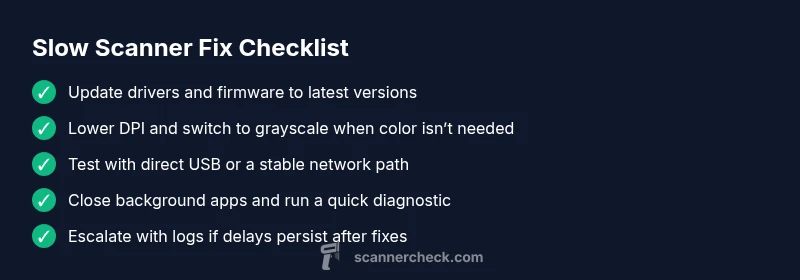
- easyUpdate drivers and firmware to the latest version
- easyLower DPI and color depth; switch to grayscale if possible
- easyTest with direct USB connection or stable wired network; reboot devices
- easyClose unnecessary background apps and free up RAM; restart spooler/services
- mediumRun a built-in diagnostic and recalibrate the scanner if available
- easyIf unresolved, contact support with logs and test results
Common Questions
Why is my scanner taking so long to start?
Starting delays are most often caused by outdated drivers, heavy startup tasks, or network initialization. Update software, check connections, and test with a minimal setup to confirm where the bottleneck lies.
Typical start delays come from old drivers, heavy startup tasks, or network initialization. Update, check connections, and test with a simpler setup to identify the bottleneck.
Will higher DPI slow down scanning?
Yes. Higher DPI increases data per page, which requires more processing and faster storage, leading to longer overall scan times. Use the lowest DPI that still meets your needs.
Yes, higher DPI takes longer because more data is processed and stored. Use the lowest DPI that suits your task.
Can scanning in color affect speed?
Color scans generally take longer than grayscale because more data is captured and processed. Switch to grayscale if color isn’t necessary to improve speed.
Color scans are usually slower than grayscale. If you don’t need color, grayscale speeds things up.
Is network scanning slower than USB scanning?
Network scanning can be slower due to network overhead and congestion. If speed is critical, use a direct USB connection when possible.
Network scanning can be slower because of network overhead. If speed matters, use USB whenever you can.
When should I replace my scanner due to slow performance?
If the device is several years old, firmware no longer supported, or performance remains consistently poor after fixes, replacement may be more cost-effective than repair.
If the scanner is old or no longer supported, replacing it might be the practical option after trying fixes.
Should I contact support for persistent delays?
Yes. If you’ve tried the steps and the problem persists, collect logs and test results and reach out to official support for professional diagnostics.
Yes. If delays persist after trying fixes, contact support with logs and tests.
Watch Video
Key Takeaways
- Start with driver and firmware updates.
- Lower DPI and simplify color settings for speed.
- Prefer direct USB or stable wired networks.
- Document tests and escalate if needed.