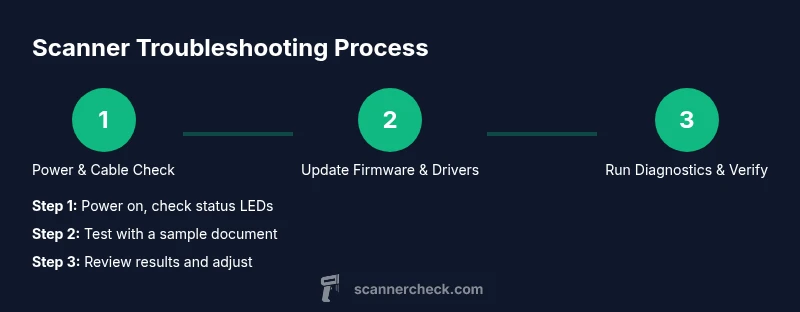
How to Fix a Scanner: Step-by-Step Troubleshooting Guide
Learn a practical, step-by-step method to diagnose and fix common scanner issues—from cables to firmware—so you can restore reliable scanning at home or the office.


By following a structured diagnostic and repair workflow, you can fix many common scanner issues without professional service. This guide covers power-up checks, driver and software updates, cable integrity, and common hardware faults. You’ll learn step-by-step methods to test scanners across USB, Wi‑Fi, and network setups, plus when to escalate to support. This quick answer previews the full how-to fix scanner process.
Understanding common scanner failures
According to Scanner Check, many fixable scanner problems originate from simple, non-mechanical issues. A loose USB or network cable, outdated drivers, corrupted scan profiles, or firmware glitches are frequent culprits. By approaching the repair as a structured diagnostic, you can identify the root cause without replacing the device. In this section, we differentiate between power-on issues, connectivity problems, and image-quality faults to help you target the right fix for your model and setup. Take a methodical stance: start with the easiest checks (cables and power) before diving into firmware, software, or internal hardware. Also consider whether the problem affects all apps or just one scanning program; this helps you decide if the issue is device-level or software-level. Finally, document any error codes or symptoms to guide future repairs and to support warranty discussions.
Safety and prep for repairs
Before you begin any disassembly or hardware checks, unplug the scanner from power and disconnect any cables. Use an anti-static mat or wrist strap to reduce the risk of electrostatic discharge, and work on a clean, dry surface. Read the user manual for cautions related to your model, as some scanners have fragile rollers or sealed enclosures. If you’re unsure, stop and pursue official support instead of forcing a fix that could void warranties.
Quick diagnostic checklist
- Confirm power: plug into a known-good outlet and check status LEDs.
- Verify data connections: USB, Ethernet, or Wi‑Fi; reseat cables firmly.
- Check driver/software status: ensure the device is visible in your operating system’s device manager or printer/scanner app.
- Run any built-in diagnostic tools from the manufacturer’s software.
- Note error codes or unusual behavior for later reference.
Step-by-step fix workflow
A structured workflow helps you address both symptoms and root causes. Start with non-destructive checks (cables and software), then move to firmware/drivers, and finally hardware diagnostics if needed. Maintain documentation of each action and its result to determine whether the issue is resolved or requires escalation. Use this workflow as a template for different scanner brands and connection types (USB, Wi‑Fi, or network).
Replacing parts vs professional service
If you identify a fault that’s beyond the scope of basic diagnostics (for example, a defective imaging sensor or a电ike component), weigh the cost of replacement parts against a professional repair or replacement. For older devices, cost of parts or repair may exceed the price of a new unit with modern features. Always check warranty status before purchasing parts, and consider vendor support or authorized service centers if you’re unsure about internal repairs.
Testing and verification after fix
After performing fixes, test with at least two document types (plain text, graphics, and a photo) and multiple scanning modes (color, grayscale, and black-and-white). Compare outputs against a baseline, looking for consistent alignment, color fidelity, and edge sharpness. If results are still unsatisfactory, repeat the diagnostic cycle or escalate to professional service. Documentation of tests helps in future troubleshooting and support conversations.
Tools & Materials
- Power cable and outlet(Use a known-good outlet and avoid surge-protected strips during testing)
- USB cable or Ethernet cable(Use the original cable if possible; test with a spare if available)
- Computer with internet access(For driver downloads and firmware updates)
- Official drivers/firmware from manufacturer(Latest stable release compatible with OS)
- Anti-static wrist strap(Optional but recommended for internal checks)
- Soft microfiber cloth(Cleaning rollers and glass gently)
- Owner’s manual or model-specific guide(Important for cautions and supported diagnostics)
Steps
Estimated time: 30-60 minutes
- 1
Power down and unplug
Shut off the scanner and disconnect it from both power and data sources. If USB-connected, unplug the USB cable from the computer as well. This prevents electrical shock and protects components during inspection.
Tip: Wait 30 seconds after unplugging to discharge capacitors before handling. - 2
Inspect cables and connections
Visually inspect for visible wear, kinks, or loose connectors. Re-seat USB/Ethernet cables firmly at both ends and try alternate ports if available. A degraded cable can mimic hardware failure.
Tip: Swap in a known-good cable to rule out cable issues quickly. - 3
Update firmware and drivers
Download the latest firmware and drivers from the manufacturer’s site and install following the on-screen prompts. Ensure the OS and scanning software are compatible with the new versions to avoid conflicts.
Tip: Do updates with a stable power source to prevent bricking during installation. - 4
Run built-in diagnostics
Use the scanner’s diagnostic tool or the vendor’s utility to perform a self-check. Note any error codes and refer to the manual for their meanings.
Tip: Capture screenshots of diagnostic results for support if needed. - 5
Reset or reconfigure settings
If issues persist, reset network settings or scanning profiles to default and re-create preferred profiles carefully. This eliminates misconfigured options as a source of failure.
Tip: Before resetting, back up profiles or save configuration files where possible. - 6
Test with multiple documents
Run scans of different document types (text, photo, color, grayscale) to verify consistency across modes and media.
Tip: Keep a small test set of documents for repeatable testing. - 7
Decide on next steps
If the device still misbehaves after these steps, compare repair costs with replacement or contact a professional service.
Tip: Document all steps and outcomes to share with a technician.
Common Questions
What are the most common causes when a scanner stops responding?
Most issues start with power or cable problems, outdated drivers, or firmware glitches. Software conflicts can also prevent the device from being recognized. A systematic check usually reveals the culprit.
Most issues come down to power, cables, drivers, or firmware. A systematic check usually reveals the culprit.
Is it safe to open the scanner casing for DIY repairs?
Only if you’re experienced with electronics and the device is out of warranty. Opening the enclosure can void warranties and expose you to static discharge or moving parts.
Only if you’re comfortable with electronics, and the device is out of warranty. Otherwise, contact support.
Can updating firmware fix scanning quality issues?
Yes, firmware updates can improve compatibility and fix known bugs affecting image quality. Read release notes to confirm fixes apply to your symptoms.
Yes, firmware updates can fix image quality issues; check the release notes first.
When should I replace a scanner rather than repair it?
If repair costs approach or exceed the price of a new unit, or the scanner is several years old with ongoing issues, replacement is usually more practical.
If repair costs near or exceed a new unit’s price, or the device is old, consider replacement.
What if the scanner works in one app but not another?
This often points to software settings, driver conflicts, or profile mismatches. Reinstalling software or creating a new profile can resolve it.
App-specific issues are usually caused by software settings or profile problems. Reinstall or re-create profiles.
How long does a DIY scanner fix typically take?
A practical DIY fix can take 30 to 90 minutes depending on the issue and whether parts need replacement or updates.
Typically 30 to 90 minutes, depending on the problem and parts involved.
Watch Video
Key Takeaways
- Diagnose root causes before replacing parts
- Keep firmware and drivers up to date
- Test with diverse documents to confirm fixes
- Know when to seek professional repair or replacement