How to Scan a Document on iPhone: A Complete Step-by-Step Guide
Learn how to scan any document on iPhone using built-in tools or trusted third-party apps. This comprehensive guide covers lighting, edge detection, OCR, multi-page PDFs, and sharing options for receipts, contracts, and more.


By the end of this guide you will be able to scan a document on iPhone using built-in tools or a third‑party app, capture clean pages, and export as PDF with optional OCR text. You’ll learn the best lighting, cropping, and save/share workflows, plus tips for multi-page docs and common issues.
Why Scanning on iPhone Is So Convenient
Scanning a document on iPhone combines portability with immediacy. You can capture receipts, contracts, and notes on the go without extra hardware. The integrated tools in iOS provide edge detection, perspective correction, and export options that work with PDFs or images. For busy professionals, students, and hobbyists, this eliminates the friction of bulky scanners. In this guide, we show practical steps, best practices, and pitfalls to avoid when you scan a document on iPhone. Whether you're at home, in the office, or on the road, your iPhone becomes a reliable portable scanner that keeps your digital life organized. From quick receipts to long-form documents, the built-in features are powerful, but choosing the right workflow matters. This is where Scanner Check's guidance helps you select the most efficient approach for your needs.
Choosing the Right App: Built-in vs Third-Party Scanners
When you scan a document on iPhone, you have two primary pathways: the built-in tools (Notes and Files) or third‑party scanning apps. Built-in solutions are fast, private, and deeply integrated with iOS, making them ideal for quick captures and basic edits. Third‑party apps offer advanced features like exhaustive OCR, multi-page PDFs, batch processing, and robust cloud exports. Your choice depends on document type, the need for OCR accuracy, and whether you want automatic file naming or advanced organization. Scanner Check recommends starting with the native experience for most day-to-day documents, then evaluating a dedicated app if you consistently work with multi-page scans or require stronger OCR and export options.
Getting The Best Scan Quality: Lighting, Focus, and DPI
To achieve professional-looking scans, prioritize lighting, focus, and stabilization. Place the document on a clean, flat surface with even lighting from the side to avoid harsh shadows. Frame the page so edges line up with the screen guides; modern iPhone scanners auto-detect edges but you can fine‑tune in the editing screen. For text-heavy pages, consider a higher DPI or converting to black-and-white to improve readability. If the document contains color elements like logos, preserve color; otherwise grayscale can improve legibility in dense receipts or screenshots. With careful setup, a simple iPhone scan can rival a dedicated scanner for most purposes.
Step-by-Step Quick Setup: Scanning With iPhone Notes or Files App
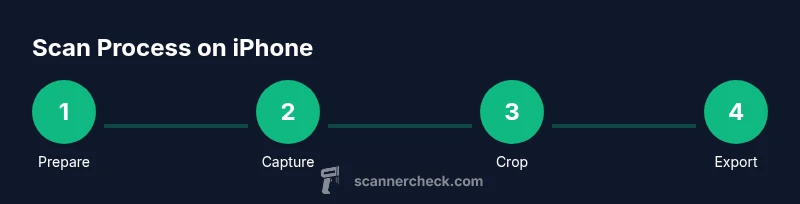
The fastest path to a clean scan is using the iPhone’s built-in scanning workflow. Start by opening Notes or Files, then use the Scan Document feature. Ensure the page is flat, adjust the corners if needed, and save or export the page as a PDF or image. This section walks you through a repeatable process so you can scan quickly, every time. Remember to name your file clearly and choose a destination that makes it easy to find later.
Using OCR: Turning Scans Into Editable Text
Optical character recognition (OCR) transforms scanned images into editable text. iPhone notes can perform OCR when you export to a compatible format, enabling copy-paste from receipts, invoices, or contracts. If you require high OCR accuracy, consider third‑party apps that specialize in OCR and include language detection. After OCR, review the extracted text for errors, especially with unusual fonts or non-Latin characters. OCR makes digital editing practical, turning static scans into actionable data.
Scanning Multi-Page Documents: PDFs, Galleries, and Organization
Multi-page documents are common in business and academia. The iPhone workflow supports stitching pages into a single PDF, which simplifies sharing and archiving. When scanning multiple pages, keep pages aligned in the same orientation and numbering. In Notes or Files, you can reorder pages, delete blank pages, and rename the PDF for easy retrieval later. Consistent naming and folder structure help you stay organized across devices.
Troubleshooting Common Scanning Problems
If a scan looks blurry or edges are cut off, try retaking the photo with steadier hands or a firmer surface. Recheck lighting to avoid glare on glossy documents. If OCR misses words, ensure the language setting matches the document and experiment with grayscale mode for higher contrast. For crowded papers or receipts with creases, consider scanning at a slightly higher brightness and then cropping out the background. Persistent issues may indicate a need for a dedicated scanning app or a device with a higher-quality camera.
Scanning Different Document Types: Receipts, Business Cards, and Contracts
Receipts are typically small and benefit from grayscale scans to reduce file size. Business cards require precise edge detection and clear text for contact information. Contracts and formal documents benefit from high-quality color or grayscale scans, preserving signatures and logos. Each document type may benefit from slightly different export options (PDF, PNG, or TIFF) and OCR configurations. Practicing with a few samples helps you tailor your workflow for predictable results.
Beyond Scanning: Saving, Sharing, and Cloud Sync
Once you’ve scanned, you can save to iCloud, Dropbox, or local storage, depending on your privacy preferences. Sharing options include email, messaging apps, or collaborative platforms. If you scan frequently, set up a naming convention and a dedicated folder in cloud storage to ensure fast retrieval. Consistent backups protect against data loss and support cross-device access.
Tools & Materials
- iPhone with charge (iOS 14+ or newer)(Ensure screen brightness is high and battery is above 50% before long scanning sessions.)
- Notes app (built-in) or Files app(Notes offers quick scans; Files provides robust export options and folders.)
- Paper documents to scan(Have a clean, flat surface and good lighting for best results.)
- Stable surface and indirect lighting(Optional but highly recommended to reduce motion and glare.)
- Optional: third-party scanning app(Use if you need advanced OCR, multi-page management, or cloud integrations.)
Steps
Estimated time: 10-25 minutes
- 1
Prepare your documents and device
Lay out documents on a clean, flat surface. Remove any folds or staples and ensure the page is perpendicular to your line of sight. Turn on good ambient lighting and avoid strong backlight that can wash out text.
Tip: A stable surface reduces blur; consider placing the phone on a small stand or tripod. - 2
Open the scanning tool on your iPhone
Open Notes or Files, then initiate the Scan Document feature. In Notes, tap the camera icon and select Scan Documents; in Files, use the scan option if available. The camera will identify document edges automatically.
Tip: If edge detection fails, move the page slightly and reframe. - 3
Capture the first page
Hold the device steady and align the page within the on-screen guides. The scan will snap automatically or allow a manual capture; ensure the edges are straight and the text is legible.
Tip: Take a quick breath to minimize hand shake before capturing. - 4
Crop, straighten, and adjust brightness
Review the detected edges, crop if needed, and adjust contrast or brightness for readability. Straighten the page to avoid angled text that complicates OCR later.
Tip: Use grayscale or black-and-white mode for better legibility on receipts. - 5
Add more pages (if needed)
Tap Add Scan to capture additional pages in the same document. Maintain consistent lighting and alignment to ensure a cohesive multi-page PDF.
Tip: Label each page mentally (or in file naming) to keep order intact. - 6
Save, name, and store the scan
Choose Save or Done, assign a clear filename, and select a destination (Notes folder or Files location). Organize into a folder structure that supports quick retrieval.
Tip: Use a naming convention like YYYYMMDD_DocType_Shop for consistency. - 7
Export as PDF or image
Export the scan as PDF for multi-page documents or as an image for simple captures. If needed, compress the file to reduce size before sharing.
Tip: PDF is ideal for archiving and OCR; images are convenient for quick sharing. - 8
Enable OCR and searchability
If OCR is available, enable it during export or use an OCR‑focused app to convert text. Review the resulting text for accuracy, especially in receipts and handwritten notes.
Tip: OCR works best with clear, high-contrast text and standard fonts. - 9
Review, organize, and share
Open the scanned file, verify page order, and store it in your preferred cloud or local location. Share via email, messaging apps, or collaboration tools as needed.
Tip: Keep backups on at least two locations to prevent data loss.
Common Questions
How do I start scanning with the iPhone built-in tools?
Open Notes, create a new note, tap the camera, and choose Scan Documents. The camera detects edges and saves the scan to the note as a PDF or image.
Open Notes, tap the camera, and choose Scan Documents. The app will detect edges and save your scan automatically.
Can I combine multiple pages into one PDF on iPhone?
Yes. When you scan multiple pages, you can save them as a single PDF and reorder or delete pages as needed.
Yes, you can save multiple scans as one PDF and adjust the order.
Do scans support OCR on iPhone?
OCR support varies by app. Notes offers basic text recognition during export; dedicated OCR apps provide more robust features and language options.
OCR is available in some apps; for best results, use a dedicated OCR tool.
Is scanning in Notes better than Files for most users?
Notes is quick and integrates with handwriting and sketches, while Files offers stronger export options and cloud storage integration. Choose based on your workflow.
Notes is fast for quick scans; Files is better for organized exports and cloud storage.
Can I email or share scans directly from iPhone?
Yes. Scans can be shared via email, messages, or cloud links directly from the scanning UI or from the saved file.
Yes, you can share scans by email, messaging, or cloud links.
What is the recommended export format for scanned documents?
PDF is typically recommended for multi-page documents and official records, while images are convenient for quick sharing.
PDF is ideal for multi-page scans; images work for quick, simple sharing.
Watch Video
Key Takeaways
- Choose built-in or third‑party apps based on your OCR needs and page count.
- Good lighting and a flat surface dramatically improve scan quality.
- Export as PDF for multi-page docs and enable OCR when possible.