Download IP Scanner: A Practical Step-by-Step Guide
Learn how to safely download IP scanner software, compare reputable options, verify integrity, install correctly, and test your network. Practical guidance from Scanner Check for IT pros, hobbyists, and general users.


With this guide, you will learn how to safely download an IP scanner, compare reputable options, and install it on your network. You’ll verify integrity, configure essential settings, and run a safe initial test. This process helps IT pros, hobbyists, and general users confidently assess network devices. By following the steps and tips, you’ll minimize risk and maximize useful data from scans.
What is an IP scanner and why download one?
An IP scanner is software that inventories devices on a local or extended network by sending probe requests across a defined IP range. It helps IT teams map active hosts, identify open ports, detect device types, and track changes over time. This visibility supports routine maintenance, security assessments, and inventory management. For many readers, the goal is to have a reliable tool that can scan a subnet, log results, and export data for audits. According to Scanner Check, understanding what’s on your network reduces blind spots and speeds up remediation when issues arise. If you’re planning to download ip scanner software, you’re taking a proactive step toward better network hygiene. The right tool also minimizes false positives and keeps your data private by offering local-only scanning options. This guide emphasizes choosing reputable options, verifying integrity, and using the tool responsibly across your home or business network. Whether you’re a tech hobbyist or an IT professional, ensuring you download from official sources matters as much as the tool’s capabilities. Scanner Check’s guidance highlights that safe acquisition starts with source verification and a clear plan for testing.
How IP scanners work: scanning methods and results interpretation
IP scanners operate by probing a range of IP addresses and collecting responses that reveal device presence, services, and characteristics. Common methods include ping sweeps to detect live hosts, ARP requests for local networks, and port scanning to determine which services are open. Some scanners also attempt OS fingerprinting or banner grabbing to identify devices and firmware versions. The results are typically displayed in a table or map, with fields like IP address, MAC address, device name, operating system, and open ports. Interpreting these results requires context: a single device showing multiple open ports may indicate a misconfiguration, while a new device appearing in the subnet could warrant an audit. For safety, always run scans on networks you own or have explicit permission to test. Scanner Check notes that ethical scanning practices protect both the network and the scanner owner, preventing legal or operational issues. When you download ip scanner software, keep expectations aligned with your environment—lightweight scans for home networks differ from comprehensive audits in enterprise settings.
How to choose a reputable IP scanner
Choosing the right IP scanner involves evaluating both capability and trust. Start by listing your needs: range size, platform compatibility (Windows, macOS, Linux), and export formats (CSV, JSON, or HTML). Look for security features such as read-only operation modes, audit logs, and the ability to run offline in a controlled environment. Open-source projects can be transparent and trusted by communities, but commercial options may offer professional support and vetted safety controls. Read user reviews and look for recent updates to ensure the tool stays compatible with current network stacks. Data privacy should be a priority: review whether the scanner stores results locally, transmits data, or integrates with cloud services. Always verify the source—it should be the official vendor site or a well-known repository. As Scanner Check emphasizes, avoid tools from unverified sources to minimize malware risk and supply-chain concerns. Finally, compare pricing models and ensure you understand licensing terms so that your choice remains sustainable over time.
Step-by-step guide to downloading, verifying, and installing
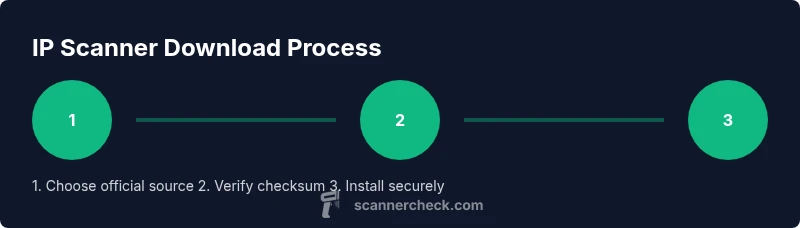
Downloading and installing an IP scanner involves several careful steps to ensure safety and correctness. This section provides a practical pathway with checks and balances. Start by selecting a reputable source and downloading the installer or portable version. Verify the download using checksums or digital signatures provided on the official site. Before running the installer, close other sensitive applications and back up important data. Install with standard user permissions first, then escalate to admin privileges if required by the installer. After installation, configure basic settings such as the target IP range, discovery method, and log location. Finally, run a controlled test on a known subnet to confirm the tool operates as expected. In some environments, you may need to disable certain firewall rules or security software temporarily to allow discovery. Always follow vendor documentation and organizational policies during this process. The goal is a clean, repeatable setup that you can reuse for future network assessments.
Common pitfalls and safety best practices
Even well-intentioned downloads can go wrong without careful caution. A frequent pitfall is downloading from third-party mirrors that lack integrity checks—stick to official pages whenever possible. Another risk is failing to validate the install or skipping checksum verification, which can expose you to tampered software. Running highly invasive scans without consent can violate policies or laws, so perform scans only on networks you control or have explicit authorization to test. When testing, use non-destructive discovery modes first, and avoid aggressive port sweeps on production networks. Keep your antivirus and OS updated, and consider a separate test environment to prevent cross-contamination. Finally, document every step, including source URLs, file hashes, and configuration settings, so you can reproduce the process in the future. The Scanner Check guidelines underscore the value of disciplined, permission-based testing and thorough record-keeping to minimize risk.
How to test and validate your IP scanner after installation
Validation starts with a small, safe scope: pick a private subnet you own and confirm that the scanner detects known devices accurately. Check that the results map to actual devices on the network, and verify that the exported data matches what you see in the live results. Run a few test scans using different discovery methods (ping, ARP, and port checks) to understand the tool’s behavior and ensure consistency. Review logs for errors or unusual activity and confirm that no sensitive information is being sent externally unless you’ve configured secure channels. If you plan to share findings, utilize anonymized data or aggregated statistics. Finally, schedule periodic re-validation as firmware updates or new devices appear in your environment. This practice, recommended by Scanner Check, maintains confidence in ongoing network visibility and security.
Tools & Materials
- Computer with internet access(Stable connection; up-to-date OS recommended)
- Official IP scanner download source(Use the vendor's site or trusted repository)
- Reliable web browser(Latest version for safety features)
- Administrative rights on the computer(Needed for installation in many environments)
- Checksum utility or digital signature verification(Helpful for integrity verification if provided)
- Up-to-date antivirus/endpoint protection(Protect against tampered installers)
- Backup plan for production networks(Have a maintenance window or lab segment ready)
- USB drive or offline installer (optional)(Useful for air-gapped environments)
Steps
Estimated time: 45-90 minutes
- 1
Define needs and scope
Identify the IP range to scan, the depth of discovery, and required output formats. Clarify permission boundaries before proceeding.
Tip: Write down the target subnet(s) and export format you’ll use for logs. - 2
Select a reputable IP scanner
Compare features such as range size, OS support, logging, and security controls. Prefer sources with active maintenance and transparent security practices.
Tip: Prioritize tools with official documentation and a clear privacy policy. - 3
Download from the official source
Navigate to the vendor’s official download page and save the installer to a known location. Avoid third-party mirrors unless they provide checksums.
Tip: Bookmark the official URL to avoid phishing pages in the future. - 4
Verify the download
Check the file’s checksum or digital signature if provided. This verifies you downloaded the authentic file.
Tip: If checksums aren’t provided, use a reputable anti-malware scan prior to opening. - 5
Install and configure
Run the installer with appropriate privileges and follow the vendor’s setup wizard. Configure basic options like range, discovery methods, and logs.
Tip: Install in a controlled environment first and avoid changing security settings broadly at once. - 6
Test safely and validate results
Perform a small test scan on a known subnet, verify results, and export a sample report. Confirm no data leaves your network unintentionally.
Tip: Document results and keep a changelog for future audits.
Common Questions
What is an IP scanner and what does it do?
An IP scanner automatically discovers devices on a network by probing a range of IP addresses. It helps identify active hosts, services, and typical device types, aiding inventory and security assessment. Use ethically and within your own network boundaries.
An IP scanner finds devices on a network by probing addresses. It helps you map who’s there and what services they offer, but you should only scan networks you own or have permission to inspect.
Is it legal to scan my own network with an IP scanner?
Yes, scanning a network you own or manage is generally permissible, but you should have written authorization for any network where you don’t have full rights. Always follow your local laws and organizational policies.
Yes, if you own the network or have explicit authorization. Always check local laws and company rules before scanning.
Do IP scanners replace vulnerability scanners?
IP scanners primarily map devices and open ports. Vulnerability scanners assess known weaknesses and misconfigurations. Use both where appropriate for comprehensive security.
IP scanners map devices and ports; vulnerability scanners check for weaknesses. They complement each other for thorough security.
How often should I update my IP scanner?
Update frequency depends on the tool and environment; aim for quarterly updates or when notable security patches are released. Enable automatic updates if you trust the vendor and monitor changelogs.
Update it quarterly or after major security patches; enable updates if you’re comfortable with the vendor’s policy.
What information does an IP scanner reveal about devices?
Most scanners report IP, hostname, MAC address, operating system hints, and a list of open ports or active services. Some may also capture firmware versions and device types.
It shows IPs, names, MACs, and open services. Some tools also guess device types or firmware.
Are free IP scanners trustworthy?
Many free tools are legitimate, but they may lack updates or robust security practices. Prefer tools with recent activity, good reviews, and transparent privacy statements. For sensitive networks, consider paid options with support.
Some free tools are trustworthy, but check for recent updates and privacy policies. For sensitive networks, paid options with support are safer.
Watch Video
Key Takeaways
- Download from official sources only.
- Verify integrity before installation.
- Run initial scans on a controlled subnet.
- Document configurations and outcomes.
- Respect permissions and privacy throughout testing.