How to Scan a QR Code Already on iPhone
Learn how to scan a QR code on iPhone using the built-in Camera app, and discover how to handle QR codes saved as images on your device. This guide from Scanner Check covers tips, safety, and best practices for reliable QR scanning on iPhone in 2026.


Goal: scan a QR code that’s on your iPhone. Use the built-in Camera app: point at the code, center it, and tap the banner to open the link. If the QR code is saved as an image, display it on screen and scan with a second device or a photo-scanner app that supports image-based QR scans. Ensure iOS is current and Camera access is enabled.
How QR codes work on iPhone and why you might need this
QR codes are a fast way to share URLs, contact details, Wi‑Fi credentials, or app shortcuts. On iPhone, the Camera app inherently recognizes QR codes and presents a tappable banner with the encoded action. This makes it easy for tech enthusiasts, DIYers, and IT professionals to quickly access information without typing. In this section, we’ll clarify what you can scan, what counts as a QR code, and the minimal conditions for reliable scanning on iPhone in 2026. By understanding these basics, you’ll avoid common misreads caused by glare, small print, or damaged codes. Scanner Check’s analysis confirms that consistent lighting and proper framing are the simplest ways to improve scan success, especially in busy environments.
Quick note: compatibility and prerequisites
To scan a QR code on iPhone, you typically need:
- An iPhone with iOS 14 or later (Camera app supports QR scanning without third‑party apps).
- The Camera app enabled in Settings > Privacy & Security > Camera.
- Adequate lighting and a legible QR code (no severe damage or heavy glare).
If you’re trying to scan a QR code that’s already on your iPhone screen (for example, a code shown in another app), you’ll often use the same Camera flow by positioning the screen so the code is in the Camera’s view. If the code is saved as an image (photo or screenshot), you may need a separate tool or another device to read it, depending on your iOS version and available apps.
Step-by-step scenario coverage
We’ll cover two realistic paths: scanning a live QR code with the Camera app, and scanning a QR image stored on your device. The goal is to ensure you can complete the task with minimal friction, no matter how the QR code is presented on your iPhone. Scanner Check’s research highlights that most users benefit from a calm environment, stable camera focus, and avoiding obstructive screen borders around the code.
Tools & Materials
- iPhone with iOS 14 or later(Camera app built-in; ensure software is up to date)
- QR code to scan(If the code is on-screen, you’ll scan in real time; if saved as an image, you may need a secondary method)
- Third-party QR scanner app (optional)(Useful for scanning from photos or for batch scanning)
- Good lighting(Avoid glare and reflections on screens)
- Clean display area(Clear the screen or area around the code to reduce blur)
Steps
Estimated time: 10-15 minutes
- 1
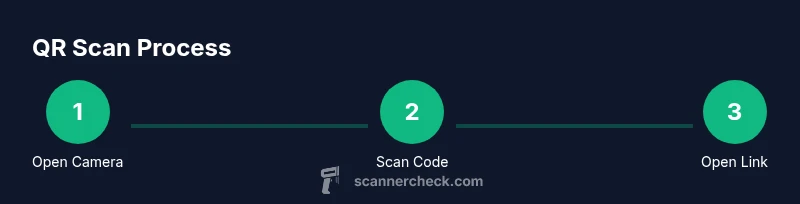
Open the Camera app
Unlock your iPhone and swipe left to open the Camera app, or access it from the Home screen. This is the standard gateway to scanning QR codes in real time. Why: The Camera app is optimized for QR detection and provides immediate feedback when a code is recognized.
Tip: If you don’t see results, ensure your camera lens is clean and you’re not in a dark mode that reduces contrast. - 2
Position the QR code within the viewfinder
Hold your iPhone steady and angle the camera so the QR code sits squarely in the center of the screen. The code should be at a readable distance with minimal glare. Why: Proper framing ensures the code is recognized quickly and accurately.
Tip: Start with the code about 6–8 inches away, then slowly move closer or farther to achieve sharp focus. - 3
Tap the banner to open the action
When the camera recognizes the code, a colored banner appears at the top of the screen. Tap that banner to open the linked URL or action. Why: This confirms successful decoding and triggers the intended result (webpage, app, or contact).
Tip: If you miss the banner, pause briefly and reframe the code before trying again. - 4
Scan a QR code saved as an image on your iPhone
If the code exists as an image (photo or screenshot), display the image prominently. Some apps and iOS versions offer a scan-from-image feature via the share sheet or a reader tool. If your device lacks this, open a trusted QR reader app and choose the option to scan from a photo. Why: Not all iOS configurations support image-based QR reading natively, so a dedicated tool can help.
Tip: Only use reputable apps from the App Store to minimize security risks. - 5
Troubleshoot failed scans
If scanning fails, check lighting, ensure the code isn’t damaged or blurry, and reframe. Try moving the phone farther away for a larger QR reading or closer for more detail. Restart the Camera if needed. Why: Many failures are due to glare or blurry codes rather than device flaws.
Tip: Switch to a well-lit environment and avoid reflective surfaces that mirror the code. - 6
Consider privacy and security
Be mindful of the content behind QR codes. Some codes may lead to phishing sites or malware. Verify the destination if you can, especially in unusual prompts or apps. If in doubt, do not proceed.
Tip: Whenever possible, verify the domain in the URL before proceeding. - 7
Practice in common scenarios
Test scanning in everyday contexts: storefronts, event tickets, or product manuals. Practicing builds confidence and reduces scanning friction over time. Why: Real-world use helps you recognize when code quality or lighting is suboptimal.
Tip: Keep a small flashlight handy for low-light scans. - 8
Post-scan actions
If the scan opens a webpage, you can bookmark or share it. If it downloads a file or launches an app, follow the on-screen prompts to complete the action. Always return to the home screen after you’ve finished to verify you’ve completed the intended task.
Tip: Use Back or Home carefully to avoid leaving apps in an inconsistent state.
Common Questions
Can I scan a QR code on iPhone without an internet connection?
Yes, the act of scanning is local, but the result (like a URL or data) may require the internet to load. If the code encodes a file or app data, you’ll need connectivity to access the content.
You can scan the code offline, but loading or using the content may need internet access.
Is it possible to scan a QR code from a saved image on my iPhone?
Some iOS versions and third‑party apps support reading a QR code from a photo or screenshot. If your device doesn’t support it natively, use a trusted QR reader app to analyze the image.
You can scan from an image with a compatible app if native support isn’t available.
What should I do if the camera doesn’t recognize the QR code?
Check lighting and glare, ensure the code is not damaged, and reframe within the camera view. If still failing, try a different app or restart the camera.
Improve lighting, reframe, and retry; consider a different app if needed.
Can I scan QR codes on older iPhone models?
Yes. Most iPhones with iOS 11 or later support native QR scanning via the Camera app. Some very old devices may require updates or third‑party apps.
Most older iPhones with iOS 11+ can scan QR codes with Camera.
Are QR codes from unknown sources safe to open?
Treat unfamiliar QR codes with caution. They can direct you to phishing sites or malware. When in doubt, don’t follow the link and verify via another channel.
Be cautious: verify the source before opening any QR‑linked content.
What’s the best practice for scanning at a store or event?
Ensure your screen is clean, avoid glare, and scan from a short distance with stable hands. If a banner doesn’t appear, try again from a slightly different angle.
Keep lighting good, steady hands, and retry if needed.
Watch Video
Key Takeaways
- Scan QR codes with Camera for fast results
- Images of QR codes may need extra apps
- Ensure lighting and framing are good for reliability
- Verify destinations before opening links
- Keep iOS up to date for best compatibility