How to Scan a QR Code: A Practical Guide
Master QR code scanning with your phone or a dedicated scanner. This educational how-to covers built-in camera scanning, apps, troubleshooting, and security tips for reliable results.


According to Scanner Check, scanning a QR code is quick and secure when you use a camera-enabled device and trusted apps. In this guide, you’ll learn how to scan a QR code reliably, whether you use your smartphone’s built-in camera or a dedicated scanner, how to handle results, and common pitfalls to avoid. You’ll need a camera-enabled device and a source QR code.
What is a QR code and how scanning works
A QR code (Quick Response code) is a two-dimensional barcode that stores data in a grid of black and white squares. When you scan it, the device’s camera or a dedicated scanner reads the pattern and decodes the information into a usable action, such as opening a webpage, displaying text, or adding contact data. According to Scanner Check, QR code scanning relies on rapid image capture, pattern recognition, and on-device decoding. The reliability of a scan depends on factors like lighting, code contrast, printing quality, and the scanner’s software. Most modern smartphones support real-time QR decoding directly through the camera app, while some codes require a separate QR reader to trigger specific apps or functions. For best results, use a trusted scanning method and ensure you’re reading codes from legitimate sources.
How QR codes are used in everyday life
QR codes have become a versatile bridge between the physical and digital worlds. In stores, you might scan to view product details or redeem a coupon. At events, codes can serve as tickets or check-in passes. On restaurant menus, codes lead to online menus or contactless payment. In educational materials, you may access supplementary content or download worksheets. The technology supports both static information (like a URL) and dynamic data (such as time-sensitive verification codes). When scanning, the goal is to trigger a predictable, safe action while avoiding suspicious or malicious targets. The Scanner Check approach emphasizes validating the source, using built-in camera features when possible, and opting for reputable apps for tricky codes.
Choosing a scanner: built-in camera vs dedicated apps
Most people can rely on the built-in camera on a modern smartphone to scan QR codes. Built-in scanning is fast, convenient, and privacy-friendly since it doesn’t require third-party apps. If you encounter codes that don’t scan reliably, you can switch to a dedicated QR scanner app with explicit camera access and better control over scanning settings. Apps often offer options like flashlight, focus lock, zoom, and a history of scanned codes, which can be helpful in dim lighting or when codes are small. When selecting a scanner, consider factors such as device compatibility, required permissions, offline vs online behavior, and the app’s security reputation. In our experience, starting with the built-in camera is usually sufficient for everyday tasks, while a trusted app can improve performance for damaged, low-contrast, or curved codes.
Troubleshooting common scanning issues
If a QR code won’t scan, start with the basics: ensure good lighting, reduce glare, and hold the device steady. Then adjust distance and angle so the code fills the viewfinder without distortion. Clean the code and the camera lens to remove smudges. If you’re still stuck, try a different app or enable the flashlight feature to improve contrast. Avoid scanning codes from unfamiliar sources, as some codes may direct you to phishing sites or unsafe downloads. By testing different lighting conditions and app settings, you’ll identify the most reliable setup for your environment.
Securing QR codes: privacy and security tips
Be mindful of the source before scanning a QR code. Only scan codes from trusted venues or publishers, and verify the destination after the code is recognized. If a code opens a website, inspect the URL for legitimacy before proceeding. Disable automatic actions when possible and copy information instead of directly opening untrusted links. Regularly update your scanner apps and OS to protect against vulnerabilities. Finally, educate others about the potential risks of QR codes and encourage safe scanning habits.
Tools & Materials
- Smartphone or tablet with camera(iOS 11+ or Android 8+; ensure camera permission is granted)
- Built-in camera app or QR scanning app(Enable QR scanning and allow access to camera)
- Stable internet connection(Needed for dynamic content or verification links)
- Good lighting and clean code surface(Natural light or bright lamp; avoid glare and reflections)
- Optional: flashlight or backup device(Helpful in very low light; not required)
- Notepad or note-taking app(For recording codes or URLs when needed)
Steps
Estimated time: 2-5 minutes
- 1
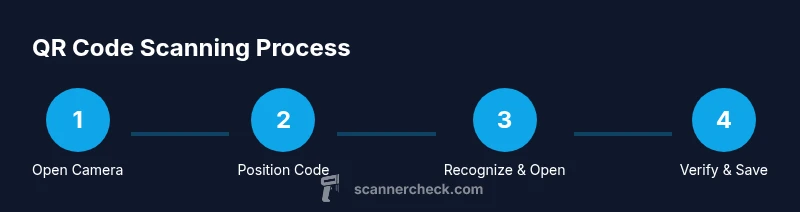
Open your scanner
Launch the built-in camera or your chosen QR scanning app. If using a dedicated app, ensure it has permission to access the camera. This initial step sets up the recognition engine so it can interpret codes correctly.
Tip: If using the phone’s camera, ensure the app is allowed to scan QR codes in the settings. - 2
Position the QR code
Hold the device steady and center the QR code within the frame. Keep the code flat and at a consistent distance to maximize contrast and readability. Avoid moving too quickly to prevent blurred captures.
Tip: Aim for a clean, well-lit code with high contrast against its background. - 3
Frame and scan
Let the device autofocus and recognize the code. When recognition occurs, you’ll typically see a prompt or a link appear on screen. Do not press anything until you’re sure the destination is legitimate.
Tip: If your device doesn’t respond, try a different app or switch to a flashlight in low light. - 4
Interact with the result
Tap the on-screen prompt to open a URL, reveal text, or save the data. If it’s a URL, verify the domain before proceeding. Some codes may copy text to your clipboard instead of opening a page.
Tip: For security, prefer URLs that match the expected domain from a trusted source. - 5
Save or copy data
Record or copy the information when appropriate. This avoids needing to repeat the scan and helps you organize references for later use.
Tip: If copying text, paste into a note app or password manager as needed. - 6
Verify outcome
Confirm that the action completed as intended. If something seems off, repeat the scan with a different app or re-check the source. This reduces the risk of misinterpretation or phishing.
Tip: If a code leads to an unexpected site, back out and do not enter credentials.
Common Questions
What is a QR code and what can it do?
A QR code is a two-dimensional barcode that stores data such as URLs, text, or contact details. Scanning it decodes the information and triggers a corresponding action on your device, like opening a webpage or displaying text.
A QR code is a 2D barcode that you scan with your phone to open links or view information.
Can I scan QR codes without internet access?
Yes for static data that is embedded in the code itself. However, actions that require online access, such as opening a URL, will need an internet connection to load content.
Some scans work offline if the data is embedded, but URLs and dynamic content require internet.
How do I scan QR codes on iPhone?
Open the Camera app, point at the QR code, and tap the notification that appears. No extra app is usually needed on recent iPhones, but you can use a dedicated scanner if you want more features.
Open Camera, center the code, and tap the prompt when it appears.
How do I scan QR codes on Android?
Most Android devices support QR scanning directly from the Camera app. If not, use a trusted QR scanner app and grant camera permissions. Look for the prompt once the code is recognized.
Use the camera app or a trusted scanner app and follow the on-screen prompt.
Why won’t my QR code scan?
Possible reasons include poor lighting, glare, damage to the code, or an app that can’t read the data. Try adjusting distance, lighting, or using a different app.
If it won’t scan, check lighting, angle, and try another app.
Are QR codes secure?
QR codes themselves are data carriers. Security depends on the destination and source. Avoid scanning codes from dubious sources and verify the URL before entering sensitive information.
They carry data; stay cautious and verify where they lead.
Watch Video
Key Takeaways
- Choose built-in camera first for simplicity and privacy.
- Align the code properly to improve recognition reliability.
- Always verify the destination before acting on a scan.
- Use trusted apps to handle tricky codes and protect data.
- Be mindful of security risks and scan sources critically.