How to Scan a QR Code on Screen: Quick Guide for 2026
Learn how to scan a QR code displayed on your screen using a phone camera, built-in scanners, or OS features. Practical steps, safety tips, and best practices.


To scan a QR code that appears on a screen, use your phone’s camera or a built-in scanner. Most modern devices support direct capture from a display, and OS features can simplify the process. This quick guide from Scanner Check covers setup, reliability tips, and safety considerations. Follow the steps to ensure a quick, accurate read.
Why scanning a QR code that's on your screen matters
If you’re wondering how to scan qr code when it's on your screen, the answer is that this is a common task in modern workflows. QR codes displayed on a monitor or laptop can link you to websites, apps, or authentication tokens, making screen-based scanning a convenient alternative to printed codes. According to Scanner Check, the reliability of on-screen scanning has improved with newer cameras and smarter software, but several factors still influence success. Brightness, glare, and the display’s color accuracy can affect readability, so you’ll want to optimize your setup before attempting a read. In practice, most users can scan with a quick alignment into the camera’s viewfinder, followed by confirming the payload. This section lays the groundwork for choosing the right method and preparing your devices for a smooth scan.
Compatibility and platform support
Most modern smartphones from both major ecosystems include a native QR scanner in the Camera app. On iOS devices, you can often scan directly from the Lock Screen or within the Camera app, while Android devices typically offer built-in scanning or an option in the Quick Settings panel. Laptops and tablets can also participate through apps or OS-level features. Scanner Check analysis shows that OS-native scanners tend to be more consistent across apps because they standardize focus and decoding, reducing variability when reading on-screen codes. If you encounter issues, switching between camera-based scanning and a built-in OS option is a good first troubleshooting step.
Methods for scanning: camera, built-in scanner, or OS feature
There are several reliable paths to scan a QR code displayed on a screen. The simplest method is using your phone’s camera app if it has a built-in QR reader. If not, a trusted third-party scanner app can fill the gap, but choose well-known, well-reviewed options. Some devices provide a native on-screen scanner that works directly through the OS, which can improve privacy by avoiding extra apps. In all cases, ensure the camera lens is clean, the screen is not rolling or flickering, and the code is clearly visible without overlays. Scanner Check notes that consistency improves when you use a method that handles screen glare and motion well.
Practical setup: preparing your screen and device
Preparation reduces the chance of reading errors. Start by increasing screen brightness to improve contrast between the QR code and its background, and position the device to minimize reflections from room lighting. Clean your camera lens with a soft, lint-free cloth. If you’re scanning from a computer or single-board display, consider turning off screen saver features that cause subtle blinking. Keep the QR code within the center of the camera’s view and avoid moving the code rapidly. A steady hand and a calm environment help the decoder lock onto the pattern quickly, yielding a reliable result.
Step-by-step quick-start reference
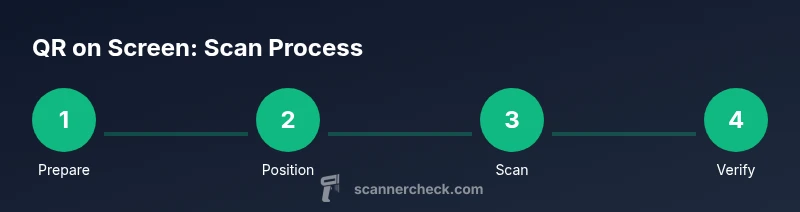
While you’ll find a detailed, step-by-step guide in the dedicated section, here’s a quick-start overview: prepare your device and screen, choose a scanning method, frame the QR code within the viewfinder, capture or confirm the result, and then verify the payload before proceeding. If you’re in a hurry, using the OS-native scanner is often the fastest option, with built-in safeguards to reduce risk. Remember to source codes from trusted providers to avoid phishing attempts.
Troubleshooting common issues
If the QR code on your screen isn’t recognized, first check brightness and glare, then adjust your distance and angle. Move slightly closer or farther away, and recalibrate the alignment so the entire code is within the scanning window. Ensure the display isn’t flickering and that there’s no overlay obstructing the code. If problems persist, switch to another method (e.g., OS-native scanner) or test with a different display to rule out hardware or software issues. A clean lens and a steady hand are often the difference between a quick read and repeated failures.
Safety and privacy considerations
Scan codes only from trusted sources and review the URL or payload before opening any link. Some codes can redirect to malicious sites or prompt unwanted actions. If you’re using third-party apps, review their privacy permissions and opt for apps with strong reputation and updated security practices. Scanner Check emphasizes using OS-native scanning when possible, as these options typically minimize data exposure and rely on system-level protections.
Best practices for reliability and accessibility
To maximize reliability, prefer high-contrast codes and ensure the screen isn’t overly bright on your eyes. If you’re scanning for accessibility, use larger QR codes when possible and enable any accessibility features your device offers (contrast adjustment, screen magnification, or color filters). In public or shared environments, consider enabling a privacy-friendly mode that prevents the scanner from saving images or data from the scan. The key is consistency: stable positioning, clear contrast, and trusted sources.
Tools & Materials
- Smartphone with camera(Ensure camera lens is clean)
- Stable surface or tripod(Keeps device steady and reduces blur)
- Screen showing the QR code(Maximize brightness and contrast; avoid overlays)
- QR scanning app or built-in scanner(On iOS use Camera; on Android use a trusted scanner or OS feature)
- Adequate ambient lighting(Glare can hinder readability; adjust room lighting)
Steps
Estimated time: 5-12 minutes
- 1
Prepare your device and screen
Clean the camera lens, ensure the screen is bright, and have the target QR code clearly visible. This reduces autofocus struggles and improves decoding accuracy.
Tip: A clean lens and bright display are the simplest win. - 2
Choose your scanning method
Decide whether to use the camera app, a dedicated QR scanner, or the OS-level scanning feature. OS-native scanners often offer faster results and better privacy.
Tip: If you’re unsure, start with the built-in OS option. - 3
Position the camera and screen
Align the camera so the QR code sits within the viewfinder. Keep the device steady and minimize reflections from ambient light.
Tip: Hold the device still for a couple of seconds after centering the code. - 4
Frame the QR code clearly
Center the QR code, ensuring the entire pattern is in focus. If the code is animated, pause the animation if possible to improve readability.
Tip: Avoid covering parts of the code with your finger. - 5
Capture and verify the result
Let the scanner decode the payload and display the result. Check the URL or content before taking any action.
Tip: Only open links from trusted sources. - 6
Troubleshoot non-reading codes
If the code isn’t read, adjust brightness or distance, try another app or OS feature, and test on a different screen.
Tip: Test with a printed QR code to rule out screen-specific issues.
Common Questions
Can any phone scan a QR code from a computer screen?
Yes, most modern smartphones can read on-screen QR codes. Results depend on display brightness, glare, and camera quality. If one method fails, try another approach or adjust distance and lighting.
Yes, most modern phones can scan on-screen codes. If it doesn’t work at first, adjust lighting or try a different method.
Why isn't my QR code reading from the screen?
Common causes are glare, low contrast, or being too far from the camera. Clean the lens, increase brightness, and reframe the code. If needed, switch to another scanning method.
Glare or too far away? Clean the lens, brighten the screen, and reframe the code.
Do I need an app to scan on-screen QR codes?
Often not. OS-native scanners on iOS and Android can read on-screen codes. Third-party apps exist but choose reputable developers and review permissions.
Usually you don’t need an app; use the OS scanner if possible.
Is scanning on-screen QR codes secure?
Scan from trusted sources only. Verify the decoded payload before opening links or providing information. Prefer OS-native solutions for fewer permissions.
Only scan trusted codes and verify the payload before acting.
Can animated QR codes be scanned?
Some readers struggle with animated codes. If possible, pause the animation or capture a static frame to read the code.
Animated codes can be tricky; try pausing the animation.
Watch Video
Key Takeaways
- Frame the code clearly and maintain stable posture.
- Prioritize OS-native scanning for privacy and reliability.
- Verify payload before acting on a scanned result.
- Adjust lighting and distance to reduce glare.
- Use trusted sources only.