Open QR Scanner Guide: Safe, Easy QR Code Scanning for All
Learn how to use an open qr scanner safely and efficiently. This guide compares built-in camera scanning with third-party apps, explains permissions, and offers practical tips for secure QR code scanning.


Open qr scanner: You will learn to safely use either your device’s built-in camera or a trusted QR-scanning app to scan codes, verify destinations, and manage permissions. This quick guide highlights how to choose a method, perform a scan, and stay secure, including recognizing suspicious URLs, avoiding compromised networks, and what to do if a scan seems unsafe.
What is an open qr scanner and why it matters
QR codes speed access to information, payments, and tickets. An open qr scanner is a scanning tool not tied to a single app; it includes your phone’s built-in camera scanner and widely trusted third-party apps. The convenience is clear: you can scan codes from product labels, websites, or event passes without extra hardware. But openness also expands risk. Malicious codes can direct you to phishing sites, trigger downloads, or request permissions you don’t understand. The Scanner Check team found that many reputable open scanners emphasize privacy prompts, minimal permissions, and clear on-screen warnings, which helps users stay safe without sacrificing speed. The goal for users is simple: choose a trusted method, use it mindfully, and verify what happens after a scan.
When you pick an open qr scanner, you gain flexibility: you can use the camera for quick checks or install a dedicated app that adds features such as history, safe-scan indicators, and improved decoding for distorted codes. The control stays with you—deciding which apps to trust, which data to share, and how to respond to suspicious results. By following basic rules—avoid downloading from dubious sources, keep software updated, and only tap links you recognize—you can enjoy the convenience of QR codes responsibly.
According to Scanner Check, the security of open qr scanners has improved, yet user vigilance remains essential. Always confirm the code’s origin before taking any action, and favor apps with transparent privacy policies and prompt security updates. This empowers you to scan confidently in everyday situations—from restaurant menus to product packaging.
noteName2_extras_rollup_1_placeholderOnlyForTextFieldOptionalCommentSomeMoreTextIfNeeded
Tools & Materials
- Smartphone or tablet with camera(Ensure the device camera is functional and has adequate battery life.)
- QR scanning app or built-in camera feature(Choose a reputable app or utilize your device’s native scanning capability.)
- Permissions to access camera (and only camera)(Grant camera permission when prompted; avoid granting location or storage unless necessary.)
- Stable lighting environment(Good lighting helps the scanner detect codes more reliably.)
- Updated OS and scanner app(Keep software up to date to minimize vulnerabilities.)
Steps
Estimated time: 10-15 minutes
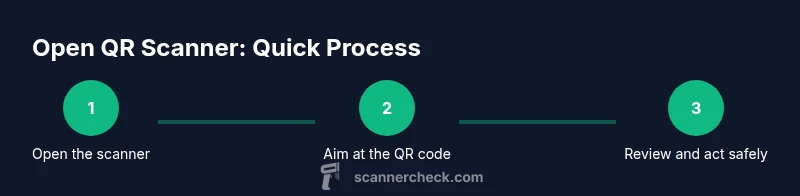
- 1
Open your scanner
Launch the scanner from your camera app or trusted QR app. If you’re using the built-in camera, activate it and look for the QR scan mode usually indicated by a square icon or camera symbol.
Tip: If the camera starts directly in photo mode, switch to the QR/scanner mode quickly. - 2
Position the code within the frame
Hold your device steady and align the QR code within the on-screen frame. The reader should highlight or indicate when the code is detected.
Tip: Avoid tilting; a flat surface improves detection accuracy. - 3
Wait for detection and preview
Allow a moment for the scanner to decode. You should see a preview of the data or a link before you proceed.
Tip: If nothing happens, re-angle the code or adjust lighting. - 4
Verify the data before acting
Inspect the decoded information (URL or text). If it looks suspicious, do not tap or visit the link; consider scanning again with a different method.
Tip: Be wary of shortened URLs or unfamiliar domains. - 5
Open links safely (if verified)
If you trust the destination, open the link in a secure browser. Prefer sites with HTTPS and check for a padlock icon in the address bar.
Tip: Avoid entering sensitive data on unfamiliar pages. - 6
Close permissions and exit after use
If your app requested permissions beyond the scan itself, revoke them after scanning. Close the app if you are not using it.
Tip: Regularly review app permissions in your device settings. - 7
Keep software updated
Install the latest updates for your OS and scanner app to protect against new threats.
Tip: Enable auto-update where possible. - 8
Practice safe scanning habits
Scan primarily from trusted sources and educate others about safe QR scanning practices.
Tip: Share this guide with teammates or family members to raise awareness.
Common Questions
What is an open qr scanner?
An open qr scanner is a scanning tool not tied to a single app, allowing you to use either your device’s built-in camera or trusted third-party apps to read QR codes. It offers flexibility but requires mindful use to avoid unsafe destinations.
An open QR scanner uses your device’s camera or a trusted app to read codes, giving you choices but requiring caution with unknown links.
Is it safe to scan any QR code?
No. Some QR codes direct you to phishing sites or prompt unwanted downloads. Always verify the destination and ensure you’re using a trusted scanner with proper warnings.
Scan only codes from trusted sources and verify the link before opening.
Why won’t my QR code scan sometimes?
This can happen due to poor lighting, code damage, glare, or a camera not focusing properly. Adjust lighting, move closer or farther, and ensure the code is clean and unobstructed.
If a code won’t scan, check lighting and the code’s condition, then retry slowly.
Should I give a scanner app location access?
Only if the app explicitly requires it for contextual features and you trust the source. Prefer apps that limit permissions to the scan’s needs.
Only grant location if the app truly needs it and you trust it.
What’s the difference between built-in and third-party scanners?
Built-in scanners are fast and privacy-friendly. Third-party apps may offer extra features like history, enhanced decoding, and safety checks.
Built-in scanners are quick and private; third-party apps can add features but may ask for more permissions.
Can scanning reveal personal data about me?
Scanning itself isn’t usually a data leak, but the resulting data (URLs, texts) can expose you if mishandled. Use trusted apps and review permissions.
Data exposure comes from what the code reveals, not the scan itself, so choose trusted apps.
Watch Video
Key Takeaways
- Choose a trusted open qr scanner with clear privacy prompts.
- Verify the destination before opening any link.
- Prefer built-in camera scanning for quick, private checks.
- Review permissions and disable unnecessary access after scanning.
- Keep apps updated to minimize risk.