Why is my Symbol scanner not working? Comprehensive Troubleshooting Guide
Urgent troubleshooting guide to fix Symbol barcode scanners not working. Step-by-step diagnostics, quick checks, and tips to restore reliable scanning.


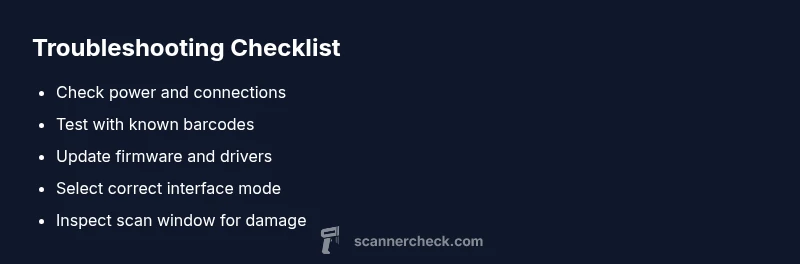
Most Symbol scanner issues come from connectivity or drivers. Start by reconnecting USB cables or re-pairing Bluetooth, then restart the host device and scan a test barcode. If it still fails, update firmware or reinstall the driver. Verify the device is enabled in your software and in the proper scanning mode.
Symptom Overview: What not working means
When a Symbol scanner stops delivering results, you may see no readout, inconsistent characters, or a beep with no data. The symptoms can be subtle and affect different apps. Before assuming hardware failure, rule out simple causes like a loose cable, a device in sleep mode, or the wrong scanning mode. This is exactly where you should start if you are asking the question why is my symbol scanner not working and want a fast, reliable fix.
Quick Checks You Can Do Right Now
Begin with the most obvious fixes. Ensure the scanner is powered on and the LED indicator is active. Check that the cable is fully seated in both the scanner and host, or that Bluetooth pairing is stable. Test with a known-good barcode up close, then move to a slightly farther distance to rule out depth issues. If the device still does not respond, proceed to the next steps in a logical sequence.
Connectivity and Power: Common Fixes
Cable quality and USB port health are frequent culprits. Try a different USB port or a direct connection to the computer, avoiding USB hubs during initial testing. For wireless models, re-pair or re-connect, and ensure the battery is charged. If the scanner only partly works with some apps, confirm that the host is not dropping the HID or virtual COM port session. These checks cover a large portion of why a Symbol scanner might not be working.
Drivers, Firmware, and Software Settings
Outdated firmware or drivers can silently cause scanning failures. Visit the vendor site to obtain the latest firmware and the corresponding driver package. Install and reboot, then re-test. Make sure the scanner interface matches your workflow: HID (keyboard wedge), USB serial, or Bluetooth; misconfiguration here often results in no data being passed to the application. Keep notes of your firmware version and driver build for future troubleshooting.
Environmental and Hardware Considerations
Environmental conditions and physical wear can affect performance. Clean the scan window and the lens to remove dust or smudges that impede laser or imaging sensors. Ensure barcodes are clean, framed properly, and have sufficient contrast. If a label is damaged or torn, the scanner may fail to read it. Finally, inspect the cordage and connector for wear that could cause intermittent data loss.
When to Seek Professional Help and Next Steps
If you have exhausted the basic checks and the scanner still does not respond reliably, it is time to escalate. Contact support with your scanner model, firmware version, and a log of steps you've taken. If the device is under warranty, coordinate an RMA if a hardware fault is suspected. Professional diagnostics can identify sensor or PCB issues that users cannot safely test at home.
Steps
Estimated time: 45-90 minutes
- 1
Confirm symptoms and prepare tools
Document the exact behavior (no readout, random characters, or intermittent reads) and gather the cable, host device, and a known-good barcode. This ensures you have everything needed for the fixes that follow.
Tip: Have a notebook handy to track LED codes or beep patterns observed during tests. - 2
Check power and physical connections
Ensure the scanner is powered if it has a separate power supply. Re-seat USB cables or re-pair Bluetooth. Try a direct USB connection to the host to rule out hub issues.
Tip: Try a different USB port on the same machine first before swapping cables. - 3
Test with a known-good barcode
Scan a standard, high-contrast barcode at close range. If it reads, slowly move away to identify depth limits or glare issues. If it fails, note the specific barcode type and size for later tests.
Tip: Use both a 1D and a 2D barcode to cover common formats. - 4
Check interface mode and software settings
Verify your scanner is configured for the correct interface (HID, USB-serial, Bluetooth). Confirm the application is listening on the correct input channel and that no custom filters block data.
Tip: Consult the software’s input settings panel to confirm the chosen scanner is active. - 5
Update firmware and drivers
Download the latest firmware from the official vendor site and install the associated drivers. Reboot the host after installation to ensure changes take effect.
Tip: Do not interrupt the update process; a failed update may require a recovery procedure. - 6
Perform a clean hardware test
After updates, retest with multiple barcodes and on different host machines if possible. Listen for the expected beeps and observe LED indicators for error codes.
Tip: A consistent failure across hosts suggests hardware issues rather than software. - 7
Reset to default settings if available
If the scanner offers a factory reset, perform it only after saving any customized configurations. This can resolve stubborn misconfigurations.
Tip: Note down any non-default settings before reset to reapply later. - 8
Escalate when needed
If issues persist after all steps, contact support with model, firmware, logs, and steps already tried. Consider a hardware RMA if under warranty.
Tip: A structured handoff with artifacts speeds up the diagnosis.
Diagnosis: Symbol scanner not responding or producing unreadable data
Possible Causes
- highPower or connection issue (loose cable, worn port, battery dead)
- mediumOutdated or corrupted drivers/firmware
- mediumIncorrect scanning mode or configuration in host software
- lowHardware fault or damaged cable/scan window
Fixes
- easyCheck power, reseat cables, replace worn cables, and verify Bluetooth is fully connected
- easyUpdate firmware and reinstall drivers; reboot host after install
- mediumVerify interface mode (HID, USB-serial, Bluetooth) and correct application settings
- mediumTest with multiple barcodes and clean the scan window; if issues persist, escalate to support
- hardIf hardware fault is suspected, consider replacement under warranty
Common Questions
Why won’t my Symbol scanner connect via USB?
USB connectivity problems are commonly caused by faulty cables, a bad USB port, or driver misconfigurations. Start by trying a different port, replacing the cable, and reinstalling the driver. Ensure the HID interface is enabled in both the scanner and the host.
Check cables and ports, then reinstall drivers and confirm the HID interface is enabled.
The scanner lights up but does not read barcodes, what should I check?
A dirty scan window, damaged scanner lens, or very faint barcodes can cause reads to fail despite power. Clean the window with a soft, lint-free cloth and verify it is free of scratches. Test with clean, high-contrast barcodes.
Clean the scan window and try clean barcodes to verify readability.
How do I update the Symbol scanner firmware?
Download the latest firmware from the vendor site or use the official updater tool. Follow the tool's prompts exactly and avoid disconnecting the device during the update. Restart the scanner after the update finishes.
Use the updater tool, don’t disconnect during the update, then reboot the scanner.
Can a faulty cable cause scanner failures?
Yes, worn or damaged cables can produce intermittent data or no data at all. Try a known-good replacement cable and avoid using extension cables during testing.
A damaged cable can cause failure; replace with a good one and test again.
Is factory reset safe for Symbol scanners?
Factory reset can restore default settings but will erase custom configurations. Backup any important profiles before resetting, then reconfigure after the reset.
Reset only if necessary and back up settings first.
When should I replace the scanner?
If troubleshooting does not resolve the issue and the device remains unreliable, consider a replacement under warranty or an upgrade to a newer model with better compatibility.
If troubleshooting fails, consider a warranty replacement.
Watch Video
Key Takeaways
- Start with power and connection checks
- Keep firmware and drivers up to date
- Verify interface mode and software settings
- Test with multiple barcodes to confirm scope
- Seek professional help when hardware faults are suspected