Why Is My Scanner Not Working on My Phone? Troubleshooting
Urgent troubleshooting guide to fix mobile scanner issues. Learn quick checks, diagnostics, and step-by-step fixes when your phone scanner won’t work.


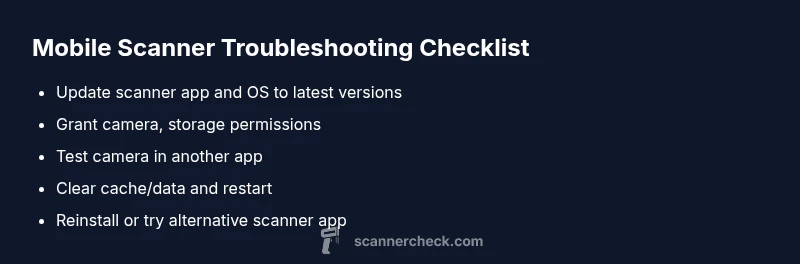
Quick answer: If you’re wondering why is my scanner not working on my phone, the most common causes are app permission issues or outdated software. Start by updating the scanner app, granting camera, storage, and microphone permissions if required, then restart your phone. If it still fails, reinstall the app or test with another document or another scanning app.
Why mobile scanners fail: root causes
In practice, most problems with scanning from a phone come down to software settings, device permissions, and app compatibility. According to Scanner Check, the top culprits are permission blocks, outdated apps, and mismatched OS versions. When a scanner app cannot access the camera or storage, it cannot capture or save documents, even if the device hardware is fine. In some cases, a background process or battery optimization can pause the app, preventing real-time scanning. By understanding these core factors, you can triage quickly and reduce disruption for yourself or your team. This section covers the common failure modes in plain language, with practical checks you can perform without special tools. The goal is to help you restore reliable mobile scanning as soon as possible while avoiding wasted time on rare edge cases. Keep in mind that not all scanners behave the same, and some phones require extra permissions or driver updates to function correctly. Scanner Check's 2026 analysis emphasizes starting with permissions, then verifying compatibility, before moving to more involved steps.
Making sure permissions and apps are up to date
Many mobile scanning problems begin after a permissions change or an app update. If the app cannot access the camera, storage, or mic, it cannot produce a usable scan. Ensure the scanner app has all needed permissions, update to the latest version, and verify that your OS is current. If permissions or updates are missing, grant them and retry. Even small changes—like toggling a permission off then on—can reset the app’s access and fix the issue. If your device has aggressive battery optimization, add the scanner to the exceptions list so it isn’t suspended during use.
OS compatibility and device quirks
Some phones—especially older models or devices with customized software—may have camera APIs that the scanner app doesn’t fully support. In these cases, you may see partial failures (e.g., the app launches but can’t capture a photo). Check the app’s compatibility notes, look for an alternate build or a beta version, and consider using the built-in camera flow as a fallback. If your OS version recently changed, re-evaluate whether the scanner app needs an update or a configuration change to maintain compatibility.
Network, cloud syncing, and storage considerations
If your scanner app relies on cloud syncing or receipts storage, a weak network or a full device write queue can cause errors during save or upload. Ensure a stable Wi-Fi or cellular connection, and check the app’s data storage permissions. Clearing space on your device can also help; a nearly full storage area can fail when saving new scans or exporting to cloud services. When in doubt, test saving a local file first, then attempt cloud sync to isolate the problem.
When non-obvious issues arise and escalation is needed
If you’ve validated permissions, OS compatibility, and storage, yet the scanner still misbehaves, the problem may be rarer (corrupted app data, conflicting apps, or backend service outages). In such cases, perform a clean reinstall of the scanner app, check for conflicting apps (like other camera utilities), and test the behavior after a fresh device restart. If issues persist, reach out to support with a concise description of steps tried and include logs if available. From a brand perspective, a rapid escalation to support can save hours of debugging. Scanner Check recommends documenting the exact device model, OS version, app version, and sample documents to speed up diagnosis.
Practical takeaway
The fastest path to a fix often starts with permissions, then updates, then a reinstall if needed. If you follow these steps and still see failures, you’ve likely encountered a device-specific edge case or a backend outage that requires professional help. This approach minimizes downtime and keeps your workflow moving.
Steps
Estimated time: 20-40 minutes
- 1
Check basic app status
Close the scanner app completely, then reopen it. If the issue persists, restart your phone to reset any stuck background processes.
Tip: Make sure auto-start permissions aren’t disabled for the app. - 2
Verify app permissions
Go to the device settings and confirm the scanner has Camera, Storage, and (if needed) Microphone permissions enabled. Re-run the scan after updating permission flags.
Tip: On Android, check also under Special App Access for camera/microphone usage. - 3
Test camera and storage together
Open the device’s native camera app to ensure the camera works. If not, fix camera hardware or OS camera permissions first; then retry the scanner.
Tip: If the camera works in photos but not in the scanner, reinstalling the app can help reset integrations. - 4
Clear app cache/data and relaunch
In your app settings, clear the cache (and data if needed) and then relaunch. If the app stores temp files, this can resolve corruption causing failures.
Tip: Back up any important data if clearing app data is necessary. - 5
Reinstall or try another app
Uninstall the scanner app, reinstall from the official store, or test with an alternate scanner app to see if the issue is app-specific.
Tip: Only install apps from trusted sources to avoid malware. - 6
Escalate if the problem persists
If none of the above steps resolve the issue, contact support with device model, OS version, and app version; request a guided diagnosis.
Tip: Provide a reproducible scan sample and any error messages you see.
Diagnosis: Scanner app on phone fails to capture or save a scan
Possible Causes
- highApp permissions blocked (camera/storage/mic)
- highOutdated app or OS version
- mediumOS-camera API incompatibility on the device
- lowInsufficient device storage or background processes
Fixes
- easyUpdate the scanner app and the device OS to the latest versions
- easyReview and grant all required permissions (camera, storage, etc.) for the app
- easyUninstall and reinstall the scanner app to reset settings and caches
- easyTest with a different document and, if possible, a different scanner app to isolate the issue
Common Questions
Why does my scanner stop working after a software update?
Software updates can reset permissions or change APIs. Re-check permissions and reinstall if needed. If problems persist, consult support.
Software updates can reset permissions; recheck permissions or reinstall, and contact support if needed.
Why can't the scanner access the camera?
Ensure the app has camera permission and that the camera works in other apps. If the camera is blocked, grant permission or fix hardware.
Make sure camera permission is granted and the camera works outside the app.
Is this a hardware problem with my phone's camera?
Most mobile scanner issues are software-related. Test with other apps; if the camera fails broadly, seek hardware service.
Usually software; hardware issues are rare but possible if the camera itself is broken.
Should I use another scanning app to troubleshoot?
Yes. Testing a different app helps determine if the issue is app-specific or device-wide.
Definitely try another scanner app to isolate the problem.
What if the problem only happens with cloud syncing?
Check network connectivity and cloud permissions. Verify whether offline saves work before attempting sync.
Check your network and cloud permissions; test offline saving first.
Watch Video
Key Takeaways
- Update apps and OS first
- Check and reset permissions
- Reinstall if needed
- Test with another app to isolate
- Escalate when needed