Can You Scan with Notes App? A Practical 2026 Guide
Discover how to scan documents using the Notes app across devices, including iPhone, iPad, and alternatives. Learn steps, OCR quality, exporting options, and best practices for reliable digital copies with practical tips from Scanner Check.


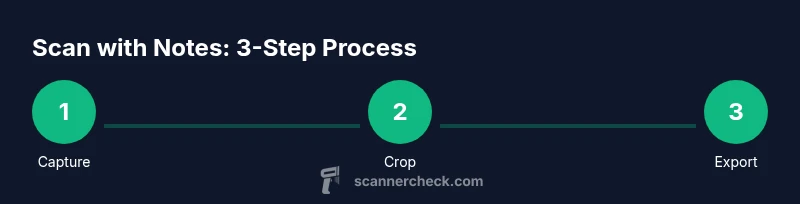
Yes — you can scan documents with the Notes app on compatible devices, especially iPhone and iPad. The built-in camera scanning captures pages, crops them, and saves as PDFs or image files inside a note. For best results, use steady hands, good lighting, and a flat document; for multi-page or advanced OCR, consider a dedicated scanner app.
Can you scan with Notes app? Practical scope and ideal use cases
If you’re asking can you scan with notes app, the straightforward answer is yes for many everyday documents. The Notes app shines for quick digitization of receipts, handwritten notes, business cards, and loose sheets you want to reference alongside other notes. It’s not a full replacement for a high-volume or legally sensitive scanner, but it excels in speed, convenience, and low-friction organization. According to Scanner Check, built-in scanning within Notes often delivers surprisingly usable OCR results for plain text, and it creates a seamless link between your scanned document and your existing notes. When speed and accessibility trump perfect fidelity, Notes scanning is a sensible first option.
Practical use cases include: keeping expense receipts organized with related notes, archiving meeting handouts from a conference, and digitizing quick handwritten reminders you want to search later. If your workflow requires heavy OCR of long contracts or legal documents, plan to verify text with a separate tool or dedicated scanner app. By understanding the strengths and limits of Notes scanning, you can decide when to rely on it and when to escalate to more robust solutions.
How the Notes scanning workflow on iPhone works in practice
The iPhone Notes scanning feature is designed to be fast and intuitive. Start by opening Notes, creating a new note, and selecting the Camera option from the toolbar. Choose Scan Documents, align the document within the viewfinder, and let the camera capture the page. You can add more pages by continuing to scan; the app automatically crops, enhances contrast, and saves the sequence as a single note page or as separate pages. After you finish, you can keep the scan in the note, rename it, or export it as a PDF or image. This workflow is particularly convenient for receipts, letters, or single-page documents that you want accessible from your device when offline. For best results, ensure a flat document surface, stable lighting, and minimal shadows.
Cross-platform scanning options: Android, Windows, and Mac equivalents
On Android devices, many note apps offer similar scan features, often accessible through the camera icon within a note. Google Keep, for example, provides a scan-to-note workflow, while Microsoft OneNote integrates with device cameras to capture and insert images or PDFs into notebooks. Mac users can leverage Notes on macOS, which synchronizes with iCloud and mirrors the iPhone experience. While features vary by platform, the core concept remains the same: you capture an image, Notes keeps it organized, and you can export as PDF for external sharing. If your environment uses multiple devices, establishing a single exporting format (PDF is a predictable choice) helps maintain consistency across team workflows.
Quality, OCR, and limitations you should know
OCR quality in notes-scanning workflows depends on lighting, document clarity, and the font used. Small or highly stylized fonts can challenge recognition accuracy, and cursive handwriting often yields imperfect text. The Notes app generally handles standard printed text well under good lighting, but it may struggle with skewed angles or glossy receipts. Scanner Check analysis shows OCR within consumer note apps improves over time, yet it’s still best treated as a helpful index rather than a perfectly accurate transcription. If you need precise text extraction, consider running the scan through a dedicated OCR tool or professional scanning software after capture.
Tips to maximize OCR quality include using a plain white background, ensuring full-page coverage within the frame, and avoiding heavily shadowed areas. For fragile documents, use a gentle, stable scanning approach to prevent damage while preserving legibility.
Organization and search: keeping scans useful over time
After you’ve scanned a document, proper naming and placement within your notes are crucial. Use clear titles like “Q2 Invoice 2026-04” and add short metadata in the note’s body to describe the document type, date, and relevant keywords. The Notes app’s search function can index text from many scanned documents if OCR recognizes it, making retrieval easier later. You can also apply simple tags within the note or create a dedicated folder structure for scans. A little upfront organization pays off when you need to locate a receipt months later or compile several related documents for a report.
As you build your scanning habit, periodically audit your notes for duplicates or outdated scans and archive old material in a dedicated archive to keep the active workspace lean.
Exporting, sharing, and ongoing workflows
Exports are a natural next step after scanning. Most Notes apps let you share or export scans as PDFs or image files, which you can attach to emails, upload to cloudStorage, or drop into a project folder. When sharing externally, consider redacting sensitive information if necessary. For workflows that require paper-to-digital continuity, keep a standard file naming convention and a central folder or note template to streamline future retrieval. If you routinely scan long documents, splitting them into multi-page PDFs often yields better readability than a single, oversized image set.
To maintain privacy, review permissions and ensure you’re sending scans only to trusted recipients or centralized storage with proper access controls.
When to upgrade to a dedicated scanner: trade-offs and decision points
Notes scanning is excellent for casual or infrequent use, but professional environments with high-volume scanning or strict accuracy requirements may benefit from dedicated scanner hardware and software. Dedicated scanners often deliver higher fidelity, better edge detection, advanced OCR, and batch processing for large document libraries. Consider upgrading if you frequently scan long PDFs, receive heavily formatted documents, or need robust redaction, password protection, and secure export options. Also, evaluate whether your current device performance is a bottleneck; fewer apps running simultaneously can improve capture speed and OCR accuracy. In short, use Notes scanning for quick, everyday captures and reserve dedicated scanners for heavy duty work.
Privacy, security, and best practices when scanning with Notes
Document security starts with device protection. Keep your device passcode enabled, enable biometric unlock where available, and ensure scans aren’t automatically uploaded to public cloud accounts. When handling sensitive documents, disable automatic cloud backups temporarily or move scanned files to a secure folder with restricted access. Regularly review app permissions and clear any redundant data caches. If you share scans via email or cloud storage, confirm the recipient list and use password-protected PDFs if sensitive information is present. Finally, keep your app updated to benefit from improved OCR and security fixes.
Authoritative sources you can consult for best practices
• Apple Support — Notes scanning guidance and exporting options. https://support.apple.com/guide/notes/guide-notes-scanning
• National Institute of Standards and Technology (NIST) — OCR and document handling standards. https://www.nist.gov
• NIH National Library of Medicine — Document imaging and accessibility resources. https://www.ncbi.nlm.nih.gov/pmc/
Tools & Materials
- Smartphone with Notes app installed(Ensure the app supports document scanning and OCR (iOS notes, Android equivalents).)
- Stable lighting(Use natural light or a consistent desk lamp to avoid glare.)
- Flat, clean document surface(Avoid wrinkled or crinkled paper; smooth surfaces improve edge detection.)
- Microfiber cleaning cloth(Lightly wipe the document to remove dust without bending.)
- Optional tripod or stand(Helps steady the camera for small or fragile pages.)
- Export medium (PDF-capable app, cloud drive)(Have options ready for saving, sharing, or archiving scans.)
Steps
Estimated time: 15-25 minutes
- 1
Open Notes and start a new scan
Launch the Notes app, create a new note, and tap the camera icon to access the Scan Documents feature. This starts the guided capture for document imaging.
Tip: If you’re scanning multiple pages, choose the 'Add' option to append pages without leaving the scan view. - 2
Align the document and capture
Position the document within the frame and hold steady as the camera captures. Ensure the text is legible and edges are fully visible.
Tip: Lock your grip or use a stable surface to reduce blur; avoid tilting the camera. - 3
Review and adjust pages
Review each captured page for clarity, cropping, and color enhancement. Re-scan any page that looks blurred or crooked.
Tip: Use automatic enhancements lightly; manual adjustment often yields crisper text. - 4
Name and organize within the note
Give the scan a descriptive title and add metadata in the note body to aid future search.
Tip: Create a naming scheme like YYYY-MM-DD_DocumentType for consistency. - 5
Export or share as PDF
Use the Share or Export option to save the scan as a PDF or image, then share with colleagues or attach to emails.
Tip: PDFs preserve layout and text better for long documents. - 6
Archive or sync copies
If you rely on cloud storage, ensure the scanned file is uploaded to a trusted folder and synchronize across devices.
Tip: Enable selective sync to reduce data usage and protect sensitive information. - 7
Review OCR results
For text-heavy documents, scan with Notes first, then run the text through an OCR checker if exact text is critical.
Tip: Manual proofreading improves accuracy for legal or financial documents. - 8
Maintain privacy
Limit exposure by turning off auto-upload when handling sensitive material and use password-protected PDFs when needed.
Tip: Regularly review app permissions and data access settings.
Common Questions
Can I scan with Notes app on Android devices?
Android devices can use note apps with built-in scanning or camera-to-note features, but the exact workflow varies by app. Some apps mimic the Notes experience, while others rely on the device camera app for document capture.
Android users can scan using compatible note apps or camera-based scanners available on the Play Store.
How accurate is OCR in Notes scanning?
OCR accuracy depends on lighting, font, and document quality. Printed, clean text in good light yields the best results; complex layouts or handwriting may require manual correction.
OCR works well for plain text but can miss details in difficult fonts or handwriting.
Can I export scanned notes as PDF?
Yes. Most Notes apps offer a PDF export option, which preserves layout and text for easy sharing or archiving.
You can export scans as PDFs and share or archive them.
Are scanned documents searchable in Notes?
Many modern notes apps index OCR text, making scanned documents searchable. Accuracy varies by document and app.
If OCR recognizes the text, you can search within notes for scanned content.
When should I use a dedicated scanner instead of Notes?
For high-volume, highly accurate, or legally sensitive scanning, a dedicated scanner with advanced OCR, redaction, and batch processing is advisable.
If you scan a lot or need precise text, consider a dedicated scanner.
How can I protect privacy when scanning?
Disable automatic cloud backups for sensitive scans, use password-protected PDFs when possible, and limit sharing to trusted recipients.
Protect scanned data by limiting cloud backups and using password protection when appropriate.
Can I edit text after scanning in Notes?
Editing the scanned text directly inside Notes is limited; you can copy text from the OCR results and paste into a text editor, but not always edit inline in the scan image.
Editing is limited; extract text and edit separately if needed.
What file formats can I get from Notes scans?
Common formats include PDF and image files (PNG/JPG). PDF is typically best for multi-page documents.
PDFs and images are typical outputs; use PDF for multi-page scans.
Watch Video
Key Takeaways
- Scan quick documents directly into Notes for fast access
- OCR quality varies; use dedicated tools for precision
- Organize scans with clear names and folder structure
- Export as PDF for reliable sharing and archiving
- Prioritize privacy when storing or sharing sensitive scans