Where is Scanner on iPhone: A Practical Guide
Discover where the iPhone stores its scanning capabilities. Learn how to scan with Notes, Camera, and Files, plus tips for quality, exporting, and third‑party options. A practical Scanner Check guide for 2026.


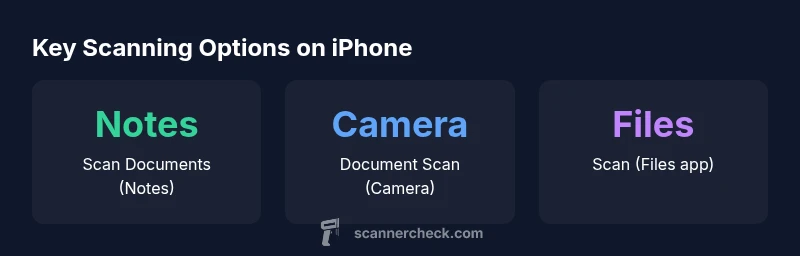
There is no single 'scanner' app on iPhone. The scanning capability lives in built‑in tools: Notes (Scan Documents), Camera (Document Scan), and the Files app (Scan). You can access scans from the Notes app, export to PDF or image, and share quickly. For more advanced features, third‑party apps extend these capabilities, but built‑in options cover most everyday needs.
Understanding where is scanner on iphone
If you’re asking where is scanner on iphone, there isn’t a single dedicated scanner app. Apple distributes scanning capabilities across several built‑in apps, with Notes, Camera, and Files providing the core functionality. These tools cover most common needs—capturing documents, saving them as PDFs or images, and sharing them with colleagues or clients. The phrase where is scanner on iphone is not a separate switch in Settings; instead you access scanning via individual apps that support document capture and export. This approach keeps scanning accessible even on devices with limited storage or older iOS builds. For power users, third‑party scanning apps can add OCR languages, batch scanning, and cloud integration, but the core workflow remains within Apple’s built‑in experiences.
The Notes app: Scan Documents
Notes is a versatile hub for scanned documents. To start a scan, open Notes, create a new note, tap the camera icon, and choose Scan Documents. You’ll see a live view; align the document, and tap to capture. You can retake pages, reorder them, and adjust corners for a clean crop. Once saved, the scan lives in the note and can be exported as a PDF, shared via Messages or Mail, or saved to Files. For long documents, you can add multiple pages in one note. If you are wondering how to quickly convert handwriting or text to searchable content, newer iOS versions support better OCR integration during export and in Notes search.
The Camera app: Document Scan
The Camera app also offers a built‑in Document Scan mode, which is particularly handy when you want to capture receipts, whiteboards, or multi‑page sheets. Open Camera, swipe to Document Scan, and place the document within the frame. The app will guide you to capture the page with proper alignment and edge detection. After capture, you can adjust color and crop before saving as an image or a PDF. This method is fast for single pages and is especially convenient if you don’t want to switch between apps. For multi‑page documents, you may prefer Notes’ multi‑page scans, but Camera Scan remains a quick standalone option.
Files app and third‑party options
The Files app also supports scanning via a dedicated Scan tool, letting you save PDFs directly into your file system. Navigate to a folder, tap the three dots or scan icon, and follow the prompts to capture a document. Scans in Files are easy to organize and back up to iCloud Drive. In addition, plenty of third‑party scanning apps exist with features like batch scanning, multi‰page exports, and cloud connectors. If you rely on OCR or require high‑volume scanning, these tools can offer advanced workflows that complement Apple’s native options.
Practical tips to improve scan quality
To ensure crisp scans, keep the document flat and well lit. Avoid strong backlighting and shadows that distort edges. Use a plain, non‑glossy background to help edge detection; if the page curls, flatten it gently. When using Notes or Camera Scan, tap the corners to adjust the scan frame and crop precisely. For color accuracy, choose a neutral light source and avoid fluorescent lighting. If readability is critical, export as PDF and run a quick text check on the resulting file.
Common pitfalls and how to fix them
One common pitfall is attempting to scan curved pages; the edge detection may miss corners. Re‑position the page and capture again, or use a tripod or stable surface. Another issue is blurry text; ensure your camera is focused, wipe the lens, and re‑scan from a steady distance. If OCR isn’t capturing text, try retaking the image with higher contrast or lighting. Finally, some users forget to organize scans after saving; set up a dedicated folder in Files or Notes to keep documents tidy and searchable.
Saving, organizing, and exporting scans
After capturing a document, decide how you want to store it. PDFs are ideal for archiving; images work well for quick sharing. In Notes, use the share option to send a scan, or in Files, move or copy the file to a project folder. If you need to archive many documents, create a consistent folder structure and apply meaningful file names. Remember that you can use iCloud Drive to sync scans across devices, making it simple to access your documents from iPhone, iPad, or Mac.
Comparison of iPhone scanning options across built‑in apps
| Feature | Access Path | Notes |
|---|---|---|
| Notes Scan | Notes app > Scan Documents | Built‑in; supports multi‑page documents |
| Camera Scan | Camera app > Document Scan | Edge detection; quick capture; export as PDF/image |
| Files Scan | Files app > Scan | Save as PDF; easy sharing & cloud backup |
Common Questions
Is there a scanner app on iPhone?
There isn't a dedicated scanner app. iPhone scanning is built into Notes, Camera, and Files. You can capture, crop, and export documents directly from these apps, and add third‑party apps if you need advanced features.
There isn’t a separate scanner app on iPhone; use Notes, Camera, or Files to scan and export documents.
How do I scan a document in Notes on iPhone?
Open Notes, create or open a note, tap the camera icon, choose Scan Documents, and follow on‑screen prompts to capture pages. You can reorder, crop, and export as a PDF.
Open Notes, tap the camera, choose Scan Documents, and follow prompts to capture and export.
Can I scan with the Camera app without Notes?
Yes. Use Camera > Document Scan to capture pages quickly. The resulting image or PDF can be saved or shared directly from the Camera workflow or saved to Files.
Yes, Camera can scan directly; export or save to Files afterward.
Does iPhone OCR work in scans?
OCR is available in newer iOS versions and improves text recognition in scanned documents. Results vary by language and font; you can search within Notes or exported PDFs in compatible apps.
OCR helps you search scanned text in newer iOS versions.
Can I save scans as PDF?
Yes. Scans from Notes, Camera, or Files can be exported as PDFs for easy sharing and archival. You can also rename files and organize them in folders.
You can export scans as PDFs and organize them in folders.
Are third‑party scanners worth it?
For advanced features like batch scanning, languages, or cloud workflows, third‑party apps can add value. They work with iPhone storage and often integrate with other apps.
If you need more features, try a trusted third‑party scanner app.
“For most users, built‑in iPhone scanning tools cover daily needs. They’re reliable, consistent, and continuously improved with each iOS release.”
Key Takeaways
- Learn there is no single iPhone scanner app; use Notes, Camera, or Files instead
- Notes provides multi‑page document scans and easy export; great for PDFs
- Camera Scan is fast for single pages and quick captures; use for on‑the‑go results
- Files Scan offers direct PDF exports and seamless cloud integration