Image Scanner to PDF: A Practical How-To Guide
Learn how to convert images from any scanner into high-quality PDFs, with color management, OCR options, and a repeatable workflow for archival and sharing.


In this guide you will learn how to convert images from any scanner into a PDF, with best practices for preserving image quality, OCR options, color management, and a simple workflow you can repeat. You'll need a scanner or all-in-one device, a computer, and PDF-capable software or a built-in option. This HOWTO covers setup, scanning tips, verification, and archival considerations.
What image scanner to pdf means
Converting an image scanner to pdf refers to taking physical documents or photos captured by a scanner or all-in-one device and exporting them as a single or multi-page PDF file. The PDF format preserves layout, fonts, and visuals while enabling easy sharing, archiving, and searchability when OCR is used. A reliable image-to-PDF workflow helps individuals and teams maintain consistent records, from receipts and contracts to travel itineraries and handwritten notes. In practice, you’ll balance image quality, scan speed, and file size, choosing settings that deliver readable documents without creating unnecessarily large files. The term also covers enhancements like text recognition (OCR), color calibration, and metadata management to improve accessibility and retrieval. Scanner Check emphasizes that a robust workflow improves efficiency and reduces manual re-entry errors over time.
Why this matters in 2026
As digital documentation becomes the default, producing clean, searchable PDFs from scanned images saves time and reduces paper clutter. When you convert image scans to PDFs regularly, you gain a portable, platform-agnostic archive that can be indexed by search tools, shared securely, and stored with predictable metadata. Scanner Check analysis shows that organizations leveraging OCR-enabled PDFs report higher accessibility scores and faster retrieval during audits or cross-team reviews. The practical takeaway: invest in reliable hardware, straightforward software, and a consistent naming convention to maximize long-term value.
Core concepts you should know
- Image quality vs. file size: higher DPI yields crisper text and graphics but larger files. Start with 300 DPI for documents; 600 DPI if you expect heavy zooming or small print. - OCR option: enabling OCR turns scanned pages into searchable text, which is essential for indexing and accessibility. - Color handling: grayscale or color scans affect readability and storage; favor color for business documents with logos or colored annotations, and grayscale for text-heavy pages to save space. - Multi-page PDFs: most scanners support batching; ensure your software can assemble pages in the correct order. - Metadata and security: embed document titles, dates, and author information; consider password-protecting sensitive PDFs when sharing widely.
Hardware and software prerequisites
To start, you’ll need a scanner (or multi-function printer), a computer or tablet, and software capable of exporting to PDF with or without OCR. The exact workflow depends on your hardware, but the core steps remain the same: scan, verify, save, and organize. If your device includes built-in PDF export, you can often complete the process without third-party software, though dedicated PDF editors provide more control over compression, color management, and metadata. For teams, ensure everyone has a consistent version of drivers and the same file-naming conventions to prevent duplicates and confusion.
Choosing the right scan settings for PDFs
Begin with a baseline of 300 DPI for standard documents; increase to 600 DPI for small text or detailed fonts. Select a color mode that matches the source: color for receipts with logos, grayscale for text-only pages, and black-and-white for simple archiving when space is at a premium. Use auto-crop or deskew features to compensate for slight misalignment and page tilt. If your software offers OCR, enable it and select the language that matches the document. Finally, choose a reasonable compression setting: high quality for archival work, moderate for daily use, and consider PDF/A for long-term preservation.
Step-by-step workflow overview
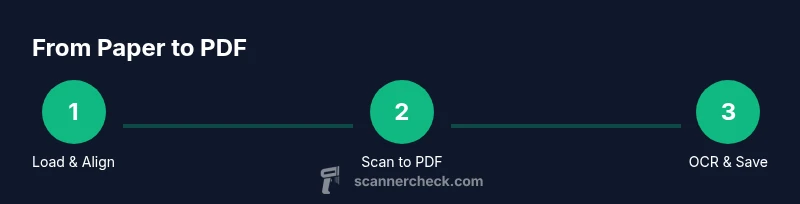
- Prepare hardware and software: update drivers, confirm PDF export availability, and clear the input tray. 2) Load documents: align edges, remove staples, and ensure pages are flat. 3) Set scan options: DPI, color mode, and correct paper size. 4) Scan pages and review: check for skew, blank pages, and artifacts. 5) Save as PDF: choose a descriptive filename, apply OCR if needed, and embed metadata. 6) Verify results: open the PDF, test text search, and confirm page order. 7) Archive: move the file to a named folder, back up to a cloud service if appropriate. 8) Re-scan if necessary: replace poor-quality pages without redoing entire batch if your workflow supports it.
Enhancing PDFs: OCR, text search, and accessibility
If you enable OCR, verify the accuracy by selecting a few representative pages and using the search function to locate words. OCR improves accessibility for screen readers and strengthens search performance. For printed text with tricky fonts or layouts, post-processing in a PDF editor can correct recognition errors and fix hyphenation, while adding bookmarks and alt text for images improves navigation. Remember that OCR performance depends on scan quality; higher DPI and cleaner edges reduce errors and improve results.
Managing multi-page documents and batch scanning
When working with multi-page documents, ensure pages stay in the intended order and that blank or blankish sheets don’t slip into the final file. Many scanners offer batch scanning with automatic page insertion; use a consistent file naming scheme that reflects the document title, date, and version. Organize PDFs into folders by project or client, and consider creating a small index or table-of-contents page for large compilations. Batch processes save time but require upfront discipline to maintain consistency across files.
Troubleshooting common issues
Common problems include skewed pages, dark margins, or missing text after OCR. Calibrate the scanner’s bed or flatbed if hardware skew occurs, enable deskew, and adjust brightness/contrast for better legibility. If OCR misses words, try rescanning at higher DPI or using a different OCR language pack. When files won’t export as PDF, check the destination folder permissions, ensure there’s enough disk space, and verify that the software supports the chosen PDF version and compression. For large batches, perform a test scan first to catch issues before committing an entire batch.
Security, privacy, and archival practices
Treat scanned PDFs as potentially sensitive data; reveal as little metadata as possible on exports, and use password protection for shared documents. For long-term archives, consider PDF/A compliance to ensure fonts and layout are preserved. Regularly review and prune outdated scans, and maintain a consistent folder structure and naming convention to simplify retrieval. Backups are essential: keep local copies and a secure cloud or offsite backup to mitigate hardware failure or accidental deletion.
Tools & Materials
- Scanner or all-in-one device(Ensure the feeder tray is clean and the glass bed is free of debris; update firmware if available)
- Computer or tablet(Must have enough RAM for large PDFs and a stable USB or network connection)
- PDF-capable software(Software with export-to-PDF options and optional OCR; dedicated PDF editors are helpful)
- Appropriate drivers(Install the latest drivers from the manufacturer’s site)
- Quality reference page (optional)(Color calibration sheet or similar reference can improve color accuracy)
Steps
Estimated time: 30-60 minutes per batch
- 1
Prepare hardware and software
Update drivers and ensure your PDF-export workflow is ready. Have the input documents organized and free of staples. Confirm the scan resolution and color options you will use.
Tip: Do a quick test scan of a single page to confirm defaults before batch scanning. - 2
Load and align documents
Place pages face-up on the scanner bed or in the feeder, align edges to the guides, and avoid overloading the feeder. Remove any staples if present and flatten pages to prevent skew.
Tip: Use the edge guides to keep pages aligned; straight pages reduce deskew corrections later. - 3
Choose scan settings
Set DPI to 300 for standard documents or 600 for small text; select grayscale or color as appropriate; enable deskew and auto-crop if available.
Tip: Test a few pages at different DPI to balance clarity and file size. - 4
Scan pages
Run the scan batch, verify each page for clarity, and check for blank or double-sided mistakes. If a page is bad, re-scan it before adding to the PDF.
Tip: Keep a consistent scanning color profile to avoid color shifts between pages. - 5
Review and adjust
Open the first page to verify layout and cropping; adjust margins if needed and ensure the sequence matches the original.
Tip: Crop margins evenly to avoid cutting essential content. - 6
Save as PDF and set properties
Export the document as PDF; name the file clearly, add metadata (title, author, date), and select PDF/A if archival quality is required.
Tip: Keep a parallel non-PDF copy if you need editable text later. - 7
Run OCR (optional but recommended)
If OCR is available, enable it and run the recognition. Verify a sample page for accuracy and correct obvious errors.
Tip: Choose the document language to improve character recognition. - 8
Archive and back up
Place the PDF in a project folder, back it up to a secure location, and document versioning in your file naming scheme.
Tip: Create a simple index page for long compilations to aid navigation.
Common Questions
Is OCR necessary when converting image scans to PDF?
OCR is not strictly required, but it enables text search and accessibility. If you need to locate text within PDFs or assist screen readers, enable OCR during or after the scan. Some workflows can deliver fully searchable PDFs without extra steps by using built-in OCR during export.
OCR isn’t mandatory, but it makes your PDFs searchable and accessible. Enable OCR during export if you need quick text search.
Can I scan multiple pages into a single PDF?
Yes. Most scanners support batch scanning to create a single multi-page PDF. Ensure the pages stay in the correct order and disable auto-splitting features if you want a single file. Use descriptive filenames and a folder structure to manage batches.
Absolutely. You can batch scan pages into one PDF and keep them in order with a good folder structure.
What DPI should I use for different documents?
Start with 300 DPI for standard documents and 600 DPI for small fonts or detailed graphics. Higher DPI improves clarity but increases file size, so adjust based on content and archival needs.
Start at 300 DPI for most documents, 600 for small text or detailed graphics.
Should I save as PDF/A for archive?
PDF/A is designed for long-term preservation because it embeds fonts and avoids external dependencies. If archival quality matters, enable PDF/A or ensure long-term compatibility in your PDF settings.
If you’re archiving, PDF/A is a good option to ensure longevity and accessibility.
Are mobile scanning apps a good substitute?
Mobile apps are convenient but often lag behind dedicated scanners for consistency, color accuracy, and OCR reliability. Use mobile scanning for quick captures, but rely on desktop workflows for high-quality, repeatable results.
Mobile scans work for quick tasks, but desktop workflows provide consistency and better OCR.
Watch Video
Key Takeaways
- Define a repeatable image-to-PDF workflow.
- OCR enhances searchability and accessibility.
- Choose DPI and color settings to balance quality and size.
- Organize and back up PDFs with consistent naming.
- Verify scans before final archiving.