iOS Document Scanning: How to Scan Documents on iPhone
Learn a reliable, step-by-step method to ios scan document on iPhone using built-in tools and trusted apps. Covers Notes, Live Text, export formats, tips, and troubleshooting.


You can ios scan document on iPhone using built-in tools (Notes and Files) or a third‑party scanner app. Start by preparing your device, capture pages in high-contrast lighting, and export as PDF or image files for sharing. This quick approach works well for receipts, contracts, and transcripts, with privacy kept on-device by default.
Why iOS document scanning matters
For anyone who regularly handles receipts, contracts, or forms, a reliable ios scan document workflow saves time and preserves legibility. According to Scanner Check, modern iOS scanning tools deliver impressive results with minimal setup, turning your iPhone into a portable document lab. When you scan with native apps, you keep the process fast, private, and accessible across devices. This section helps you understand why mobile scanning is a practical first choice for individuals and teams alike.
Choosing your scanning approach on iOS
On iOS, you have several solid options. The built-in Notes app offers a straightforward Scan Document feature that crops edges, applies perspective correction, and saves as PDF or image. Live Text (where available) can extract typed text from scans for quick copying or searching. For more control or OCR tweaks, a dedicated scanner app can provide advanced cropping, color adjustments, and batch processing. According to Scanner Check, most everyday scans are best handled with Notes or Files first, reserving third‑party apps for complex layouts or heavy OCR needs.
Image quality, lighting, and OCR considerations
Quality starts with lighting and positioning. Aim for even light across the page and avoid glare from shiny surfaces. Hold the device steady, align page edges with the frame, and capture each page cleanly. After capture, review edge detection and crop precisely to the document. If OCR results are imperfect, re-scan with brighter light, a flatter page, or a different app; some tools offer perspective correction that can dramatically improve text recognition.
Export formats and organization
Export options matter for downstream use. PDFs are ideal for multi‑page documents, keeping pages in order and making sharing easy. JPEGs can be useful for a quick image of a single page or for apps that don’t support PDFs. Name files clearly (e.g., "Invoice_April2026.pdf") and save them to a well‑organized folder in Files or a cloud drive. If you routinely scan similar documents, consider a short automation that saves to a designated folder with a standard prefix.
Troubleshooting and privacy considerations
If pages don’t detect correctly or crops look odd, reframe the shot, increase lighting, and ensure the page lies flat. Privacy-wise, on-device scanning minimizes data leaving your device; if you share, review permissions and use trusted cloud storage. As a practical takeaway, Scanner Check team notes that most users benefit from starting with the built‑in tools before trying advanced apps. Keep your device updated to access the latest scanning improvements and security patches.
Authoritative references and continuing tips
To deepen your understanding, consult official and educational resources. Apple Support provides guidance on notes-based scanning and Live Text, while standards bodies and libraries offer broader context on document handling and accessibility. This reference trio helps you stay aligned with current best practices while you build your own streamlined workflow.
Tools & Materials
- iPhone or iPad with iOS 14+(Ensure you have a recent camera and OS to access built‑in scanning features.)
- Stable surface and good lighting(Use natural light when possible; avoid strong shadows and glare.)
- Notes app (built-in) or Files app(Notes provides the Scan Document feature; Files can store PDFs.)
- Optional: third‑party scanner app(Useful for advanced cropping, OCR tuning, or batch processing.)
Steps
Estimated time: 15-25 minutes
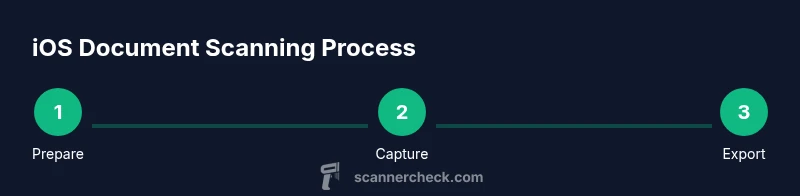
- 1
Prepare your device and environment
Clear a workspace, enable good lighting, and unlock your iPhone. A steady surface reduces camera shake and helps edge detection.
Tip: Use a stable stand or prop your phone on a stack of books for steadiness. - 2
Open the scanning interface
In Notes, create a new note and choose Scan Document. If you prefer a third‑party app, open it and select camera capture mode.
Tip: Turn off the flash if reflections spoil the page; natural light often yields better contrast. - 3
Capture each page thoughtfully
Position the page so the edges align with the on‑screen frame and press capture. For multi‑page documents, continue until all pages are captured.
Tip: Keep the page flat and do not tilt the camera; even minor skew affects OCR and readability. - 4
Review, crop, and adjust
Review each scan, crop to the edges, and adjust brightness/contrast if necessary to maximize readability.
Tip: If text remains faint, re‑scan with brighter light or use a different app with perspective correction. - 5
Save and export as PDF
Save the scans as a single PDF or as individual files. Choose Save to Files or share to cloud storage or email.
Tip: Name the document clearly (e.g., Invoice_April2026.pdf) to simplify future retrieval. - 6
Organize and share
Move the PDF into a dedicated folder, add descriptive metadata, and control sharing permissions as needed.
Tip: Consider a Shortcuts workflow to automate recurring scans and routing.
Common Questions
Can I scan documents without an internet connection on iOS?
Yes. Scanning with the built‑in Notes app or a local scanner app works offline, and the resulting PDFs or images are stored on your device until you share them. No internet connection is required for the capture stage.
You can scan offline with Notes or a local app; your files stay on the device until you share.
What formats are best for scanned documents on iOS?
PDF is typically the best choice for multi‑page documents because it preserves pages as a single file. JPEGs are useful for single‑page images.
PDF is ideal for multiple pages; JPEG is good for a quick single-page scan.
Is OCR accurate on iOS, and can I extract text from scans?
OCR on iOS is quite capable for clear, high‑contrast text. For best results, ensure good lighting and unobstructed edges; you can copy text from the scan if your app supports OCR.
OCR works well on clear text; use a supported app to copy or search the text.
Can I scan multiple pages into a single PDF on iOS?
Yes. Most iOS scanning tools support multi‑page PDFs. Just add pages to the same document before saving.
Yes, you can create one PDF from several scanned pages.
Do third-party scanner apps offer better quality than Notes?
Some third‑party apps offer advanced cropping, perspective correction, and OCR tuning. For casual use, the built‑in Notes scanner is typically sufficient.
Some apps offer extra features, but Notes often meets most needs.
How secure are scanned documents on iPhone?
Documents scanned on iPhone remain on‑device unless you choose to share them. Use strong passes and review sharing permissions for sensitive files.
Documents stay on your device unless you share them; secure as needed.
Watch Video
Key Takeaways
- Choose Notes or Live Text for quick scans
- Capture with steady hands and good lighting
- Export as PDF for easy sharing
- Organize scans with clear naming and folders