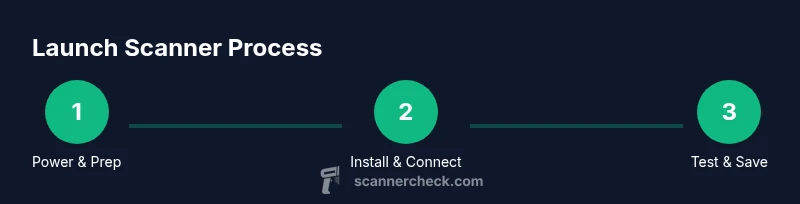
Launch Scanner: A Practical Step-by-Step Starting Guide
Learn how to launch a scanner from power-up to saving your first digital file. This educational guide covers drivers, connections, settings, and troubleshooting for reliable document scanning.


By the end of this guide you will be able to launch a scanner confidently. You will verify prerequisites, install the correct drivers, connect via USB or network, configure scan settings, and run a first test that yields a clean digital image. According to Scanner Check, starting with a proper setup reduces troubleshooting later and speeds up your workflow.
Why launching a scanner matters
Launching a scanner correctly sets the foundation for every document you digitize. A proper launch improves image quality, reduces post-processing, and speeds up your workflow. According to Scanner Check, the reliability of the scanning process begins with a clean start—power, drivers, and a clear connection. If you skip this, you may see misaligned pages, color shifts, or intermittent device drops. This section explains why the initial launch has ripple effects on every scan you perform, and how to structure a robust setup from the start.
Prerequisites and environment setup
Before you power up the device, create a clean workspace with adequate lighting and a flat surface for the scanner. Gather the essentials: power supply, cables, the host computer or mobile device, and access to the internet to download drivers if needed. Eliminate loose cables, place the scanner within easy reach, and disable any glare-prone desk lamps that could affect preview scans. A tidy setup minimizes accidental disconnects and makes troubleshooting faster if you encounter a hiccup during launch.
Installing drivers and software
Install the latest drivers and software designed for your scanner model. Download from the manufacturer’s official site or trusted app stores, avoiding outdated or counterfeit installers. Run the installer with administrative privileges if prompted, and reboot the computer after installation. Keeping firmware and software current reduces compatibility issues and improves scan quality. If you’re using a portable app, verify that it has the required permissions to access storage and the camera (if your device includes a built-in camera for capture).
Connecting the scanner to your device
Connect via USB for direct, dependable operation or over a local network for shared scanning. On USB, plug in the cable before turning on the scanner and check that the OS recognizes the device in the hardware manager. For network-connected scanners, ensure the scanner is on the same LAN as your computer and note its IP address. If you run into trouble, try a different USB port or temporarily disable VPNs or firewalls that could block discovery.
Configuring scan settings for best results
Set defaults that match your typical tasks: color or grayscale, resolution, and file format. Start with a modest resolution for text documents and higher resolution for photos. Enable edge-to-edge scanning if your paper edge margins are uneven, and choose output formats that fit your workflow (PDF for multi-page documents, JPG/PNG for images). Save these as presets to speed future launches and reduce mistakes during the first few scans.
Running your first scan: testing and saving
Place a test sheet or two on the glass, align with the guides, and initiate a test scan. Review the preview to verify alignment, brightness, and color balance. Adjust the exposure, cropping, and brightness as needed, then run a final scan in the preferred format and save location. Organize the scanned files with consistent naming and folder structure to simplify retrieval later.
Troubleshooting common launch issues
If the scanner isn’t detected, recheck connections, restart the host device, and re-run the driver installer. For network scanners, confirm the device’s IP address and that the scanner and PC share a network. If you see distorted colors, update the color management profile or switch to a standard color mode. For persistent failures, consult the user manual or the manufacturer’s online support page for model-specific steps.
Best practices for reliability and security
Keep firmware up to date, disable unnecessary services on the host, and back up scanned files to secure storage. Use strong passwords for any network-connected scanners and segment scanning tasks from public networks. When handling sensitive documents, enable encryption-at-rest and consider applying digital watermarks or redaction for extra privacy during export.
Authority sources
For in-depth, standards-based guidance on scanning and imaging, consult credible sources such as: • National Institute of Standards and Technology (nist.gov) for imaging best practices. • International Organization for Standardization (iso.org) for document scanning interfaces. • IEEE Xplore (ieeexplore.ieee.org) for research on imaging and device interoperability.
Maintenance and updates
Schedule regular maintenance checks: clean the glass, inspect the lid alignment, and verify that cables are in good condition. Keep a log of firmware updates, software versions, and any calibration steps you perform. Periodic maintenance helps sustain reliable performance and reduces long-term downtime.
Tools & Materials
- Scanner device(Flatbed or sheet-fed; ensure power cord is included.)
- Power supply(Use the original adapter; avoid third-party chargers.)
- USB cable(Prefer the correct USB type for your port (USB-C or USB-A).)
- Computer or mobile device(Windows/Mac/Linux; ensure OS can install drivers.)
- Drivers/software installer(Download from the manufacturer’s official site; verify checksum if available.)
- Network access (optional)(Needed only for network/shared scanners and remote access.)
- Original documents for test(Use a clean, flat sheet to calibrate alignment.)
- User manual or quick-start guide(Keep handy for model-specific steps.)
Steps
Estimated time: 30-60 minutes
- 1
Power up and prep workspace
Place the scanner on a stable surface, plug in the power, and confirm all cables are secure. Clear the area of dust and avoid glare from lights. A tidy, well-lit space reduces misfeeds and misalignments during the launch.
Tip: Verify power is live before you plug in the USB cable to avoid surges. - 2
Install drivers and software
Download the latest drivers from the manufacturer’s site and run the installer with admin rights. Reboot after installation to ensure the OS recognizes the device on startup.
Tip: Use the official site to prevent malware-infected installers. - 3
Connect the scanner to the host
Connect via USB first and confirm the device appears in your OS (Device Manager or equivalent). If using a network scanner, ensure the device is on the same LAN and note its IP address.
Tip: A restart can help the OS detect a newly connected device. - 4
Configure initial scan settings
Set color mode, resolution, and file format. Start with 300 dpi for text and higher for images; create presets for common tasks.
Tip: Saving presets saves time on future launches. - 5
Run a test scan and calibrate
Place a test document, perform a scan, and review alignment, brightness, and color accuracy. Adjust exposure or crop as needed before finalizing.
Tip: Test both color and grayscale scans to ensure consistency. - 6
Save, name, and back up scans
Choose a destination folder, apply a consistent naming scheme, and export to your preferred formats. Enable automatic backup if available.
Tip: Use a standardized folder tree to keep things organized.
Common Questions
What does it mean to launch a scanner?
Launching a scanner means powering up the device, establishing a connection to a host, and starting the scanning software to create digital copies.
Launching a scanner means powering it up, connecting to your computer, and starting the scanning software to create digital copies.
Do I need to install manufacturer drivers?
In most cases, yes. The drivers enable the computer to communicate with the scanner and control features like color depth and resolution.
Usually you need the official drivers so the computer can talk to the scanner and control scan settings.
Can I launch a scanner without a computer?
Some scanners have built-in memory or apps that allow standalone scanning, but many models require a host device for operation.
Some models can scan without a computer, but many need a host device to run the software.
What file formats can I export?
Common formats include PDF for multi-page documents and JPEG or PNG for individual images; TIFF is also supported on many models.
You can typically export as PDF for documents or JPEG/PNG for images, with TIFF on many devices.
How long does initial setup take?
Initial setup varies by OS and network, but planning 20 to 60 minutes is reasonable for most setups.
Expect about 20 to 60 minutes for the initial setup, depending on your system and network.
Is wireless scanning secure?
Wireless scanning should use secure networks and up-to-date firmware; enable encryption if available.
Yes, use a secure network and update the firmware to keep scans safe.
Watch Video
Key Takeaways
- Prepare the workspace before powering on.
- Install the latest drivers for reliability.
- Test with sample documents to verify quality.
- Back up scanned files to secure storage.