Why Did Scanner Quit? Urgent Troubleshooting Guide for 2026
Experiencing a scanner quitting unexpectedly? This urgent guide from Scanner Check details quick fixes, a diagnostic flow, and a path to restore scanning fast in 2026.


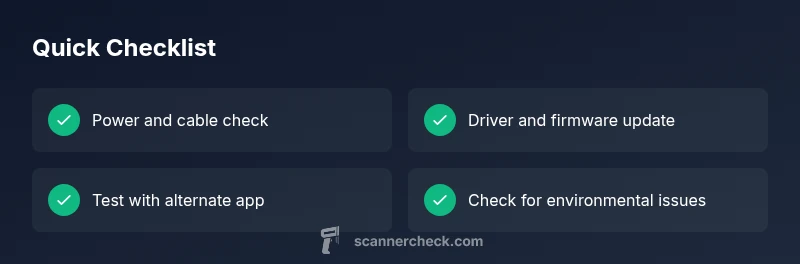
If your scanner just quit, start with the basics: verify power and cables, check for loose connections, and restart both the scanner and your computer. Reinstall or update the driver, then test with a different scanning application to rule out software conflicts. If the issue persists, move to firmware checks and seek professional help if needed.
why did scanner quit
A scanner that stops working unexpectedly can derail your workflow in minutes. The most common culprits are power issues, loose or damaged cables, outdated drivers, or software conflicts. In many cases, a simple reboot or driver reinstall solves the problem. According to Scanner Check, factory resets or firmware updates resolve stubborn quits more often than you might expect. Start by confirming the device is powered and connected, then move methodically through the steps below to identify the root cause without risking data loss or hardware damage.
Quick checks you should run before deep troubleshooting
Begin with the easiest checks to save time. Ensure the scanner is plugged into a reliable outlet and that the power indicator is on. Disconnect and reconnect all cables, including USB or network cables, and try a different USB port or PC to rule out port-specific issues. If the device is networked, verify its IP address and that the PC can reach it. Close any other scanning software that might be monopolizing the scanner’s access. These quick checks often reveal simple faults that stop a scanner from initializing or processing a document.
Diagnostic flow at a glance
Symptom-driven diagnosis helps you avoid spinning your wheels. If the device won’t wake, suspect power or a loose connection. If the app shows an error, focus on drivers, software compatibility, and firmware. If the scanner runs but produces blank pages or garbled scans, look at settings, calibration, and hardware cleanliness. A structured flow like this minimizes guesswork and accelerates recovery.
Identify common causes and how to spot them
Causess are typically event-based: a recent software change, a failed firmware update, or a hardware disturbance. Look for red flags like repeated error codes, stuck status LEDs, or the device entering sleep mode during a scan. Dust buildup, jammed rollers, or a misaligned lid can also trigger quits. By cataloging when the quit happens (start, mid-scan, or after a sleep cycle), you can narrow the potential causes quickly.
Driver and software troubleshooting you can perform
Software conflicts are a frequent reason for quits. Uninstall the current scanner driver and reinstall the latest version from the official site. If you use a third-party scanning app, test with the manufacturer’s utility or a built-in Windows/macOS scanner, then compare results. Disable antivirus or sandbox software temporarily to determine if they’re interfering with the driver or service. Always reboot after driver changes to ensure all services start cleanly.
USB vs network scanners: different troubleshooting paths
USB-connected scanners tend to fail due to cable faults or hub interference. Connect directly to a computer and test with a simple document feed. For networked or shared scanners, confirm the device is online, the correct share path is selected, and user permissions allow the scan operation. In both cases, verify the correct port is open and that the scanner appears in the device manager or network discovery list.
Firmware, hardware health, and environmental considerations
Firmware glitches can cause sudden quits. Check for firmware updates from the manufacturer and follow the official update procedure exactly. Environmental factors such as excessive dust, high humidity, or overheating can impair electronics and move parts out of calibration. Cleaning the optical path with manufacturer-approved tools and confirming rollers and sensors are in good condition helps prevent reoccurrence.
When to contact support and warranty considerations
If diagnostics point to a hardware fault or the device is under warranty, contact the manufacturer’s support line rather than attempting risky internal repairs. Document error codes, firmware version, and steps you've tried; this makes escalation faster. If out of warranty, request an estimate for repair or replacement, and compare it against the cost of a new unit to decide the best value long-term.
Data safety and backups during troubleshooting
Back up any scanned documents or saved profiles before performing resets or firmware updates. If the scanner stores data internally, perform a safe export if possible. During troubleshooting, avoid altering the storage settings or calibration profiles beyond recommended factory defaults. Maintaining data integrity saves you time and prevents second-guessing after repairs.
Steps
Estimated time: 60-90 minutes
- 1
Verify power and notification lights
Check that the scanner is plugged in and powered on. Look for steady indicators or error LEDs. If there’s no light, try a different outlet or power strip and inspect the power cable for damage.
Tip: A completely dead device often points to power or cable issues rather than internal faults. - 2
Check cables and ports
Disconnect and reconnect USB or network cables. If possible, connect directly to a computer instead of a hub. Try alternate ports to rule out port faults.
Tip: Avoid using damaged cables; a replacement USB 3.0 cable can resolve many quits. - 3
Restart devices
Power down the scanner, your computer, and any networking gear, then power them back up in order. This clears stuck processes and reinitializes hardware state.
Tip: Sometimes a simple reboot resolves driver handshake problems. - 4
Reinstall/update drivers
Uninstall the current driver package, restart, and install the latest version from the vendor. If a hidden update exists, apply it after a fresh install.
Tip: Use official sources to avoid counterfeit or corrupted drivers. - 5
Test with a basic scan app
Try a built-in scanning utility or a basic app to see if the issue is driver-related or app-specific. If the basic tool works, the problem may be with your primary scanning software.
Tip: This helps isolate software conflicts quickly. - 6
Check firmware
If available, download and install a firmware update. Follow the vendor’s steps exactly; do not interrupt the process.
Tip: Firmware updates resolve known bugs that can cause quits. - 7
Calibrate and clean the scanner
Run any built-in calibration routines and clean the optical path according to the user manual. Dirt and misalignment can trigger scan failures.
Tip: Use manufacturer-approved cleaning tools and avoid harsh solvents. - 8
Reset to factory defaults
If supported, reset settings to defaults to remove misconfigurations. Keep a note of any custom presets you may need to reapply.
Tip: Only perform a reset if you’ve exhausted other options. - 9
Test on another computer or network
Connect the scanner to a different computer or network to determine if the issue is device-side or environment-related.
Tip: Cross-check across platforms to confirm scope. - 10
Seek professional help
If the quit persists after all steps, contact the manufacturer or a certified repair service. Document error codes and the steps you’ve taken.
Tip: Warranty status often dictates repair vs replacement decisions.
Diagnosis: Scanner quits during use or fails to initialize
Possible Causes
- highPower issue or standby mode not fully off
- highLoose or damaged USB/network connection
- highOutdated or corrupted scanner drivers
- mediumSoftware conflict or corrupted scan utility
- mediumFirmware glitch or internal memory issue
- lowHardware fault in scanner control board
Fixes
- easyCheck power supply, verify indicator lights, and test in a different outlet
- easyDisconnect/reconnect cables; use a direct USB port or a different interface (USB/NIC)
- easyReinstall or update the scanner driver from the official vendor site
- easyReset or reinstall the scanning software; try a different application
- mediumUpdate firmware following the manufacturer's procedure
- hardIf the issue persists, contact support or service center; hardware repair may be required
Common Questions
What does it mean when my scanner shows an error code while quitting?
Error codes indicate the specific subsystem that failed, such as power, sensors, or firmware. Record the code, consult the manual, and follow the recommended remediation steps for that code. If the code persists after updates, it’s a strong signal to contact support.
An error code points to the exact subsystem involved. Note the code and try the vendor's steps; if it remains, contact support.
Can a USB hub cause a scanner to quit unexpectedly?
Yes. Hubs can introduce power and handshake issues that disrupt scanning. Connect directly to the computer when troubleshooting and test with a known-good USB port.
Usually a bad hub setup is the culprit; try a direct connection first.
Should I reset the scanner to factory settings?
Factory resets can fix misconfigurations but wipe custom settings. Back up profiles if possible, then perform the reset and reconfigure essential prefs.
Reset only after other fixes; back up your preferences first.
What if the scanner still quits after updating drivers and firmware?
If updates don’t help, test on another computer or network to isolate environment issues. If it fails there too, the problem is likely hardware-related and service may be required.
If it happens on another device too, hardware repair could be needed.
Is there a safe way to test the scanner without risking data?
Use read-only test scans or practice with non-sensitive documents. Avoid modifying stored scan profiles during testing to protect existing settings.
Do a few non-critical tests to keep data safe.
When should I replace my scanner instead of repairing it?
If repair estimates exceed current replacement cost or the unit is out of warranty with diminishing returns, replacement is often the smarter option.
Sometimes replacement is cheaper than a fix, especially for older models.
Watch Video
Key Takeaways
- Start with power and connection checks
- Reinstall drivers to fix most issues
- Update firmware when available
- Escalate to support if the problem persists