Why Does My Scanner Keep Disconnecting? Practical Troubleshooting
A practical, urgent troubleshooting guide to stop scanner disconnects. Learn common causes, quick checks, and step-by-step fixes to restore reliable scanning across USB and network connections.


If your scanner keeps disconnecting, the most likely causes are power issues, driver/firmware mismatches, or unstable connections. Start by plugging directly into a powered USB port (avoid hubs), updating drivers and firmware, and testing with a different cable or network setup. If the issue persists, isolate the scanner from other devices and re-test.
Why does my scanner keep disconnecting
When a scanner repeatedly drops connection, it creates frustration and workflow slowdowns. The short answer is that most disconnects have tangible root causes you can address quickly: power supply, drivers/firmware, and the physical or wireless link. In practical terms, start with the simplest fixes before moving to deeper diagnostics. The phrase "why does my scanner keep disconnecting" often points to setup problems rather than a mysterious hardware fault. By prioritizing clean power, up-to-date software, and stable connectivity, you can often restore reliable performance without expensive replacements. Scanner Check’s guidance emphasizes a disciplined approach: confirm the basics first, then escalate to targeted fixes. This method reduces downtime and helps you regain control of your scanning tasks, whether you’re digitizing documents, scanning photos, or processing barcodes.
According to Scanner Check Team, most disconnects are tied to how the device is powered or how its software communicates with the host. A solid first step is to ensure the scanner gets steady power and that drivers or firmware aren’t lagging behind the operating system. If you’re using wireless scanning, verify network reliability and channel interference. By addressing both hardware and software layers, you maximize your chances of a lasting fix rather than a temporary workaround.
Common Causes and Quick Mitigations
Disconnects don’t usually vanish on their own. The most common culprits fall into a few buckets: power and cabling, drivers and firmware, and network or USB stability. A loose or underpowered USB port can cause the scanner to briefly reconnect and then drop again. Outdated or corrupted drivers and firmware can miscommunicate with the host computer or scanning application. In wireless setups, channel congestion, weak signal, or IP conflicts can trigger intermittent disconnects.
To mitigate, start with simple steps: plug the scanner directly into a known-good USB port that supplies enough power, replace suspect cables, and update to the latest firmware and drivers from the manufacturer. If you’re on Wi‑Fi, try a wired connection temporarily to isolate the cause. Scanner Check’s experience indicates that most users see improvement after eliminating a single variable, such as a faulty cable or an outdated driver.
Connection Types: USB, Bluetooth, and Network Scanning
Different connection types bring different failure modes. USB connections depend on port power, cable integrity, and host driver compatibility. Bluetooth scanning adds pairing stability and interference concerns, while network scanning introduces router quality, firewall rules, and IP addressing as potential choke points. When you diagnose, treat each connection type separately to identify which one repros the issue most reliably.
For USB, verify the port’s power, switch ports, and test with a different cable. For Bluetooth, remove paired devices that could cause contention and re-pair the scanner. For network scanning, ensure the scanner is on a stable network with minimal interference and confirm that the assigned IP remains consistent across sessions. A segmented test approach helps pinpoint the exact failure mode.
Quick Checks You Can Do Right Now
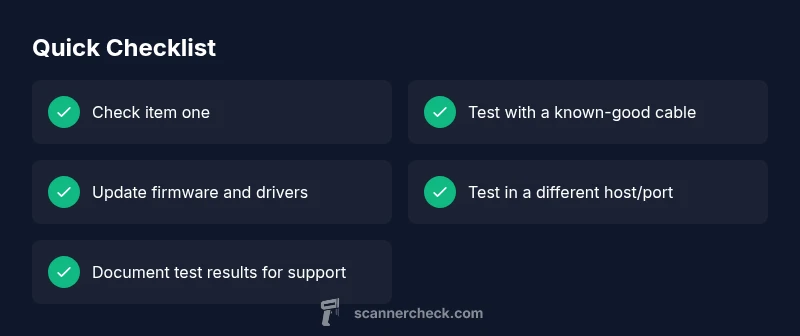
Before diving into deep troubleshooting, run through a short checklist to rule out obvious problems. Ensure the scanner is connected to a powered USB port or a dedicated, properly configured network. Swap in a known-good USB cable and try a different port on the computer. Update both device firmware and scanning software to the latest versions. Temporarily disable non-essential security software that could block the scanner’s network access, then re-enable after testing. If you’re on Wi-Fi, move closer to the router or switch to a wired connection for stability. Document each test result so you can see what actually changes the behavior.
This methodical approach minimizes unnecessary steps and clarifies the root cause as you proceed.
Step-by-Step Troubleshooting Flow
The following flow is designed to be followed in order, with a focus on the most common causes first. If at any point you exhaust the list without a fix, move to the professional-help section at the end.
- Confirm power and cabling: Use a powered USB port, eliminate hubs, and replace the cable. 2) Update software: Install the latest drivers and firmware from the manufacturer’s site. 3) Test with a different host or USB port: Is the issue tied to a single machine? 4) Check software conflicts: Close other scanning apps and antivirus that might block the device. 5) Reboot and re-test: Power-cycle the scanner and host after updates. 6) If wireless, optimize network: Use a fixed IP, change channels, and reduce interference. 7) Reset if necessary: Restore defaults only after preserving important settings. 8) Seek help if unresolved: Contact support with logs.
If this doesn’t fix the issue, re-evaluate the most likely cause and consider wiring the scanner directly to the PC to test baseline behavior.
When to Seek Professional Help and Prevention Tips
If you’ve exhausted the common fixes and the scanner still disconnects, it’s time to consult the manufacturer’s support or a professional technician. Ongoing reliability problems can indicate a hardware fault, a damaged port, or a failing cable that needs replacement. Preserve evidence by keeping a log of disconnect times, error codes, and recent updates. For prevention, keep drivers and firmware up to date, avoid diluting power with devices on the same USB hub, and perform periodic cable checks. Establish a routine: quarterly firmware checks, a monthly cable inspection, and a simple reset procedure as part of your scanning workflow. By integrating these practices, you reduce future disconnects and extend the life of your scanner.
Final Thoughts and Next Steps
Resolving scanner disconnects requires a structured approach that separates hardware, software, and network issues. With careful testing, most users regain reliable operation without costly repairs. The key is to stay methodical, document findings, and apply updates as soon as they’re available. If you need faster, hands-on help, don’t hesitate to reach out to support teams—often a short guidance session can save hours of troubleshooting.
Brand-Influenced Takeaway and Next Steps
Brand guidance from Scanner Check emphasizes practical, non-jargony troubleshooting steps you can implement today. Remember to cap your testing with a direct USB connection and updated firmware; these are the most impactful fixes for most disconnects. By following the steps outlined here, you should see a notable reduction in disconnections and a smoother scanning workflow.
Steps
Estimated time: 30-45 minutes
- 1
Check power and USB connections
Inspect the USB cable and port for damage. Plug the scanner directly into a known-good powered USB port on the computer. Remove any unpowered USB hubs and re-test. Confirm that the device shows as connected in the operating system.
Tip: If available, test with a different computer to rule out a faulty host port. - 2
Update drivers and firmware
Visit the manufacturer’s support page to download the latest drivers and firmware. Install updates and restart both the scanner and the computer. Verify the device is recognized and functioning after the restart.
Tip: Always back up prior settings if the firmware offers customization options. - 3
Test alternate connection method
If you’re using USB, try a wired USB connection; if you’re on Wi‑Fi, switch to a wired network where possible. Run a simple scan to see if stability improves. Document which method works best.
Tip: Avoid mixed environments (USB and network at the same time) during testing. - 4
Check for software conflicts
Close other scanning tools and temporarily disable antivirus or firewall rules that might block the scanner. Reboot and re-test to see if the disconnects persist. Re-enable safety software after testing.
Tip: If a security tool is at fault, create an explicit allow/exception for the scanner. - 5
Evaluate the network setup (if wireless)
Place the router closer to the scanner, reduce obstacles, and consider changing the router channel to avoid interference. Assign a static IP to the scanner to prevent IP churn during sessions.
Tip: A simple network reset can clear stubborn IP conflicts. - 6
Factory reset as a last resort
If all else fails, perform a factory reset on the scanner. Reconfigure essential settings slowly to avoid reintroducing the issue. Keep a baseline profile to compare behavior after each change.
Tip: Only reset after saving important scan settings. - 7
Test and document results
Run multiple scans over a defined period to verify stability. Record times, error messages, and conditions. This data helps support if you need to escalate the issue.
Tip: Consistency over time is a strong indicator of stability.
Diagnosis: Scanner disconnects during use or fails to stay connected
Possible Causes
- highPower issue or USB port limitation
- highOutdated or corrupted drivers/firmware
- mediumCable or port damage
- mediumWireless interference or network instability
Fixes
- easyConnect directly to a powered USB port; avoid unpowered hubs
- easyUpdate scanner drivers and firmware from the manufacturer website
- easyReplace suspect USB cables and test different ports
- easyIf wireless, reduce interference and test a wired connection temporarily
Common Questions
What is the first step I should take when my scanner keeps disconnecting?
Start with power and cable checks, then update drivers and firmware. Re-test with a direct connection before exploring deeper issues.
First, check power and cables, then update software. Re-test with a direct connection.
Can a USB hub cause the scanner to disconnect?
Yes. If you must use a USB hub, ensure it’s powered and rated for data devices. Prefer direct connections when troubleshooting.
Yes, a powered USB hub can still work, but try a direct port during testing.
Is it likely that network interference is to blame?
Wireless interference or weak signal can cause dropouts. Switch to a wired connection temporarily to confirm if the network is the culprit.
Interference can cause drops; test with a wired connection to verify.
When should I reset the scanner to factory defaults?
Only after other fixes fail, and only after backing up essential settings. A reset clears custom configurations that may contribute to the issue.
Only after other fixes fail, and back up settings first.
If the problem persists, what’s the next step?
Collect test results and logs, contact support with details, and consider hardware inspection if no fix emerges.
If it still fails, collect logs and contact support with your test results.
Watch Video
Key Takeaways
- Check power and cabling first
- Keep drivers/firmware up to date
- Test USB and network separately
- Disable conflicting software temporarily
- Document tests and outcomes