How to Disable a Scanner on Wi-Fi: A Practical Guide
Learn practical, safe methods to disable a wireless scanner on your Wi‑Fi network. This step-by-step guide covers device-level and router-level approaches, verification, and best practices for secure, clutter-free networks.


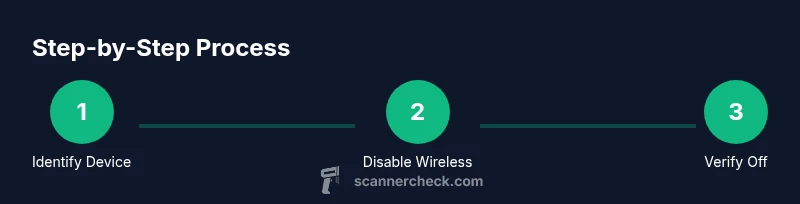
By the end of this guide, you will have disabled the scanner’s Wi‑Fi access or blocked it from your network, preventing wireless scanning. You’ll learn direct device methods (from the scanner itself) and router-based options, plus verification steps to ensure the scanner is no longer discoverable on your network. This quick answer outlines practical steps and safety cautions for home or office networks.
Why disabling a scanner on Wi-Fi matters
Wireless scanners can linger on networks, exposing sensitive documents to accidental interception and wasting bandwidth. If the goal is privacy, security, or simply reducing network noise, disabling the scanner’s Wi‑Fi access is a prudent first step. According to Scanner Check, many networked scanners remain visible on home or small business networks even after firmware updates, creating an hidden attack surface that attackers might exploit. By removing the wireless path, you reduce risk and simplify network management. This guide focuses on two safe routes: adjust settings directly on the scanner (device-level) or use your router to restrict that device at the network edge. You’ll also learn how to verify the scanner is no longer discoverable using common discovery tools and router admin pages. Keep in mind that exact steps depend on your model, so consult the device manual if you’re unsure while prioritizing security.
Before you start: prerequisites and safety
Before you touch any settings, gather essentials and consider safety. You’ll need access to the scanner’s control panel or web interface, a computer or mobile device on the same network, and your router’s admin credentials. If the scanner is part of a multi-function device, you may need to disable wireless for the whole unit rather than individual functions. Note down the scanner’s MAC address so you can recognize it on the network later. This is also a good time to back up current configurations in case you want to revert. If you rely on cloud-based scan-to-email or cloud storage, be aware that disabling Wi‑Fi may impact those features.
Two main routes to disable the scanner on Wi‑Fi
There are two practical approaches. Route A focuses on the device itself: turning off or restricting its wireless radio from the scanner’s settings. Route B uses your network edge: blocking the device on the router (via MAC filtering, firewall rules, or a guest network). Each route has pros and cons. Device-level changes tend to be straightforward and quick, but may affect other wireless features on the device. Router-level controls can be more scalable and safer for shared networks, but may require more steps to locate the right settings.
Method A: disable directly on the scanner (device-level)
If your scanner has a dedicated display or a web interface, follow these steps to disable Wi‑Fi directly. First, locate the wireless or network settings. Turn off the wireless radio or select a setting like 'Disable wireless' or 'Wi‑Fi off'. Save changes and allow the device to reboot if prompted. After reboot, recheck the scanner’s network status to confirm the wireless is off. If the device supports multiple networks (e.g., Wi‑Fi and Ethernet), ensure Ethernet is used for any required functionality; wireless access should be disabled entirely. If you can’t find a direct off switch, consult the manual for steps to disable the wireless profile or remove the scanner from the Wi‑Fi network.
Method B: disable at the router (network-level)
Router-level controls can block the scanner from your entire network even if it tries to reconnect. Access the router’s admin interface, usually via a browser using the gateway IP. Find the connected devices list and identify the scanner by its MAC address or hostname. Apply a block using MAC filtering, a firewall rule, or by placing the device on a dedicated blocklist. For added safety, consider creating a separate VLAN or guest network and moving the scanner there, then block that network from access to sensitive devices. After saving changes, monitor the router’s client list to ensure the scanner no longer appears.
Verify results: confirm the scanner is no longer discoverable
Verification is essential. Re-scan your network from a trusted device using a network discovery tool or the router’s admin pages. Look for the scanner’s MAC address, hostname, or service ports. If it still appears, repeat the steps or consider rebooting both the scanner and the router. Ensure any cloud-based scan features are disabled on devices that remain on the network. Documentation of the changes helps you revert later if needed.
Troubleshooting common issues
If the scanner remains visible, double-check the MAC address you blocked and repeat the router changes. Some devices have dual radios or automated reconnect behavior that bypasses simple filters. In enterprise environments, consult the IT team or the device’s support for firmware constraints. If you need to temporarily re-enable wireless for maintenance, be sure to apply changes again afterwards. Always maintain a secure admin password for your router and monitor for unexpected new devices.
Best practices and ongoing maintenance
Periodic audits of your network devices help keep your Wi‑Fi clean. Schedule quarterly checks of connected devices and review any new firmware updates for your scanner or router. Maintain separate networks for printers and scanners where feasible, and disable features you don’t use (like WPS) to minimize risks. Document any changes and keep a recovery plan in case you need to revert the disable actions later.
Tools & Materials
- Scanner device with admin access(Have local access to the device's control panel or web interface)
- Computer or mobile device(Connected to the same network or directly to the device for setup)
- Router admin access(Credentials to login and apply MAC filtering or firewall rules)
- Scanner MAC address(Found in device label or network settings)
- Network discovery tool(For verification (e.g., built-in router UI or a smartphone app))
Steps
Estimated time: 25-40 minutes
- 1
Access scanner interface
Open the scanner’s control panel or web interface from a connected computer. Locate the network or wireless settings so you can disable Wi‑Fi directly on the device.
Tip: If you can’t find the option, search the manual for 'wireless off' or 'disable wireless'. - 2
Turn off the wireless radio
In the scanner’s Wi‑Fi settings, select the option to disable wireless or turn off the radio completely. Save changes and reboot the device if prompted.
Tip: Note the exact wording used by your model to prevent confusion later. - 3
Verify device no longer broadcasts
After reboot, use a network discovery tool to confirm the scanner does not appear as a connected device or accessible service.
Tip: If it still appears, retry step 2 or proceed to router-based blocking. - 4
Block the device at the router (optional but recommended)
If the scanner still reconnects, log into the router, find the MAC address, and add a MAC filter or firewall rule to block it.
Tip: Place the scanner on a separate guest network if you want to isolate it without impacting other devices. - 5
Test printing/scanning flow
Attempt a test scan or print to ensure the device functions over wired connections if needed, or that wireless functions are indeed disabled.
Tip: Ensure cloud-based features aren’t silently re-enabling wireless in the background. - 6
Document changes
Record the steps you took and the device’s current status, so you can revert if necessary.
Tip: Include date, device model, and UI paths for future reference.
Common Questions
Can I disable Wi‑Fi on a scanner without losing other features?
Yes. You can disable wireless on the scanner and still use USB or Ethernet for local scanning. Some cloud features may stop working remotely, so plan accordingly.
Yes. You can disable Wi‑Fi on the scanner and still use it via USB or Ethernet, though cloud features may be affected.
What if the scanner is part of a multifunction printer?
Disable wireless from the printer’s control panel or web UI, or block the device at the router. If needed, separate network segments can help maintain access for other functions.
Disable wireless from the printer’s panel or router, and consider a separate network segment for the printer portion.
Will blocking the device affect other network devices?
Blocking targets only the scanner’s access. Other devices remain unaffected unless they share the same blocked MAC or network rule.
Blocking the scanner’s access should not affect other devices if done per-device.
How can I verify the scanner is truly disabled?
Re-scan your network and look for the scanner’s MAC address or hostname. If it doesn’t appear, the disable was successful.
Rescan the network and confirm the scanner no longer appears.
Are there security risks in disabling wireless completely?
Disabling wireless reduces exposure to wireless threats, but ensure you keep strong router/admin credentials and avoid leaving open guest networks.
Disabling wireless reduces risk, just keep strong credentials and manage networks carefully.
What should I do if I forget the router settings?
If you lose access, reset the router to factory defaults and reconfigure security settings. Always back up credentials.
If you forget, reset the router and reconfigure security; keep a record of credentials.
Watch Video
Key Takeaways
- Disable on-device first to simplify control
- Router-level blocking adds security and scalability
- Verify with network scans to confirm removal
- Document changes for easy rollback
- Regularly audit network devices to maintain security