HP Printer and Scanner Doctor: Troubleshoot & Fix
Urgent, practical troubleshooting guide for HP printer and scanner issues. Learn how to diagnose driver, firmware, connectivity, and hardware problems with a step-by-step approach from Scanner Check.


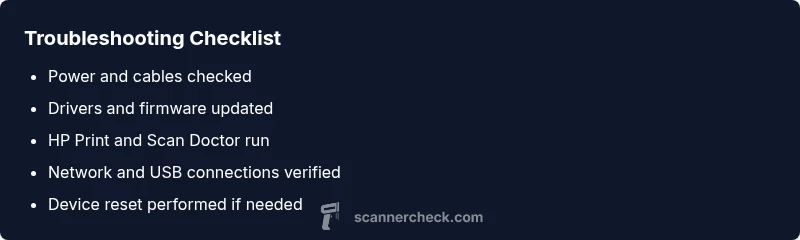
Most HP printer and scanner failures stem from driver/firmware conflicts or corrupted software. Start with basic checks—power, cables, and network status—then update or reinstall drivers, and run the HP Print and Scan Doctor. If issues persist, perform a factory reset and reconfigure the device. Also, check for conflicting printers in your OS and ensure security software isn’t blocking scanner access.
Why HP Printer and Scanner Doctor Matters
This troubleshooting guide is designed to diagnose and fix issues affecting both printing and scanning with HP devices. It emphasizes practical, repeatable steps you can perform safely at home, in a lab, or in an office. According to Scanner Check, the most effective approach starts with verifying physical setup and software health before moving to hardware interventions. You’ll learn how to identify whether the problem is driver-related, firmware- or network-induced, or a stubborn hardware fault. The guide includes concrete examples of common error messages, how to interpret them, and which diagnostic tools to use for precise results. The ultimate goal is to restore full functionality with minimal downtime, and to give you a reusable workflow for future HP printer issues. Expect clear, actionable steps, careful documentation of changes, and explicit guidance on when professional service is advisable.
Common Symptoms and What They Mean
HP printer and scanner issues present in several recognizable ways. You might see error codes on the printer display, driver alert pop-ups on your computer, blank or partially scanned documents, or inconsistent scan quality. Printing can be faint, streaked, or completely absent, while scanning may fail with “device not found” messages or long run times with partial results. Some symptoms are intertwined, such as a printer that can print but not scan, or a scanner that detects the device but returns corrupted image data. Understanding the symptom-to-meaning relationship helps you triage quickly. In many cases, the root cause is software-related, such as a driver conflict, a stale firmware state, or an interrupted update. Hardware faults are less common but still possible, especially after power surges or hardware drops. The key is to separate quick-fix issues from deeper problems and to document every step you take for future reference.
Quick Checks You Can Perform Right Now
- Verify power: ensure the device is plugged in, the status light is stable, and no power outages are interrupting operation.
- Check cables and connections: for USB, try a different port and a known-good cable; for network, confirm IP address changes haven’t impacted access.
- Confirm the device shows up in both printing and scanning apps: reboot the PC or Mac, and re-add the printer/scanner if needed.
- Inspect basic software health: confirm HP software is up to date, and review any recent OS updates that may have affected driver compatibility.
- Look for conflicting printers: ensure there isn’t another device with the same name or conflicting preferences that may route jobs incorrectly.
- Temporarily disable security software or firewall rules that could block scanner access, then test again.
- Run a quick color test page for printing and a basic scan to confirm both functions respond.
Software Health: Drivers, Firmware, and Apps
Driver and firmware integrity is central to both print and scan functions. Start by checking the HP software suite for updates, including the Print and Scan Doctor utility. Reinstalling drivers can clear corrupted files that cause cascading failures. Verify firmware is current on both the printer and any connected network devices. If you recently updated your operating system, reinstalling the HP driver package is especially important to prevent compatibility gaps. In many cases, a clean reinstall eliminates stubborn issues caused by conflicting older files. Keep a record of installed versions so you can revert if a new update introduces instability.
Connectivity: USB, Wi‑Fi, and Network Sharing
Network problems are a frequent cause of dual print/scan failures. Start by confirming the printer’s network configuration and accessibility from another device. If using USB, try a different port and test with another computer to rule out host-side faults. For wireless setups, verify the correct network and password, ensure the printer’s Wi‑Fi light is stable, and disable any guest networks that may restrict the printer’s communications. If you share the printer across multiple computers, remove outdated devices from the queue and re-add them to eliminate stale caches. For enterprise environments, ensure the printer’s IP address is reserved and not reassigned by DHCP. When possible, connect via Ethernet to minimize wireless interference.
Hardware Health and Safe Resets
Hardware faults can mimic software issues, so perform a safe reset sequence to clear minor faults without risking data loss. Power cycle the printer and, where supported, perform a factory reset from the control panel. Use the HP printer’s built‑in diagnostics if available, and re-run a scan after reset to confirm improvements. Avoid opening the device or attempting internal repairs without manufacturer guidance. If a Hall sensor or scanner motor appears degraded, consider professional service rather than DIY fixes. Always ensure you have backups of essential profiles and settings before reset.
Maintenance to Prevent Future Issues
Schedule regular firmware and driver updates, and keep HP software components synchronized with your operating system. Clean the scanner glass and ensure there are no obstructions on the scanning path that could degrade image quality. Use high-quality, original HP cartridges to prevent print head clogging or misalignment that could affect scanning. Run periodic diagnostics with HP’s software to catch issues before they become critical. Document settings and network configurations so you can rapidly replicate a working setup after any resets or reinstallations.
When to Seek Professional Help
If printing works but scanning remains a problem after exhausting software and connectivity fixes, professional diagnostics may be required to assess hardware components like the scanner module, optics, or motor assemblies. Persistent error codes that resist standard resets warrant vendor support or authorized service. If your device is under warranty, contact HP support for an RMA process. In high‑demand environments, a service visit may be faster than multiple DIY attempts that yield only partial fixes.
Building a Robust HP Print and Scan Doctor Workflow
Create a repeatable workflow that you can reuse for future issues. Start with a quick symptom check, then perform driver and firmware updates, followed by a targeted reinstall of HP software. Use HP Print and Scan Doctor as a first-line diagnostic tool, interpreting its output with the help of official HP guidance. Maintain a checklist of steps performed, the outcomes, and any configuration changes. This routine helps reduce downtime and improves your ability to communicate issues during support calls. It also trains you to distinguish between software conflicts and genuine hardware failures.
Steps
Estimated time: 60-90 minutes
- 1
Power cycle and basic checks
Turn off the printer, unplug for 60 seconds, and restart both device and computer. Check that essential cables are firmly connected and that the device shows a ready status. Verify that the printer appears in both the printer queue and the scanning app.
Tip: A cold reboot often clears transient conflicts without changing settings. - 2
Update firmware and drivers
Visit HP’s official site or use the built-in updater to install the latest printer firmware and drivers. If multiple devices are involved, update each one to maintain compatibility across the network.
Tip: Do not mix driver packages from different printer series on the same PC. - 3
Reinstall HP software
Uninstall the current HP software suite, restart, and perform a clean reinstall. Include the Print and Scan Doctor tool during installation to simplify diagnostics.
Tip: Keep a record of any custom profiles before uninstall. - 4
Run HP Print and Scan Doctor
Launch the diagnostic tool, run both print and scan tests, and follow recommended actions it suggests. Note any error codes and their meanings to guide further steps.
Tip: Save the diagnostic report for reference with support. - 5
Check connectivity and networks
If using Wi‑Fi, confirm the device is on the correct network and that the signal is stable. For USB, try a different port or cable. Re-add the printer as a new device if necessary.
Tip: Reserve the printer’s IP in your router to avoid DHCP churn. - 6
Factory reset if needed
Perform a factory reset from the control panel or the HP software utility. Reconfigure the device from scratch, including wireless setup and printer sharing options.
Tip: Back up essential settings before resetting. - 7
Test after each change
Print and scan a test document after every major change to isolate the impact of each step.
Tip: Keep a log of each step’s outcome. - 8
When to escalate
If issues persist after a reset and a full software reinstall, contact HP support or a certified technician. If under warranty, start the RMA process promptly.
Tip: Document serial numbers and firmware versions for faster support.
Diagnosis: HP printer and scanner fail to respond or show errors
Possible Causes
- highDriver and firmware conflicts or corrupted HP software
- highOutdated firmware or drivers
- highCommunication issues (USB cable, Wi-Fi/network, printer sharing)
- lowScanner hardware fault or sensor issue
Fixes
- easyReinstall HP software, update drivers, and flash latest firmware
- easyRun HP Print and Scan Doctor and interpret its results; reset printer networking if needed
- easyCheck and replace flaky USB cables; verify network stability and IP reservation
- mediumPerform a factory reset and reconfigure devices; if unresolved, contact HP support
- hardIf hardware fault is suspected, arrange professional service or warranty repair
Common Questions
Why is my HP printer not scanning after printing?
Scanning failures after printing are often caused by driver conflicts or outdated firmware. Start with updating drivers, then run HP Print and Scan Doctor to identify hardware or network blockers.
Scanning problems after printing are usually driver or firmware related. Update drivers and run HP Print and Scan Doctor to pinpoint the issue.
Can I fix scanning errors without reinstalling drivers?
Yes. Many scanning errors can be resolved by updating firmware, resetting network settings, or re‑adding the device to the scanning app without a full reinstall.
Often you can fix scan errors by updating firmware and resetting the network, without reinstalling drivers.
What should I do if HP Print and Scan Doctor can’t detect the device?
Ensure the device is powered, connected, and on the same network. Try a different USB port or network cable, and reinstall the HP software if detection remains elusive.
If the Doctor can’t detect the device, check connections and retry after reinstalling the HP software.
Is it safe to reset the printer’s network settings?
Yes, resetting network settings is safe and often effective. Re-enter your Wi‑Fi credentials and verify the printer reappears on the network afterward.
Resetting network settings is safe and can fix connectivity; just re-enter your Wi‑Fi details afterward.
How often should I perform maintenance on HP printers and scanners?
Regular maintenance includes firmware updates, occasional cleaning of scan glass, and periodic diagnostics to catch issues early. Schedule quarterly checks if the device is in high-use environments.
Do regular firmware updates and quarterly diagnostics to prevent issues.
Watch Video
Key Takeaways
- Start with quick checks and updates before deep fixes
- Use HP Print and Scan Doctor as a first-line diagnostic
- Maintain backups of configurations to speed recovery
- Escalate to professionals for hardware concerns