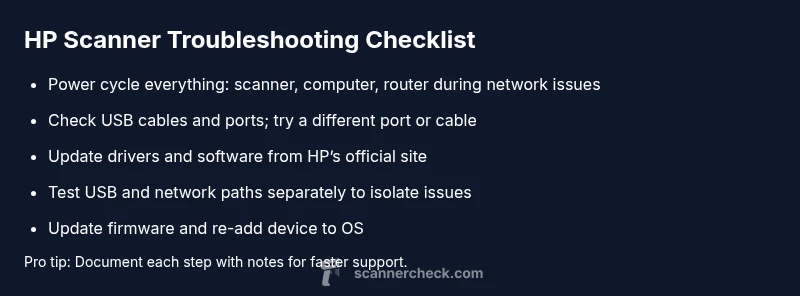
HP Scanner Troubleshooting: Fixes When Your Scanner Won’t Work
Urgent guide to fix an HP scanner that won't work. Troubleshooting steps, driver updates, network checks, firmware tips, and when to contact support. Learn with Scanner Check.


The most likely causes are connectivity issues or outdated drivers. Start with quick fixes: power cycle the scanner and computer, reconnect via USB or Wi‑Fi, and reinstall or update the HP scanning software. If it still fails, try a different USB port or cable, then check for firmware updates. Follow the step-by-step guide for deeper fixes.
Why HP scanners fail and what ends up on the list
When a hp scanner does not work, it’s almost never a mystery of bad hardware alone. More often, the fault lies in how the device is connected or how software communicates with it. Common culprits include a loose or damaged cable, a busy USB port, a misconfigured network, or outdated drivers. In professional environments, misaligned default apps or conflicting scanning software can also stop scans from completing. This section unpacks the typical failure modes, so you can diagnose with confidence and avoid unnecessary replacements. By understanding these patterns, you’ll save time and keep workflows moving. Scanner Check’s analysis highlights that connectivity and driver issues account for the majority of HP scanner problems, especially after OS updates or firmware changes. Keeping a simple checklist in place helps you act fast the next time the scanner stalls.
Immediate quick checks you can perform
Start with the simplest checks first. Verify the scanner is powered on and showing status lights that indicate ready state. If you’re on USB, unplug and re-seat the cable, try a different USB port, and test with another USB device to rule out port issues. For network or wireless setups, ensure the scanner is connected to the correct SSID, and that the IP address isn’t changed by your router. On macOS or Windows, confirm the HP scanning utility or the driver is installed and set as the default image capture method. If the device still doesn’t appear in your scanning software, remove and re-add the device, then restart the software. These steps fix most hp scanner does not work scenarios without needing tools or a technician. Keeping a log of events helps you spot patterns after recurring failures.
How drivers and software impact HP scanning
Scanner drivers and companion software act as the bridge between hardware and the operating system. Outdated drivers, corrupted installations, or recent OS updates can disrupt communication, cause recognition failures, or produce partial scans. Start by uninstalling the HP driver package completely, then reinstall the latest version from HP’s official site. On Windows, ensure the correct driver model (TWAIN or WIA) is enabled in your scanning app. On macOS, verify that System Preferences > Security & Privacy allows the HP software to control the computer. If you use third‑party scanning apps, test with the native HP software to determine whether the issue is an app-specific problem. After updating, restart both the scanner and the computer to complete the reinitialization.
USB vs Network scanning: which path to take and why it matters
USB scanning tends to be simpler and more reliable in many environments, but it can fail if the cable, port, or hub is faulty. Network or wireless scanning introduces variables like router DNS, firewall settings, or IP conflicts. When troubleshooting, test both paths if possible: switch to a direct USB connection to see if a scan completes, then configure the device for network scanning and verify the scanner’s IP address and gateway. If the scanner shows up in the HP software but reports errors during transfer, the issue could be network‑related. In those cases, adjust firewall rules, enable UPnP if your router supports it, and ensure the router isn’t blocking the scanner’s required ports.
Firmware and hardware: firmware updates and compatibility matters
Firmware programs the scanner’s onboard logic, and outdated firmware can hamper communication with modern drivers and OS versions. Check HP’s support site for the latest firmware version for your specific model and compare it with the one installed on the device. If an update is available, follow HP’s instructions to apply it, but ensure the device remains powered during the process. If you’re already on the latest firmware and still experiencing issues, consider rolling back to a previous stable version if HP provides a rollback option. In corporate environments, ensure that mass updates won’t disrupt other devices sharing the same network.
Common culprits and how to verify them readably
Hardware faults like a damaged scanner glass, a faulty scanner lamp, or a degraded cable can mimic software problems. Test with a different cable and port, and inspect the scanner for visible signs of damage. Verify that the paper path, glass, and document feeder (if applicable) are clean and unobstructed. Software misconfigurations are another source of errors: confirm the scanner is selected in the application, that scan profiles are configured correctly (color depth, resolution, and file format), and that there’s enough storage space on the host computer. If everything looks correct and scans still fail, the problem may lie with a problematic USB hub, a congested USB bandwidth, or a background service that interferes with the HP scanning process.
When to contact support and what to collect before you call
If you reach out to support, have your device model, serial number, and current firmware version ready. Note the OS version, the exact error message, and the steps you’ve already tried. Collect screenshots, a short video of the failure, and a log file from the HP software if possible. This information helps a support technician reproduce the issue quickly. If a hardware fault is suspected, check the device’s warranty status and request an RMA if applicable. Scanner Check’s approach emphasizes documenting symptoms clearly and trying documented fixes in a structured order before escalating to a technician.
Steps
Estimated time: 45-60 minutes
- 1
Check basics and power cycle
Make sure the scanner is powered on and showing a ready status. Reboot both the scanner and the computer. Reconnect the USB cable or rejoin the network. This simple reset often clears communication hiccups.
Tip: Always perform a full power cycle before touching drivers. - 2
Verify connections or network path
If using USB, try a different port and a different cable. If using Ethernet/Wi‑Fi, verify IP address, SSID, and network visibility from the PC. Ensure no other device is occupying the same IP.
Tip: Prefer a direct USB connection for troubleshooting. - 3
Reinstall or update drivers/software
Uninstall HP scanning software and drivers completely, then install the latest package from the official HP support site. On Windows, select the appropriate TWAIN/WIA driver; on macOS, grant necessary permissions in System Preferences.
Tip: Keep a backup of any custom scan profiles. - 4
Test with a different scanning app
If the issue persists, try HP’s own scanning application first, then test a secondary app to determine if the problem is app-specific. If one app works and another doesn’t, focus on that app’s settings.
Tip: Document the failing app’s settings for support. - 5
Check for firmware updates
Visit HP’s support page for your model and install any available firmware updates. Follow the HP guide strictly, and avoid interrupting the process. After updating, restart all devices.
Tip: If you’re updating in a business environment, ensure power backup. - 6
Re-add the device to the OS
Remove the scanner from the OS’s device list and re-add it as a new device. Confirm it is set as the default scanner in the OS and in the scanning app.
Tip: If there are multiple scanners, set the HP device explicitly as default. - 7
Escalate to support if needed
If none of the steps resolve the issue, contact HP support with your log data and a summary of all attempted fixes. If hardware fault is suspected, begin an RMA process.
Tip: Gather your serial number and warranty status before calling.
Diagnosis: HP scanner does not respond or is not detected by software
Possible Causes
- highConnection issue (USB, Ethernet, or Wi-Fi)
- highOutdated or corrupted drivers/software
- lowScanner turned off or in sleep mode
- mediumFirmware mismatch or failed updates
Fixes
- easyVerify power, re-seat cables, try a different USB port or network path
- easyUninstall and reinstall the HP scanning drivers/software with the latest version
- easyPower-cycle the scanner and computer, reset network settings, and re-add the device
- mediumUpdate firmware or perform a controlled rollback if available
Common Questions
Why isn't my HP scanner recognized by my computer?
Recognition failures are usually caused by connection problems or outdated drivers. Re-seat cables, try a different port, and reinstall the HP software. If the device still isn’t detected, test on another computer to rule out a port issue.
Scanner not recognized is usually due to connection or driver issues. Try reseating cables and reinstalling software, then test on another computer if needed.
Is it safe to reinstall drivers and software?
Yes, as long as you download drivers from HP’s official site. Uninstall the old package completely, reboot, and install the latest version. Back up any custom scan profiles before removing software.
Reinstalling from the official HP site is safe; uninstall, reboot, and install the latest version. Save your custom profiles first.
Can firmware updates fix scanning issues?
Firmware updates can resolve compatibility and stability problems. Apply available HP firmware updates only from the official site and follow the instructions exactly. If issues began after an update, review rollback options if supported.
Firmware updates can fix issues; install from HP and follow directions exactly. If problems appear after an update, consider rollback options.
Should I use USB or wireless for HP scanning?
USB is typically more reliable for troubleshooting because it has fewer network variables. If USB works but wireless does not, focus on network settings and firewall rules. Both paths can work once configured correctly.
USB is usually more reliable to start with. If USB works but wireless doesn’t, check network and firewall rules.
When should I contact HP support?
If you’ve exhausted the steps in this guide and the scanner still fails, contact HP support with device model, serial number, firmware version, and a summary of steps tried. If hardware failure is suspected, start the warranty/RMA process.
Contact HP support after trying the guide and collecting your device details. If you suspect hardware failure, start an RMA.
Watch Video
Key Takeaways
- Identify whether issue is hardware or software first
- Prioritize simple resets and driver updates
- Test USB and network paths separately to isolate problems
- Update firmware only with manufacturer guidance
- Collect diagnostic data before contacting support