What to Do If Your Scanner Is Not Detected
Urgent, step-by-step guide to diagnose and fix a scanner that isn’t detected. Learn how to check cables, drivers, software settings, and when to contact support. Updated for 2026.


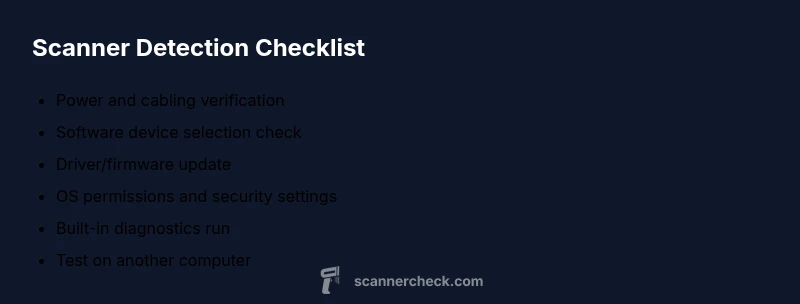
If your scanner isn’t detected, start with simple, safe steps: verify the scanner is powered on, reseat the USB or network cable, and confirm the device is selected in your scanning software. Update drivers and firmware, then test on another computer or with a different cable to isolate hardware vs. software causes. If it still fails, proceed through the diagnostic flow to identify the root cause.
Why a scanner might not be detected and how this guide helps
If you’re facing a not-detected scanner, the situation feels urgent, but most issues are fixes waiting to happen. The problem is usually a mix of connectivity, software settings, or driver compatibility. According to Scanner Check, the majority of detection problems trace back to hardware connections or outdated software. This guide follows a practical troubleshooting flow tailored for Windows, macOS, and common scanning apps. By moving through safe, incremental steps, you’ll learn exactly where the link between device and computer is breaking and how to repair it without unnecessary risk to your hardware or warranty.
Developed with DIY enthusiasts and IT pros in mind, the recommendations here emphasize verifiable checks, not guesswork. As you work, document changes so you can backtrack if a step introduces a new variable. The goal is to restore reliable detection and keep your workflows running smoothly in 2026.
Brand note: The Scanner Check team emphasizes practical, evidence-based fixes that avoid unnecessary hardware replacements. The approach below reflects current best practices for peripheral detection and driver hygiene.
Step 1: Check power and cable connections
Many detection failures start with a simple connectivity issue. Begin by ensuring the scanner is powered on and the status lights indicate activity. Inspect the USB or network cable for kinks, frays, or loose connectors. If you’re using USB, try a different port on the computer—prefer a direct port rather than a hub. Swap in a known-good cable if possible. For network scanners, verify the device’s IP address and ensure it’s reachable from your computer (ping or traceroute can help). After each change, restart the scanner and the computer to reinitialize hardware and software states.
Tip: Use fresh USB ports and avoid hubs during testing. If your system has USB power management, temporarily disable it to ensure the port remains powered through the test. Respect warranty guidelines and avoid bending cables or applying force to connectors.
Step 2: Verify scanner selection in software and OS
A detector issue can be as simple as the software not pointing to the right device. Open your scanning application and confirm the exact scanner model is selected as the input device. In Windows, check under Devices and Printers and the printer/scanner status; in macOS, verify in System Preferences > Printers & Scanners and within the scanning app’s device list. Some apps require you to choose the device again after a restart. If multiple scanners appear, pick the correct one and test a quick scan.
Tip: Document the exact device name shown by the OS and the app, so you can compare across reboots. If the device is listed but not functional, move to driver checks.
Step 3: Update or reinstall drivers and firmware
Outdated or corrupted drivers are a very common cause of not-detected scanners. Visit the manufacturer’s support site and download the latest drivers and firmware for your exact model and operating system. Uninstall existing drivers, reboot, and install the fresh package. If the vendor provides a cleanup utility, run it before reinstalling. After installation, re-launch the software and attempt a test scan.
Tip: Prefer official vendor sources and avoid third-party driver packs. Keep a record of driver versions for future reference in case you need to roll back.
Step 4: Check for conflicts and permissions
Security software, firewalls, and OS permissions can block scanner detection. Temporarily disable antivirus and firewall components that might be filtering I/O to the scanner, then try a test scan. On Windows, ensure the scanning software has admin privileges. On macOS, check privacy settings to grant necessary accessibility and full-disk access if required by the app. If the scanner is on a corporate network, confirm there are no policy blocks affecting device discovery.
Tip: Re-enable security features after testing. Do not leave endpoints unprotected for long periods.
Step 5: Run built-in diagnostics and tests
Many scanners include on-device diagnostics or vendor software diagnostics that test connectivity, device response, and interface health. Run the self-test or diagnostic utility, following the user manual steps. If the diagnostic reports a failure, note the error code and consult the vendor’s knowledge base or support portal. Where available, check for firmware-only fixes that improve hardware handshake timing and USB enumeration.
Tip: Capture screenshots of diagnostic results to share with support if needed.
Step 6: Test with another computer or cable
To determine whether the issue is hardware or software, connect the scanner to a different computer using a known-good cable. If detection works on the second machine, the problem is likely software- or OS-specific on the original computer. If it fails there as well, the scanner hardware or cable is suspect. For network scanners, try a different PC in the same network segment to confirm reachability.
Tip: When testing, avoid multiple changes at once; change one variable (computer, cable, or port) per test and document outcomes.
Step 7: When to seek professional help and what to collect
If none of the above steps restore detection, it’s time to contact support. Have your scanner model, serial number, OS version, driver version, and a log of steps already performed. Include screenshots or videos of the detection attempts. If possible, provide a short test result (e.g., a failed scan, error codes). This helps the support team reproduce and diagnose the issue quickly.
Tip: Do not disassemble the scanner unless authorized by the manufacturer. Structural issues or improper repair can void warranties.
Prevention: keep your scanner reliably detected
Preventive measures reduce downtime. Regularly update drivers and firmware, maintain clean cables, and avoid chaining devices through hubs where not required. Label cables, keep a simple testing routine, and run periodic diagnostics to catch issues early. Schedule check-ins after OS updates or hardware changes and keep recovery media handy. A small maintenance window now saves larger outages later.
Steps
Estimated time: 45-60 minutes
- 1
Power up and inspect the hardware
Confirm the scanner is powered on and indicators show activity. Check the power cable and adapter for integrity. If the scanner has a separate power switch, ensure it is in the ON position. This step rules out a simple power fault before you proceed with data paths.
Tip: If the power light is dim or off, try a different outlet and replace the power cable if available. - 2
Secure and test cabling
Unplug and re-seat the USB or network cable at both ends. Use a fresh or known-good cable and connect directly to a port on the computer (avoid hubs). For USB, try a different port type (USB 2.0 vs 3.0) if your system has mixed ports.
Tip: Keep cables untangled and avoid winding cables behind the PC case to reduce wear. - 3
Check device visibility in OS
On Windows, open Devices and Printers and verify the scanner appears with a normal status. On macOS, check System Preferences > Printers & Scanners and the app’s device list. If you don’t see the device, retry step 2 or proceed to driver installation.
Tip: If the device appears with an error, note the error code for troubleshooting. - 4
Update or reinstall drivers/firmware
Download the latest drivers and firmware from the official vendor site. Uninstall old drivers, restart, then install the new package. After installation, reopen the app and try a test scan.
Tip: Use the vendor’s clean-up tool if provided to remove remnants of old drivers. - 5
Check software settings and permissions
Ensure the scanner is selected as the default input in the software and OS. Run the app with admin rights if needed. Review firewall/antivirus settings that could block I/O to the device.
Tip: Test with security temporarily disabled, then re-enable protections after testing. - 6
Run built-in diagnostics
Access any built-in diagnostic tool or self-test from the scanner's control panel or vendor software. Follow the prompts and record any error codes for reference.
Tip: Document results with screenshots for support if needed. - 7
Test on another machine
Connect the scanner to a second computer or use a different USB cable to isolate whether the issue is hardware or software. If it works on another machine, focus on the original computer’s environment.
Tip: This helps you decide if you need professional help or a driver clean install.
Diagnosis: Scanner not detected by computer or application.
Possible Causes
- highPower issue or scanner not turned on
- highLoose, damaged, or incompatible USB cable/port
- highOutdated, corrupted, or missing drivers/firmware
- mediumScanner not selected as default input in software or OS
- lowUSB hub or power management settings interfering
Fixes
- easyCheck that the scanner is powered on and the status light is active
- easyReconnect the USB cable and try a different port, preferably a direct port on the computer
- easyUpdate or reinstall drivers and firmware from the official vendor site
- easyRestart the scanning software and the computer
- mediumDisable USB selective suspend or power management settings in the OS
- easyTest on a second computer to verify if the issue is hardware or software
Common Questions
Why isn’t my scanner detected after a Windows update?
OS updates can reset USB policies or disable device drivers. Recheck the scanner’s driver installation and reselect the device in the scanning app. If the problem persists, reinstall the drivers and diagnose USB settings.
Windows updates can reset USB settings, so reselect the scanner and reinstall drivers if needed.
Can a USB hub cause detection issues?
Yes. Hubs can introduce power or bandwidth limitations that prevent detection. Connect the scanner directly to the computer, and only use a hub for other devices if absolutely necessary.
USB hubs can block detection; try plugging the scanner directly into the PC.
Why does the scanner show up in Device Manager but not in the scanning software?
This usually indicates a driver mismatch or a service not running. Reinstall the latest driver, ensure the scanner service is running, and verify software paths to the device.
It often means a driver mismatch or a software service issue.
How long should driver installations take?
Driver installations typically complete in a few minutes. If installation stalls, cancel, restart, and retry from the vendor’s clean install package.
Driver installs usually finish quickly; if stuck, restart and try again with the clean install.
When should I contact support?
If all troubleshooting steps fail after 60 minutes, contact the manufacturer’s support with model, OS version, and a summary of steps taken. They can guide next steps or arrange repair/replacement.
If nothing works after an hour, reach out to support with details.
Watch Video
Key Takeaways
- Verify power and cabling first.
- Update drivers/firmware early in troubleshooting.
- Isolate hardware vs software by testing on another computer.
- Seek professional help if steps fail after 60 minutes.