Why Canon Scanner Is Not Working: Urgent Troubleshooting Guide
Urgent, step-by-step troubleshooting for why Canon scanners aren’t working, covering connectivity, drivers, software, and hardware with actionable fixes.


Most Canon scanner problems come from connectivity, drivers, or jammed optics. Start by confirming the scanner is powered on, connected (USB or Wi‑Fi), and selected as the default device. Update or reinstall the Canon drivers, then run a test scan. If it still fails, perform the diagnostic flow below. According to Scanner Check, most issues resolve with a clean driver reinstall and reset.
why canon scanner is not working
Canon scanner failures usually fall into a few broad categories: connectivity, software/driver issues, and hardware cleanliness or damage. In practice, most problems start with a simple misconfiguration or a loose cable rather than a failed device. If you’re asking why canon scanner is not working, begin with the basics—power, connection type, and whether the device is recognized by the computer—before diving into deeper troubleshooting. Scanner Check’s recent findings emphasize how often the culprit is an outdated driver or a stuck scan option in the software, not a dead scanner. By approaching the problem methodically, you avoid unnecessary replacements and get back to scanning quickly.
Connectivity and device recognition
Connectivity problems are the most frequent reason a Canon scanner is not working. Check every potential link point: power supply, USB/Thunderbolt cable, USB port, or wireless network status. For USB connections, try a different port and avoid USB hubs that might throttle power or signal. On networks, ensure the scanner is on the same network segment as your computer and that the correct IP address is assigned. In Windows or macOS, verify that the scanner appears in the system preferences or devices list; if not, try a restart of both the scanner and the computer, then re-add the device.
Driver and software problems
Outdated or corrupted drivers can silently block scanning. Reinstalling the Canon driver package often resolves the issue, but you should also check for software conflicts with other scanning utilities. If you recently updated your OS, confirm compatibility in Canon’s support portal and install any updated drivers or firmware. Disable conflicting programs that hook into the scanner subsystem, then test with a simple scan from the Canon utilities. Scanner Check notes that driver conflicts are a common source of repeated failures.
Hardware checks: glass, rollers, and jam sensors
Physical issues can cause the scanner to fail or report errors. Inspect the scanning glass for fingerprints, smudges, or scratches—clean with a soft lint-free cloth and isopropyl alcohol if needed. Check the pickup rollers for wear and ensure they grip paper without slipping. A taped or jammed sheet can trigger error codes; clear any obstructions and reset the device. If there is an unusual error light or beeping sequence, consult Canon’s user manual for the specific indicator meanings.
Resetting, updating, and best practices
When the basics fail, a reset of the scanner’s software context and a fresh driver install often clears stubborn issues. Reset the device to its default settings if you can, then reconfigure your scanning preferences and default application. Keep firmware and drivers up to date—Canon’s support site often has the latest bundles for your model. Finally, document your steps and create a known-good test page to confirm the fix after every change.
Steps
Estimated time: 60-90 minutes
- 1
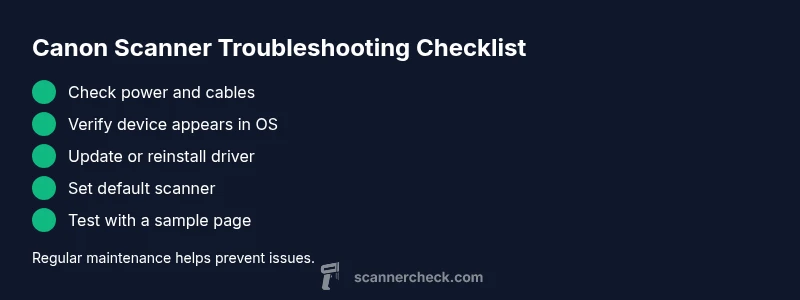
Check power and cables
Verify the scanner is powered on and cables are firmly connected. If on USB, try a different port; if on Wi‑Fi, confirm the device is connected to the correct network. A loose cable is a frequent, fixable cause.
Tip: Replace cables if they appear worn; cheap fabric shielding can fail over time. - 2
Verify device detection
In your computer’s settings, confirm the Canon scanner appears as a recognized device. If not, use Add a Device (Windows) or Printers & Scanners (macOS) to re‑discover it. Temporary OS hiccups often block detection.
Tip: Run a quick reboot of both the scanner and the computer before re‑adding. - 3
Update or reinstall drivers
Download the latest driver package from Canon’s official support page for your model and OS. Uninstall the old driver first, then install the new one. After installation, restart the computer and test with a basic scan.
Tip: Prefer a clean install over an in-place update when problems persist. - 4
Set as default and test
Open the scanning application and set the Canon scanner as the default device. Try multiple test pages to ensure consistency across applications.
Tip: If you have multiple scanners, isolate the Canon device during testing. - 5
Run built‑in diagnostics
Use Canon’s own diagnostic utilities or the printer/scanner control panel to run a scan test. Note any error codes and cross‑reference with the manual.
Tip: Document codes for quick support calls later. - 6
Clean and inspect hardware
Power down, unplug, and inspect the glass for smudges, the rollers for wear, and for any obvious jams. Clean gently with lint-free cloth and isopropyl alcohol if needed.
Tip: Never spray cleaner directly on the glass; apply to a cloth first.
Diagnosis: Canon scanner won’t be detected or will not produce scans after power-on
Possible Causes
- highConnectivity issues (USB cable, port, or wireless link)
- highOutdated or corrupted driver/software
- mediumScanner not set as default in OS or application
- lowHardware fault or dirty optics
Fixes
- easyTest with a different USB port or change to a wired/wireless connection; restart devices
- easyReinstall or update Canon scanning drivers and software; reboot the computer
- easySet Canon as the default scanner in both the OS and the application’s settings
- mediumClean scanning glass, inspect rollers, and remove any paper jams; run a test scan
Common Questions
Why is my Canon scanner not detected by my PC?
First, check power and cables, then verify the device appears in the OS as a recognized scanner. If not, re‑install the driver and re‑pair the connection. This sequence fixes most detection failures.
Your Canon scanner usually isn’t detected due to loose connections or outdated drivers. Try reconnecting, then reinstalling the driver.
What should I do if I get a 'Cannot connect to scanner' message?
Restart the scanner and computer, verify network settings if using Wi‑Fi, and ensure the correct driver is installed. If the message persists, reconfigure the device in the scanning app and test with a local USB connection as a control.
Restart devices, check network, and reinstall drivers. If it persists, test via USB to rule out network issues.
Can I fix this without reinstalling drivers?
Yes, you can try resetting the application defaults, selecting the scanner again, and performing a clean page test. If problems continue, a driver reinstall is the most reliable next step.
Sometimes a settings reset helps. If not, reinstalling drivers is the best next move.
Is cleaning the scanner glass safe?
Yes, use a lint-free cloth slightly dampened with isopropyl alcohol. Avoid abrasive cleaners and never spray liquid directly on the glass. Cleanliness can prevent streaks and misreads.
Cleaning the glass with a soft cloth and alcohol is safe and can improve scans.
When should I contact Canon support or a tech?
If you’ve completed the diagnostic flow and updates without success, or if you observe hardware indicators like unusual lights or persistent jams, contact Canon support or a certified technician. Hardware faults may require service.
If problems persist after all steps, reach Canon support or a technician.
Do OS updates affect Canon scanners?
Yes. Major OS updates can affect drivers and scanner software. Check Canon’s compatibility notes before updating, and reinstall drivers if necessary after an OS upgrade.
OS updates can impact compatibility; verify drivers after updates.
Watch Video
Key Takeaways
- Reinstall drivers to resolve most issues
- Check connectivity before deeper fixes
- Clean glass and rollers to prevent jams
- Set Canon as default scanner in OS and apps
- Update firmware and software regularly