Why is My Scanner Not Appearing? Practical Troubleshooting Guide
Urgent guide to diagnose and fix why your scanner isn’t appearing. Follow step-by-step checks, driver updates, and OS settings to get your scanner back online quickly.


Your scanner likely isn’t appearing due to a connection or driver issue. Check power and cables, verify network placement if wireless, reinstall drivers, and confirm OS permissions. If the device still doesn’t appear, try a different USB port, update firmware, and temporarily test with antivirus/firewall settings while ensuring safety.
Quick Diagnostics to Run First
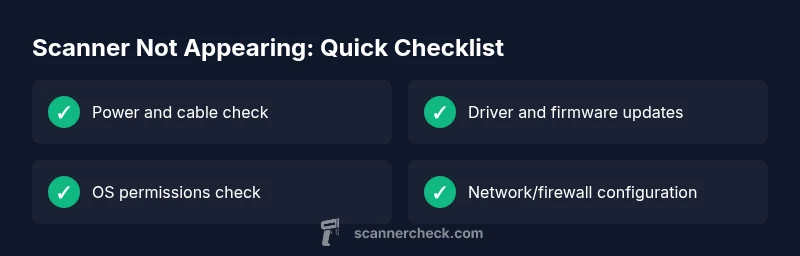
When a scanner won’t appear, start with a high‑level check to determine whether the problem is hardware, software, or network related. The three most common culprits are: power/connection issues, driver or firmware mismatches, and OS security settings that block device access. Begin with a rapid pass to collect error messages or indicator lights, then use that data to guide the next steps. This initial sweep often reveals whether you’re dealing with a simple cable problem or a deeper driver conflict. As you work, keep the exact scanner model and the software you’re using in mind—these details help isolate the issue quickly. Remember: document any error codes you see, because they narrow down the likely cause.
Common Causes at a Glance
- Power or cable problems (loose USB, damaged cable, or a USB hub with power issues) can prevent detection.
- Driver or firmware mismatches between your scanner and computer OS.
- OS permissions or security software blocking access to hardware.
- Network discovery issues for wireless scanners (wrong Wi‑Fi network, IP conflict, or firewall blocks).
These are the most frequent blockers, so tackle them first before deeper troubleshooting.
Gather Clues and Build a Timeline
Note when the scanner last worked, what changes happened since then (new software, OS updates, or hardware changes), and any warning messages. A clear timeline helps you identify whether the problem is transient (a skipped reboot) or persistent (a failed driver install). If you recently updated your OS, drivers, or firmware, you may need to reapply compatible versions. Having a concise list of symptoms and recent changes makes it easier to search for exact error codes or messages from Scanner Check Analysis, 2026.
Power, Cables, and Ports First
Always start with the physical layer: confirm the scanner is powered on, the LED indicators are active, and the USB cable is firmly seated. If you’re using a USB hub, connect the scanner directly to the computer to rule out hub-related issues. Swap in a different USB cable and try another port on the computer. For network scanners, verify the device shows up on the same LAN and that the IP address is not conflicting with other devices.
OS Permissions and Security Settings
Operating systems sometimes block new devices until you grant explicit permissions. On Windows, check Device Manager for any yellow warning icons and ensure the scanner is enabled. On macOS, use System Information > USB and check if the scanner appears there; if not, reset the SMC/PRAM and re‑authorize USB devices. Temporarily disabling antivirus or firewall can help test detection, but re-enable protection as soon as you complete the test.
Driver and Firmware Updates: The Critical Fix
Outdated drivers or firmware are frequent culprits when a scanner won’t appear. Visit the manufacturer’s site to download the latest drivers for your exact model and OS. Uninstall old drivers first, then perform a clean install of the new package. If available, flash the scanner’s firmware following the official instructions. After updating, reboot the computer and re‑scan for devices using the bundled software.
Advanced Checks for Network Scanners
For wireless or networked scanners, ensure the device is on the same network as your computer, with correct SSID and security settings. Disable IPv6 temporarily if the scanner uses IPv4 only, and verify the firewall isn’t blocking printer/scanner traffic. If the scanner has a web UI, access it to confirm the device is online and reachable. Network discovery can be flimsy; a fixed IP with a reserved DHCP lease minimizes future issues.
When to Seek Professional Help
If you’ve exhausted base fixes and the scanner still won’t appear, it’s time to contact the manufacturer's support or an IT professional. Hardware faults, obscure driver conflicts, or firmware corruption may require hands-on assistance or replacement parts. Document all steps you took, including OS versions, driver versions, and exact error messages, to speed up the troubleshooting process.
Steps
Estimated time: 30-60 minutes
- 1
Confirm power and basic connections
Ensure the scanner is powered on and visibly ready. Check the USB cable, try a different port, and remove any USB hubs to rule out power delivery issues. This simple check often resolves detection problems.
Tip: Use the original cable if possible for best compatibility. - 2
Check OS visibility
Open Device Manager on Windows or System Information on macOS to see if the scanner appears at all. If there is a warning icon, update or reinstall drivers accordingly.
Tip: Document any device IDs shown in the properties panel. - 3
Install or update drivers
Download the exact driver package from the manufacturer and perform a clean install. Restart after installation before attempting to scan again.
Tip: Avoid using generic drivers that don’t match your model. - 4
Test with bundled software
Launch the manufacturer’s software and run a device discovery or scan test. If the software detects the device, you’re almost done; if not, recheck the previous steps.
Tip: Disable other scanning apps temporarily to avoid conflicts. - 5
Try alternate ports or machines
Connect the scanner to a different USB port or a second computer to determine if the issue is hardware‑level or system‑level.
Tip: If it works on another machine, compare configurations to identify differences. - 6
Check network settings for wireless scanners
If the scanner is wireless, confirm it’s on the same network and verify its IP address. Disable IPv6 if the device relies on IPv4.
Tip: Set a reserved IP in the scanner’s web UI to prevent future conflicts. - 7
Temporarily adjust security settings
Turn off antivirus/firewall momentarily to test detection, then re-enable protections and add exceptions for the scanner software.
Tip: Do not leave security off for extended periods. - 8
Seek professional help if unresolved
If nothing works, contact support or a qualified technician. Hardware faults may require service or replacement.
Tip: Have your model number, OS version, and error messages handy.
Diagnosis: Scanner not appearing in OS or applications after connecting
Possible Causes
- highPower issue or faulty USB cable/port
- highOutdated or missing drivers/firmware
- highScanner disabled in OS or security software
- mediumNetwork discovery failure for wireless scanners
Fixes
- easyTest with a known-good USB cable and port; remove USB hub if used
- mediumReinstall or update scanner drivers and firmware from the official site
- easyCheck Device Manager (Windows) or System Information (macOS) and enable the scanner; adjust security settings if needed
- mediumFor network scanners, ensure the device is on the same network and the firewall allows scanner traffic
- hardIf problems persist, perform a clean reinstall of the scanner software and test on a second computer
Common Questions
Why is my scanner not appearing in Windows?
Common causes include driver issues, USB problems, or the device being disabled in Device Manager. Start by checking cables, then reinstall drivers and ensure the device is enabled in the OS settings.
Windows users should check Device Manager for the scanner, ensure it’s enabled, and reinstall drivers if needed.
Why isn’t my scanner showing up on macOS?
macOS users should verify the scanner appears in System Information, update drivers from the manufacturer, and grant access in Security & Privacy settings if prompted.
On Mac, check System Information, update drivers, and approve access when prompted.
The scanner shows up in Device Manager but not in apps. What now?
Ensure the scanner is selected as a default device in the application’s settings, update the application, and reinstall the scanner drivers to reset device bindings.
If a scanner shows in Device Manager but not in apps, select it as default in app settings and update or reinstall drivers.
Can antivirus or firewall block scanner detection?
Yes, some security tools can block scanner traffic. Temporarily disable protection to test, then add an exception for the scanner software and its drivers.
Security software can block scanners; test with protection off briefly, then whitelist the software.
What should I do if the scanner still doesn’t appear after fixes?
Revisit the manufacturer’s support resources, check for known issues, and consider hardware service if the device is under warranty.
If problems persist, consult the manufacturer’s support resources or a technician.
Is a defective scanner a common cause?
While less common, hardware failure is possible. Testing on another computer or using different firmware can help confirm hardware faults.
A hardware defect is possible; test with another computer to confirm.
Watch Video
Key Takeaways
- Verify power and connections first
- Update or reinstall drivers to restore visibility
- Check OS permissions and security settings
- Test with alternate cables/ports and devices to isolate hardware