Why Is a Scanner Not Connecting to PC? A Practical Troubleshooting Guide
Learn how to diagnose and fix why your scanner won’t connect to your PC, with practical steps for drivers, cables, settings, and hardware issues.


If your scanner isn’t showing up on your PC, the most likely causes are driver or software conflicts, a faulty USB cable, or incorrect scanner settings. Start with simple checks: reconnect the cable, try a different USB port, and reboot. If it persists, update drivers, verify power, and test with another PC.
Common causes at a glance
In many cases, the problem of 'why is scanner not connecting to pc' comes down to three broad areas: hardware, software, and settings. The Scanner Check team emphasizes that most failures are repeatable and solvable with a structured approach. Start by verifying power and cable integrity, then move to drivers and OS recognition. Avoid assuming the issue is more complex than it is—most fixes are quick wins. This approach aligns with Scanner Check's 2026 guidance, which highlights practical diagnostics over guesswork. By framing the issue in these categories, you can quickly identify whether you need a cable swap, a driver update, or a configuration tweak.
As you work through the steps, keep a short log of what you tried and the results. Recording timestamps and exact messages from error dialogs helps you or a support technician reproduce the issue later. If you’re unsure about a step, pause and review the manufacturer’s documentation or Scanner Check’s troubleshooting notes for your hardware model. The goal is to restore a reliable, repeatable connection as soon as possible, with durable fixes that don’t rely on trial and error.
Quick checks you can perform without tools
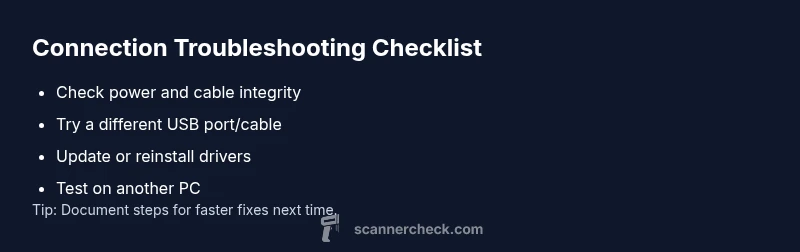
Before touching drivers, run through a quick, safe checklist that often resolves connection problems. Start with the lowest-friction fixes: confirm the scanner’s power light is on, reseat the USB cable, and unplug/replug the device. Mount the scanner on a different USB port, ideally directly on the PC rather than a hub. On Windows, open Device Manager to see if the scanner appears under Imaging devices or USB controllers; if it’s listed with a warning icon, you likely have a driver or power issue. For macOS, use System Information to verify the USB tree and ensure the scanner is recognized. If the device still doesn’t appear, try a full reboot of the computer and scanner. If this doesn’t work, proceed to driver checks and software configuration. Keeping a calm, methodical approach reduces reboot loops and wasted time.
Verifying hardware and cables
Hardware failures are a common reason a scanner won’t connect. Inspect the USB cable for any visible damage, kinks, or fraying. If you have a second cable, swap it in to rule out a faulty lead. Try a different USB port on the computer, avoiding USB hubs that may fail to deliver sufficient power. If the scanner has an external power supply, confirm it’s connected and the power brick is delivering adequate voltage. Some scanners require a specific USB type or power negotiation; use a high-quality cable and avoid cheap third-party adapters. Finally, test the scanner on another PC to determine whether the issue is device-specific or PC-related. A successful test on another computer strongly implicates your original PC’s configuration rather than the scanner.
Software and drivers: fix common conflicts
Outdated or corrupted drivers are one of the most frequent culprits behind a scanner not connecting to a PC. Reinstall the driver from the manufacturer’s site or via Device Manager (uninstall, then scan for hardware changes). Ensure you’re using the correct driver for your operating system version (Windows 10/11, macOS, or Linux). Disable conflicting software that can block USB devices, such as overzealous security utilities or virtualization software. If the scanner is network-connected, ensure the scanner’s network settings and IP address are correct and that the PC can reach the scanner over the local network. After driver updates, restart the computer and re-check the scanner visibility in your system settings and apps like imaging software.
Advanced checks: firewall, USB controllers, BIOS
For networked scanners or those connected over USB, security software or firewall rules can block access. Temporarily disable or whitelist the scanner’s software to test connectivity, then re-enable protection. USB controller issues can occur after Windows updates or BIOS changes; verify USB legacy support in BIOS, and consider updating motherboard chipset drivers or USB controllers. In some cases, BIOS updates improve USB port reliability; follow the manufacturer’s instructions carefully, as a failed BIOS update can cause serious system issues. If you’re using a USB-C docking station, try a direct PC connection to exclude the dock as the source of trouble. These checks help you isolate rare causes that aren’t obvious from error messages.
When to call in professional help and prevention tips
If the device remains unrecognized after driver updates and hardware checks, it’s time to reach out to support or a qualified technician. Persistent issues may indicate a deeper hardware fault in the scanner or a motherboard USB subsystem problem that isn’t user-serviceable. To prevent future problems, keep drivers up to date, store a simple troubleshooting log, and test with a known-good PC before assuming device failure. Regularly inspecting cables and ports, using a clean USB port, and avoiding unstable hubs reduces the likelihood of future failures. According to Scanner Check, maintaining a consistent testing routine and documentation dramatically shortens repair times and improves long-term reliability.
Steps
Estimated time: 20-40 minutes
- 1
Verify power and basic cabling
Check that the scanner is powered on and the LED indicators are active. Unplug and re-seat the USB cable, then try a new USB port on the computer. If available, test with a second cable to rule out a faulty lead.
Tip: A simple cable swap often resolves most USB connection issues. - 2
Check device visibility in OS
Open Device Manager (Windows) or System Information (macOS) and look for the scanner under Imaging devices or USB. If it shows a warning icon, note the error and search for the specific code.
Tip: Take a screenshot of any error codes to speed up troubleshooting. - 3
Update or reinstall drivers
Install the latest driver from the manufacturer’s site or uninstall and re-scan for hardware changes. Reboot after installation to ensure the driver loads correctly.
Tip: Prefer driver versions matching your OS release and build number. - 4
Test with alternative PC or OS
Connect the scanner to a different PC or operating system to determine if the issue is device-level or PC-specific. If it works elsewhere, focus on the original PC configuration.
Tip: Isolate variables by using the same cable and port on both machines. - 5
Reconfigure settings and test again
Set the scanner as default in your imaging software and OS, ensure the correct mode (USB/Wi-Fi) is selected, and re-test printing/scanning operations.
Tip: Document the steps you took so you can replicate the fix later.
Diagnosis: Scanner won't connect to PC
Possible Causes
- highOutdated or corrupted scanner driver
- highFaulty USB cable or port
- mediumScanner not selected as default or disabled in settings
- lowUSB power or hub issue
Fixes
- easyReconnect USB, try different port, and reboot
- mediumUpdate or reinstall the scanner driver
- mediumCheck OS settings and set the scanner as default
- easyTest power supply and avoid USB hubs; remove hub if needed
- hardUpdate USB controller/ chipset drivers or BIOS if applicable
Common Questions
What should I check first if my scanner won't connect to the PC?
Begin with power, cable seating, and USB port checks. Then verify the scanner appears in Device Manager or System Information. If it’s not visible, proceed to driver and firmware checks.
First check the power and USB cable, then look for the scanner in your system settings.
Why would a USB hub cause the scanner to fail to connect?
USB hubs can cut power or introduce latency. Connect the scanner directly to the PC USB port to rule out the hub as the culprit.
Hub connections can block proper power; try plugging directly into the PC.
How do I reinstall or update scanner drivers in Windows?
Open Device Manager, locate the scanner, uninstall, then restart to reinstall automatically, or download the latest driver from the manufacturer. Confirm compatibility with your OS version.
Use Device Manager to reinstall or update the driver, ensuring OS compatibility.
Can firewall settings block scanner connections?
Yes, security software may block access. Temporarily disable or whitelist the scanner software, then test the connection.
Security software can block access; whitelist the scanner app.
When should I consider professional help?
If the device remains unrecognized after driver updates and hardware checks, contact support or a qualified technician.
If it still doesn’t work after updates, seek professional help.
Is it safe to update BIOS or USB controller drivers to fix this?
Only after verifying compatibility and following official guidance; incorrect updates can cause more issues.
BIOS updates should be done carefully following official guidance.
Watch Video
Key Takeaways
- Identify category: hardware, software, or settings.
- Start with cables and ports before drivers.
- Test on another PC to isolate hardware vs. software.
- Update drivers and reconfigure default scanner settings.
- Preserve a troubleshooting log for future issues.