Why Scanner Is Not Detected: A Practical Troubleshooting Guide
A fast, urgent guide to fix why scanner is not detected. Check connections, drivers, firmware, and software with a proven step-by-step approach from Scanner Check.


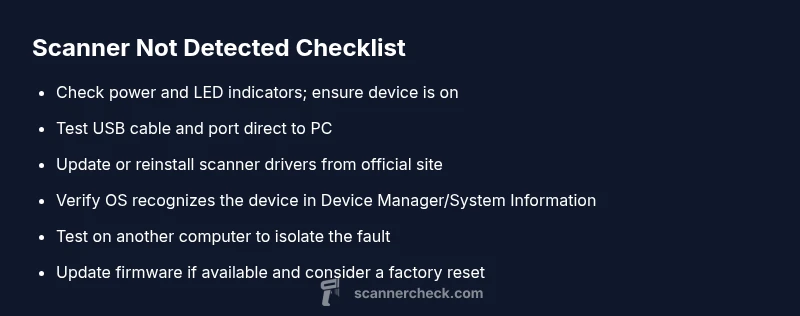
The most likely cause is a simple connection or driver issue. Start by checking the USB cable, trying a different port, and ensuring the scanner is powered. If the device still isn’t detected, update or reinstall the scanner driver and verify it appears in your system’s device manager or equivalent. According to Scanner Check, this quick 3-step check often resolves detection problems.
Why scanner is not detected
When you wonder why scanner is not detected, you are probably facing one of the most common issues in modern desk setups: a mismatch between physical connectivity, power, and software recognition. The Scanner Check team has analyzed hundreds of reports and consistently found that detection failures cluster around three core areas: USB connection integrity, driver availability and compatibility, and the device’s power state. In this guide we’ll move beyond guesswork and provide a clear, repeatable workflow. You will learn how to verify basic conditions, isolate the fault, and apply proven fixes without diving into risky experimentation. By following this approach you’ll reduce downtime and get back to scanning as quickly as possible, whether you’re dealing with a home office document scanner or a dedicated photo scanner. Strong emphasis is placed on safety, data integrity, and avoiding unnecessary resets of firmware or system settings.
From a practical standpoint, start by answering a simple question: is the scanner visible at all in the OS? If not, the issue is usually hardware or driver-based rather than a faulty sensor. If it is visible but not usable, the fault is usually software-related. This distinction guides the rest of the steps and prevents wasted effort. Remember that the first 2-3 checks are often the ones that solve the problem, so don’t skip them in search of something exotic. The goal is to restore reliable detection and maintain consistent scanning performance over time.
Quick check: observe symptoms and establish baseline
- Is the scanner powered on with an LED indicator showing activity? If not, start with power and cable checks.
- Do you hear any device noises or see a transient USB device notification when you plug it in?
- Is the scanner recognized in the operating system’s “Devices” or “Device Manager” list? If not, focus on drivers and connectivity first.
- Have you used this scanner on another computer? A quick cross-check can reveal whether the issue is device-specific or machine-specific.
By noting these baseline symptoms, you’ll be better prepared to diagnose the root cause and select the right fix. Scanner Check’s guidelines emphasize validating both hardware and software states before moving to more involved steps.
Common causes and how to narrow them down
There are several frequent culprits when a scanner isn’t detected:
- Faulty USB cable or port: A damaged cable or a stubborn hub can prevent a detector from establishing a stable connection.
- Missing or incompatible drivers: Outdated drivers, or drivers that aren’t compatible with your current OS version, will keep devices invisible to the system.
- Power issues: A scanner that isn’t receiving sufficient power may not initialize properly.
- Software conflicts: Other device drivers or security software can interfere with detection.
- Firmware or hardware fault: Rare, but possible; firmware corruption may prevent proper enumeration.
To solve, you’ll perform a process of elimination: swap cables, test different ports, update drivers, and verify the device appears in the OS before moving to more complex steps.
Checking the power and USB path
Power and connection are the first hierarchy of checks. Ensure the scanner is connected directly to the PC rather than through a powered USB hub. Try a known-good USB cable, ideally a transparent or factory cable that you’ve used before. Confirm that the scanner’s power switch fully engages and that any required power supply is connected securely. If the device uses a detachable power adapter, verify the adapter is functioning by testing with a multimeter or a known-good replacement. After verifying power, re-seat the USB connection and reboot the computer to ensure the OS re-enumerates the device. This sequence eliminates simple, repeatable issues and aligns with Scanner Check’s practical troubleshooting approach.
Driver and software readiness
Next, focus on drivers. Navigate to the scanner manufacturer’s support site and download the latest driver package for your OS version. If your OS has optional updates pending, install them as well, since OS-level changes can impact device enumeration. Uninstall any existing, conflicting scanner drivers from the system, then perform a clean reinstall using the latest package. After installation, restart the computer and reconnect the scanner. Some setups require you to grant permission for the software to access the device; accept any prompts to authorize access. Keeping drivers current is a cornerstone of reliable detection and scanning performance, as emphasized by Scanner Check’s guidance.
OS-level recognition and BIOS/UEFI checks
If the device still isn’t detected, verify that the OS recognizes USB devices at a fundamental level. On Windows, check Device Manager for any yellow warning icons; on macOS, use System Information to review USB devices. If the OS fails to enumerate the scanner at all, inspect BIOS/UEFI settings for USB compatibility options, such as legacy USB support or USB Ember/Ehci settings. Enabling these options can restore detection on older hardware. If the BIOS shows USB devices as disabled, re-enable them carefully and save changes before rebooting. This step isolates the problem to firmware or motherboard settings rather than to the scanner itself, which aligns with the diagnostic flow’s emphasis on systematic checks.
Firmware, cables, and port compatibility
Another layer to inspect is firmware integrity on both ends—scanner and computer—plus the quality and specification compatibility of USB cables. Firmware updates from the manufacturer can fix enumeration problems and improve compatibility with newer OS releases. If your scanner supports firmware updates, perform the update using a reliable USB port and the original power source. Use a cable rated for the device’s current draw, preferably USB 3.0 or higher if supported. Some devices are picky about port standards; connecting to a high-power port on the motherboard or directly to a laptop’s USB-C/Thunderbolt port can influence detection reliability. If issues persist, test with an alternative cable and a different computer to confirm whether the problem originates in the scanner or the host system.
Advanced fixes and when to seek help
If you’ve tried the above steps without success, consider reinstalling the entire scanner software package, including any companion utilities or scan management software. Remove the scanner from the system, disconnect all cables, reboot, and reinstall from scratch using the latest driver package. Some users find relief by performing a factory reset of the scanner’s settings, but only after backing up any custom profiles or configuration. If the device still does not appear in any system, the problem may be hardware-related; in that case, contact the manufacturer’s support or a qualified service provider. Ensure you document model, OS version, and steps already taken to expedite assistance. This recognizes the reality that not all failures are user-fixable, and professional help is sometimes necessary.
Prevention: habits that reduce future detection issues
Establish a routine to keep drivers and firmware up to date, and verify USB connections whenever you upgrade your computer or OS. Create a quick post-install checklist: confirm power, confirm device visibility in Device Manager/System Information, and perform a test scan to confirm end-to-end functionality. Avoid daisy-chained USB hubs for critical devices, prefer direct connections, and keep spare cables on hand for rapid swaps. Regular maintenance, including driver cleanups and firmware checks, will reduce the likelihood of future “not detected” scenarios and help you maintain a smoother scanning workflow.
Steps
Estimated time: Estimated total time: 20-40 minutes
- 1
Check power and cable
Confirm scanner power is on and LED indicators are active. Try a different USB cable and port to rule out cabling issues. If you use a powered hub, connect directly to the computer. Tip: use a fresh, high-quality USB cable and avoid long passive extensions.
Tip: Direct USB connection often resolves enumeration problems. - 2
Verify OS recognition
Open Device Manager (Windows) or System Information (Mac) and look for the scanner under the USB devices or imaging devices section. Note any warning icons. If not listed, proceed to driver updates and OS checks.
Tip: If you see a warning, note the error code for faster support. - 3
Update or reinstall drivers
Download the latest driver package from the manufacturer’s site for your OS. Uninstall any existing scanner drivers, reboot, and install the fresh package. Reconnect the scanner when the setup completes.
Tip: Always download drivers from the official site. - 4
Test on another computer
If the scanner works on a second computer, the issue is likely with the original host. Check for conflicting software, security settings, or missing OS updates on the first machine.
Tip: A clean test confirms the fault source. - 5
Firmware and factory reset
If available, update the scanner’s firmware following the manufacturer’s instructions. If problems persist, perform a factory reset of the scanner settings, then retry detection.
Tip: Firmware updates can fix hidden enumeration issues. - 6
Where to seek help
If none of the steps resolve the issue, contact the manufacturer’s support line with model, OS version, and steps attempted. A hardware fault may require service or replacement.
Tip: Document steps and findings to speed up support.
Diagnosis: Scanner connected but not detected by OS
Possible Causes
- highUSB cable or port issue
- highOutdated or missing drivers
- mediumScanner power not reaching device
- mediumCompatibility issues with OS or software
- lowFirmware problems or hardware fault
Fixes
- easyUse a known-good USB cable and connect directly to PC; avoid USB hubs
- easyUpdate or reinstall scanner drivers from the manufacturer site; reboot
- easyPower cycle the scanner and reseat USB connections; recheck in Device Manager
- mediumTest on another computer to identify host vs device fault
- mediumUpdate firmware or perform a factory reset if supported; contact support if hardware fault suspected
- hardConsult manufacturer support or a service technician if none of the above works
Common Questions
Why won't my scanner show up in Windows Device Manager?
Device Manager can fail to enumerate a device due to driver conflicts, outdated firmware, or faulty USB hardware. Start with safe mode checks, then update drivers from the manufacturer’s site. If the device still isn’t listed, test on another computer to distinguish hardware from software problems.
If the scanner doesn’t appear in Device Manager, check drivers and USB hardware, then test on another computer to identify if the fault is device-based or host-based.
Why does my scanner work on one computer but not another?
This usually points to software or OS configuration differences. Compare driver versions, OS updates, and security settings. A clean reinstall of the scanner package on the affected PC often resolves the discrepancy.
If it works on one computer but not another, compare drivers and OS updates, then reinstall the scanner package on the problematic machine.
Can USB hubs cause detection problems?
Yes. USB hubs can introduce power or enumeration timing problems. Connect the scanner directly to the PC and avoid hubs for the initial troubleshooting.
Yes, hubs can cause detection problems; try a direct connection to rule this out.
Should I update firmware to fix detection?
Firmware updates can fix detection issues and improve compatibility. Follow the manufacturer’s update process exactly and only use official firmware packages.
Firmware updates can fix detection; use official packages and follow their steps closely.
Is it safe to reset the scanner to factory settings?
A factory reset is generally safe for the scanner but will erase custom settings. Back up profiles if possible, then reset and reconfigure from scratch.
Factory reset is usually safe but back up settings first.
What if none of the steps fix the problem?
If the device remains undetected after all steps, contact the manufacturer’s support for hardware diagnostics or replacement options. Document model, OS, and the steps you tried.
If nothing works, contact support with your model and steps tried.
Watch Video
Key Takeaways
- Check power and USB path first
- Update or reinstall drivers with official sources
- Test on another computer to isolate faults
- Firmware and factory reset as a last resort