Why Is My Scanner So Slow? A Practical Troubleshooting Guide
Struggling with slow scans? This comprehensive troubleshooting guide covers software, hardware, and network factors to speed up your scanner. Learn quick fixes, diagnostic flow, step-by-step actions, and expert tips from Scanner Check.


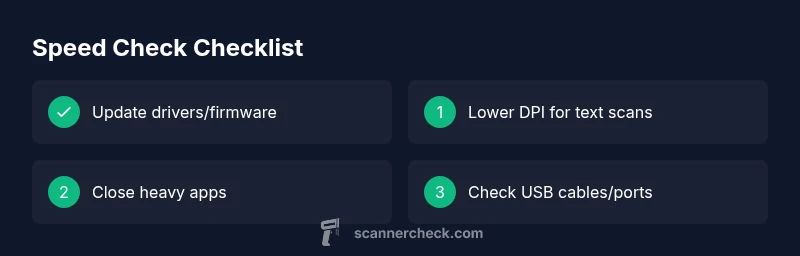
If you’re wondering why is my scanner so slow, start with quick checks: ensure drivers and firmware are up to date, close unnecessary programs, and reduce DPI or color settings. This quick-follow guide expands into a diagnostic flow and practical fixes to restore speed without guessing. If those steps don't help, consult the full flow below to identify whether software, drivers, or hardware is the bottleneck, and follow the step-by-step fixes.
Why is my scanner so slow? Common causes and quick context
If you’re wondering why is my scanner so slow, you’re not alone. The speed of a document scanner depends on many interacting factors, from software to hardware. In many cases, the bottleneck is not the device itself but settings or background processes. Scanner Check’s analysis shows that slow scanning is frequently caused by outdated drivers, aggressive DPI or color modes, and busy background apps. The goal of this guide is to help you quickly identify the root cause and apply practical fixes that restore speed without sacrificing quality. Read on to learn a structured approach that starts simple and scales up if needed.
Throughout this article, we’ll use simple tests you can reproduce, note the times, and compare against a fresh baseline. You’ll learn how to differentiate software delays from hardware faults and how to optimize common document workflows for faster results.
Quick checks you can perform now
- Check the basics: verify the scanner is powered on, the USB or network cable is firmly connected, and the power indicator is steady.
- Inspect the cable and ports: try a different USB port (prefer a direct port on the PC, not a hub) and replace a worn-out cable if you notice jagged connections.
- Confirm device visibility: on Windows, open Device Manager and confirm the scanner appears under Imaging Devices; on macOS, check System Information > USB or Imaging.
- Update software: install the latest driver, firmware, and any scanning software from the manufacturer site. Reboot after updates.
- Adjust scan settings: for text documents, set DPI to 300–400 and switch to Black & White or Grayscale; avoid high DPI for large batches unless necessary.
- Limit concurrent tasks: close heavy apps, especially photo editors or virtualization software, to free CPU and memory resources.
- Run a test: scan a single-page document and time the operation to create a baseline for comparison.
Software, drivers, and settings that slow scanning
Software health is often the deciding factor in scan speed. Outdated drivers or firmware can slow the entire pipeline, as can incompatible scanning software. Check for:
- Driver and firmware updates: always install manufacturer-approved updates first. These fixes can optimize communication with the scanner hardware and correct known slowdowns.
- Scanner profile and DPI: high DPI or color-intensive profiles dramatically increase processing time. For text-heavy documents, 300 DPI in Black & White is usually sufficient.
- Default save destinations and OCR options: sometimes saving to a network drive or enabling OCR adds processing overhead. Try saving locally with OCR disabled briefly to compare times.
- Background processes: antivirus scans, cloud backup, or syncing apps can consume I/O, CPU, or disk bandwidth during scanning. Pause or schedule these tasks for off-peak times.
- OS power settings: set the computer to a balanced or high-performance profile to prevent CPU throttling during long scans. Disable any power-saving features that aggressively reduce performance.
Adopt a minimal, repeatable baseline: after each change, run the same test document to quantify the effect of the change. Scanner Check’s guidance emphasizes mastering a repeatable workflow to isolate the real bottleneck.
Hardware, cables, and network considerations
Hardware issues are common culprits when software fixes don’t yield results. Key checks include:
- USB interface health: ensure the scanner is on a dedicated USB port with stable power. If your device is bus-powered, a powered USB hub can alleviate voltage drops that slow performance.
- Cables and connectors: damaged or frayed cables can introduce intermittent latency. Replace suspect cables to rule out connectivity problems.
- Scanner memory and buffers: some scanners have limited onboard memory. If you are scanning large batches, enable sequential scanning or increase file handling efficiency where possible.
- DPI scaling and color modes: higher color depth or grayscale modes require more processing time. Use Black & White for text-only scans and reserve color for images.
- Network impact: if you scan to a network share or cloud service, consider local scanning first to measure baseline. Network latency can masquerade as scanner slowness.
- Computer resources: inspect CPU load, RAM usage, and disk I/O while scanning. If the system is maxed out, a restart or temporary resource reallocation often helps.
How to run deeper diagnostics without fancy tools
If basic checks don’t reveal the bottleneck, a deeper, yet practical, diagnostic flow is helpful. Start by testing on a second computer with the same scanner and software version to see if performance improves. If yes, the issue is likely OS or configuration-related; if no, the problem could be hardware or firmware. Use built-in system tools to monitor CPU, memory, and disk activity during a scan. Compare times between a simple text scan and a rich color image.
Document your findings with timestamps and scan sizes. This record helps determine whether the delay scales with file size, DPI, or color complexity. When testing, use a standardized test document (same layout and page count) and the same destination settings to ensure apples-to-apples comparisons.
When to consider professional help and prevention strategies
There are scenarios where professional help makes sense. If you’ve ruled out software, drivers, and cables and scanning remains consistently slow across multiple computers, the scanner itself may have hardware faults (faulty sensors, worn drive belts, or aging components). Before investing in a replacement, ask a service professional to run a diagnostic test and confirm component health. For ongoing prevention, implement a quarterly maintenance routine: update firmware, verify driver integrity, run clean-start scans, and keep a documented baseline of scan times for different document types. Regular maintenance helps you spot drift earlier and prevent speed degradation over time.
Steps
Estimated time: 45-60 minutes
- 1
Prepare and baseline
Create a baseline by scanning a simple one-page document at 300 DPI in Black & White. Note the time taken and the file size. This gives you a reference to compare against after each change.
Tip: Log your baseline times so you can measure improvements clearly. - 2
Update drivers and firmware
Visit the manufacturer’s site, download the latest drivers and firmware, and install them in a clean boot state to avoid conflicts. Reboot before your next test to ensure changes take effect.
Tip: If automatic updates exist, enable them briefly to catch essential fixes. - 3
Adjust scan settings
Set DPI to 300 for text documents, switch to Black & White, and disable OCR during the test to isolate speed. Re-scan and compare times with the baseline.
Tip: Only re-enable OCR or color when you need the final high-quality output. - 4
Reduce background load
Close heavy apps, disable syncing software, and pause antivirus scans temporarily. Run the same test to see if performance improves.
Tip: Use a clean user profile for testing if possible. - 5
Check cables and ports
Try a different USB port and a fresh cable. If possible, connect directly to the computer instead of a hub to rule out power or latency issues.
Tip: Avoid long or braided cables that can add resistance or signal noise. - 6
Document results and decide on next steps
If speed improves with any change, reintroduce variables one by one to confirm the root cause. If nothing helps, plan a professional assessment.
Tip: Keep a written plan of tested configurations for future reference.
Diagnosis: Scanner is slow or unresponsive during scans
Possible Causes
- highOutdated or corrupted scanner drivers/software
- mediumBackground processes consuming CPU/RAM resources
- mediumExcessive DPI/color settings or large document sizes
- lowHardware bottlenecks or failing USB cable/port
Fixes
- easyUpdate or reinstall scanner drivers and firmware; install latest software updates
- easyClose unnecessary background apps and disable auto-start items affecting scanning
- easyLower DPI, color mode, or output resolution to standard defaults; select black-and-white when appropriate
- easyTest with a different USB port or cable; try USB 2.0 vs 3.0; reboot the computer
Common Questions
What is the most common reason a scanner is slow?
Most slow scans are caused by outdated drivers or firmware, combined with high DPI or color settings. Start by updating software, then adjust DPI to 300 and switch to Black & White for text documents to test improvements.
The most common reason for slow scans is outdated drivers or too high scan settings. Update first, then try lowering DPI and switching to black and white to speed things up.
How can I tell if it’s software or hardware?
If the slow performance persists across different computers with the same scanner, hardware or firmware may be the issue. If it improves on another machine, software, drivers, or OS configuration on the original computer is likely the bottleneck.
If changes across devices don’t help, it’s likely hardware. If it improves on another computer, focus on software and OS settings.
Should I replace the scanner if speed remains slow?
Not immediately. Run a structured diagnostic, test with different settings, and verify firmware health. If the device fails hardware diagnostics consistently, replacement may be warranted.
Only replace if hardware diagnostics show failure after tests; otherwise optimize software and settings first.
Can malware slow scanning down?
Yes, malware or aggressive security software can impact I/O and CPU resources, slowing scans. Run a full system malware scan and temporarily pause conflicting security tasks during testing.
Malware can slow scans by consuming resources; scan your system and adjust security software during tests.
Does DPI or color mode affect scan speed?
Higher DPI and color modes require more processing, increasing scan time. Use lower DPI for text documents and switch to color only when you need rich imagery.
Higher DPI and color mode slow things down; use 300 DPI in Black & White for quickest scans.
Watch Video
Key Takeaways
- Update drivers and firmware first
- Lower DPI and simplify color settings for speed
- Close background apps and test hardware connections
- Use a repeatable baseline to diagnose bottlenecks