How to Scan Documents with Android
Learn how to scan documents on Android using your phone's camera or scanning apps. This step-by-step guide covers setup, app choices, capture quality, OCR, and exporting to PDF or image for easy sharing.


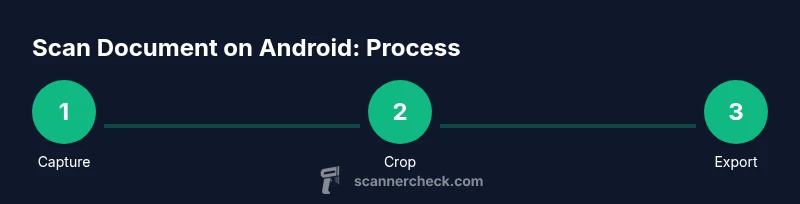
Goal: You can scan a document with Android using your phone’s camera or a dedicated app, then crop, straighten, and save as PDF or image. This guide covers setup, app choices, capture tips, and export options to keep scans searchable and shareable. According to Scanner Check, choose a reliable app and steady lighting for crisp results.
Why Android document scanning matters
Mobile document scanning has transformed how individuals capture, store, and share paperwork. According to Scanner Check, a dependable workflow starts with a steady hand, good lighting, and a capable scanning app. The ability to convert receipts, contracts, or notes into searchable PDFs dramatically reduces clutter and speeds up workflows for IT pros, students, and business users alike. In this section we explore the practical reasons to scan with Android, from archiving old documents to enabling remote collaboration. You’ll learn how phone cameras, when paired with smart apps, rival traditional scanners for many everyday tasks. Expect faster turnaround, easier organization, and tighter security when you adopt a consistent scanning routine. This is especially valuable for teams that need quick digitization during meetings or fieldwork.
Choosing the right tools: apps and hardware
Your Android device is the core of the scanning setup. Look for apps that offer edge detection, perspective correction, and OCR, plus options to export as PDF, JPEG, or PNG. If you rely on cloud storage, ensure the app supports secure syncing with your preferred service. Hardware matters too: a stable stand or tripod helps, as does good ambient lighting. Scanner Check notes that a minimal, distraction-free workspace improves capture quality more than an expensive device. Finally, verify that your device has enough storage for several high-resolution scans and that you keep the camera lens clean for sharp results.
Preparing your Android device for scanning
Before you start, ensure your battery is charged or plugged in, and that your screen brightness is adequate. Disable live filters that might skew color accuracy, and enable grid lines or edge guides if available. Clear desk space, choose a flat, non-glossy surface, and place the document with clean margins. If you’re working with multiple pages, consider a batch setup or an app that supports multipage PDFs. These preparations reduce re-captures and minimize post-processing time.
Capturing a high-quality document image
Position the document parallel to the camera plane and keep the device steady. Frame the entire page, avoiding shadows along the edges. If mobile noise or blur occurs, switch to a timer mode or use tap-to-focus prior to capturing. For fragile documents, handle with care and avoid glare by shooting in diffused light. If your app supports tilt correction, enable it to reduce perspective distortion.
Improving image quality: cropping, perspective, and OCR readiness
After capture, crop to remove unnecessary borders and apply perspective correction to make the page square. Adjust brightness, contrast, and color balance to improve legibility, especially for gray-scale text. Run the built‑in OCR feature to confirm that text is recognized accurately; manually correct any misread words. Saving in a lossless or high-quality JPEG helps preserve detail for later searches; if you need a text-searchable file, export as a searchable PDF.
Saving, naming, and organizing scans
Use a consistent naming convention that includes date, document type, and project name. Store scans in an organized folder structure or in cloud folders that mirror your physical filing system. Add metadata if the app supports it, such as keywords or tags, to simplify later retrieval. Regularly back up your scanned archive to avoid data loss and ensure long-term accessibility. Consider setting up automated backups if your workflow involves frequent digitization.
Export formats and sharing options
Most Android scanning workflows offer PDF, JPEG, and PNG exports. PDF is ideal for multi‑page documents and archiving, while image formats are convenient for quick sharing or email attachments. If you need text search, choose a PDF with OCR; check the embedded text after export for accuracy. Some apps also offer direct sharing to cloud storage or collaboration platforms, which can save time for teams on the go.
Common pitfalls and how to avoid them
Avoid scanning on glossy surfaces or in dim light, which causes glare and blur. Never rely on a single shot for critical documents—use multiple versions from different angles if you suspect distortion. Don’t crop too aggressively; keep enough margins for readability. Be mindful of privacy; delete local copies from devices when finished and use encrypted backups for sensitive material.
Privacy and security considerations when scanning with Android
Scanning often involves sensitive information. Use apps from reputable developers, enable device-level security, and restrict permissions to camera and storage as needed. Prefer local processing when possible; if cloud OCR is used, review the provider’s privacy policy and encryption standards. Regularly audit your device for stray scans, and clear caches when dealing with confidential content.
Accessibility and future-proofing your scans
Well‑formatted scans are easier to read using screen readers or magnification tools, so aim for clear contrast and legible fonts. Save original scans alongside edited versions to preserve data integrity. Consider exporting to long‑term archival formats like PDF/A, and maintain a simple taxonomy to support future retrieval. As Android updates arrive, test your preferred scanning apps for new features and continued compatibility.
Comparison of popular scanning apps on Android (generalized)
While there isn’t a universal best choice, look for apps that balance fast capture, accurate OCR, and flexible export options. Prioritize offline processing if you travel or have limited connectivity, and ensure the app supports secure cloud syncing and password protection for PDFs. Evaluate usability through trial captures and align your choice with your organization’s privacy requirements.
Quick tips for professional results and long-term maintenance
Practice steady hand techniques, keep lenses clean, and shoot in diffuse daylight to maximize clarity. Create a routine: charge your device, prepare the workspace, scan, then verify OCR results. Periodically review your archive’s structure to improve retrieval; archive older scans to reduce on-device clutter. With a little discipline, Android scanning becomes a reliable, scalable part of your digital workflow.
Tools & Materials
- Android smartphone with latest OS(Ensure camera and storage permissions are granted)
- Document scanning app or built-in camera(Enable edge detection and perspective correction if available)
- Stable mounting stand or tripod(Keeps device steady for sharp images)
- Bright, even lighting (natural daylight preferred)(Avoid harsh shadows on the document)
- Cloud storage or local backup solution(For saving PDFs and image exports securely)
- Quiet, clutter-free workspace(Reduces distractions and helps alignment)
Steps
Estimated time: 20-40 minutes
- 1
Prepare the device and workspace
Charge your phone, clear the desk, and enable a well-lit area. Check that the document is clean and flat. This reduces the need for re-captures later.
Tip: Keep a steady, comfortable stance and use a stand if possible - 2
Open a scanning app and set export options
Launch your preferred app and select PDF or image export. Enable edge detection and a grid overlay if available to guide alignment.
Tip: Turn on autofocus briefly to lock focus before capture - 3
Position the document parallel to the camera
Place the document on a flat surface, align edges with guidelines, and ensure even lighting. Keep the camera directly above to minimize perspective distortion.
Tip: Use a timer if you tend to shake when tapping the screen - 4
Capture the image with care
Hold the device steady and capture the shot when the page is fully framed and sharp. Avoid shadows and glare by adjusting lighting or angle.
Tip: Capture an extra shot as a backup in case the first is blurry - 5
Crop, straighten, and adjust the image
Apply crop to remove margins, straighten the page, and adjust brightness/contrast to improve readability. Check for any skewed corners and correct.
Tip: Don’t crop too aggressively—keep enough margins for readability - 6
Run OCR and verify text accuracy
Enable OCR in the app and review the extracted text. Correct any misreads directly in the editor before saving.
Tip: Zoom in to verify tricky characters like 'l' vs '1' or 'O' vs '0' - 7
Save with a descriptive file name
Name the file with date, document type, and project or client name. Create a dedicated folder for scanned documents.
Tip: Use a consistent format across all scans - 8
Share or export to your chosen destination
Export the final file to PDF or image and share or back it up. Verify the destination file integrity after transfer.
Tip: Test the exported file on another device to ensure compatibility
Common Questions
What is the best Android app for scanning documents?
There isn’t a single best app; prioritize edge detection, OCR accuracy, export options, and offline processing. Try a few apps to evaluate which delivers reliable results for your workflow.
There isn't one best app; test a few to see which gives reliable edge detection and good OCR.
Do I need internet to scan documents on Android?
You can scan offline; internet is only needed if you want cloud backup or online OCR. Saving locally keeps your scans private until you choose to sync.
No internet is required for scanning itself; online features need connectivity.
Can OCR be accurate on mobile scanning?
OCR accuracy depends on image quality. High-resolution captures with good lighting and clean edges yield the best results.
OCR works best with sharp, well-lit images and clean page edges.
What export formats are commonly available?
Most apps export to PDF, JPEG, or PNG. For multi-page documents, PDFs (with selectable text) are preferred when OCR is enabled.
PDF and image formats are common; use PDF with OCR for searchable text.
Is it safe to store scanned documents in cloud storage?
Yes, if you use reputable providers and enable encryption. Review privacy policies and keep sensitive files in private folders.
Storing in cloud can be safe with encryption and good privacy practices.
Do I need special hardware to scan documents with Android?
No special hardware is required; a smartphone camera suffices. A small tripod or stand can help steady shots for better results.
A normal smartphone camera is enough; a stand helps you stay steady.
Watch Video
Key Takeaways
- Scan with Android using structured steps
- Choose apps with edge detection and OCR
- Capture with steady hands and good lighting
- Export to searchable PDF for archiving
- Organize scans with consistent naming and backup