Where Is Scanner on Vivo Phone: A Practical Guide
Discover where the built-in scanner lives on Vivo Android phones, how to activate it, and practical tips for document, barcode, and OCR scans. A practical guide from Scanner Check to improve your mobile scanning workflows.


Goal: locate and use the built-in scanner features on a Vivo Android phone. This quick guide explains where scanning tools typically live (Camera app, Notes/Docs helpers, Gallery, or quick settings), how to activate them, and how to choose between document, barcode, and OCR scans. You’ll also see practical tips to improve scan quality and save results.
What is a phone scanner and why it matters
Phone scanners leverage your camera to convert physical pages, codes, or text into digital data. They enable fast document capture for archiving, sharing, or editing; barcode scanning for product lookup; and OCR (optical character recognition) to extract text from images. On Vivo devices running Android, many scanners are built into system apps or vendor overlays and can be used without installing anything. This integration matters for productivity, organization, and accessibility.
According to Scanner Check, modern smartphones with good lighting and stable hands can produce accurate scans that rival dedicated scanners for everyday tasks. For busy students, professionals, or makers, learning where the scanner lives on your Vivo phone reduces friction and unlocks quick workflows. In this section, we’ll map out the common locations, explain what each type of scan does, and set expectations for quality across devices.
Where to find the scanner on Vivo phones (common locations)
Finding the scanner feature on Vivo phones typically involves checking a few core apps. Many Vivo devices place scanning capabilities inside the Camera app as a dedicated Scan or Document option. If you don’t see it there, look in the Notes or Documents app, which often includes a scan tool for turning pages into editable text. Some models expose scanning through the Gallery or as a quick action in the notification shade or settings search.
The exact location depends on the Android version and the Vivo user interface (UI) layer you have installed. If you can’t locate a built-in scanner, you can fall back to trusted third-party apps with document capture, barcode scanning, and OCR features. The rest of this guide helps you confirm the built-in option and explains how to use it effectively.
Understanding these scan types: document vs barcode vs OCR
Document scan converts a page into a clean image or PDF, preserving layout for sharing or archiving. Barcode scanning reads 1D or 2D codes to retrieve product data or URLs. OCR extracts text from scanned images so you can search, edit, or repurpose the content. Some Vivo devices blur the lines between these modes by offering a single scan mode with advanced post-processing; others require switching modes within the same app. Knowing the differences helps you pick the right tool for the job.
Step-by-step overview: where to begin and how to enable scanning
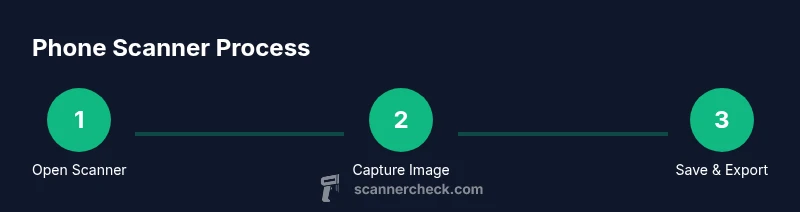
Before you scan, ensure your device is up to date and you have adequate lighting. Open the suspected scanning surface (Camera, Notes, or Gallery) and switch to the Scan, Document, or OCR option. Position the page or code within the frame, capture with a steady hand, and review the edges. Save or export the result as PDF or image, then share or archive as needed. If you don’t find a built-in option, consider a reputable third-party app that supports similar features while respecting your privacy.
Tips for achieving high-quality scans on mobile
- Use a stable surface or tripod to minimize blur. - Ensure even lighting; avoid heavy shadows across the document. - Align the edges within the framing grid for consistent cropping. - Capture multiple angles if the page is thick or has folds, then choose the best image. - Save scans in a universally accessible format (PDF for documents, PNG/JPEG for images).
When built-in scanning isn’t available: alternatives and workarounds
If your Vivo device lacks a built-in scanner or you need more advanced features, third-party apps can fill the gap. Look for apps with a strong track record in document scanning, barcode reading, and OCR. Check permissions and privacy policies, and favor apps that store scans locally by default or offer end-to-end encryption for sensitive documents. Some apps integrate directly with cloud storage for automatic backups and collaboration.
Tools & Materials
- Vivo Android smartphone (any model with built-in scanner)(Ensure OS is up to date)
- Stable surface(For steady shots when scanning documents)
- Good lighting(Natural or bright LED lighting for clear scans)
- Optional: external light or tripod(For challenging lighting or long docs)
- Third-party scanning app (optional)(If built-in scanner is unavailable)
Steps
Estimated time: 8-12 minutes
- 1
Open the scanner option
Navigate to the app that houses the scanner (Camera, Notes, or Gallery) and select the Scan/Document option. If you don’t see it, use the device search (Settings > Apps) to locate a scanning feature. This first step confirms you’re in the right tool before capturing.
Tip: If the option isn’t visible, try updating the app or the system UI. - 2
Choose the scan type
Decide whether you need a document scan, barcode scan, or OCR. Document scans are best for pages; barcode scans read codes for product data; OCR turns captured text into editable content. Picking the correct mode saves time later.
Tip: Document scans often default to high contrast; switch if you want color retention. - 3
Position the document or code
Place the item on a flat, well-lit surface. Align the edges with the on-screen frame guides. Avoid curved pages, as distortions degrade the final image. If scanning codes, ensure the code is flat and evenly lit.
Tip: Use a contrasting background to improve edge detection. - 4
Capture and adjust edges
Hold steady and capture. Review the captured image and crop to the exact edges. Some devices offer auto-cropping; if not, manually adjust the crop to remove unnecessary margins.
Tip: Take a second shot if the first is blurry; better sharpness saves editing time later. - 5
Save, export, or share
Choose a format (PDF for documents, image for quick share). Name the file and select a destination (local storage or cloud). Ensure the exported file preserves legible text if OCR was used.
Tip: If you plan to archive, select a searchable PDF option when available. - 6
Test OCR or barcode results
Open the scanned document in a viewer or editor to verify text accuracy or barcode data. Run a quick OCR check by selecting the text and attempting copy-paste to confirm recognition quality.
Tip: If OCR seems off, try rescanning with better lighting or a flatter page.
Common Questions
Where is the scanner feature located on most Vivo phones?
On many Vivo devices, the scanner appears in the Camera app as a Scan or Document option. If it isn’t present there, check the Notes or Documents app or search your device for 'scan' or 'document'. Availability can vary by Android version and Vivo UI.
Most Vivo phones put the scanner in the Camera app or Notes. If you don’t see it, try Notes or search your device for scan.
Can I scan documents without internet on my Vivo phone?
Yes. Built-in camera scanning and local OCR (if supported) typically work offline. Exported PDFs or images can be saved locally and shared later when you have connectivity.
Yes. You can scan offline and save locally, then share later when you have internet.
What if my phone doesn’t have a built-in scanner?
If the device lacks a built-in option, you can install a reputable scanning app from the Play Store. Choose one with good privacy reviews and essential features like edge detection and OCR.
If there’s no built-in scanner, install a reputable scanning app with edge detection and OCR.
Is OCR accuracy on smartphones reliable for editing text?
Modern smartphone OCR is generally accurate for clear, well-lit documents. For long or complex layouts, you may need minor manual corrections after extraction.
Smartphone OCR is usually accurate for clear text, but you might fix a few things after extraction.
How do I export scanned documents effectively?
Export options typically include PDF or image formats. PDFs are best for multi-page documents and preserving text searchability, while images are handy for quick sharing.
Export as PDF for multi-page documents, or as image for quick sharing.
Do built-in scanners support barcode scanning without third-party apps?
Some built-in scanners support basic barcode reading. If yours does not, you can use a trusted third-party barcode scanning app without sacrificing privacy.
Some phones can scan barcodes natively; otherwise, use a trusted barcode app.
Watch Video
Key Takeaways
- Locate built-in scanner options in Camera, Notes, or Gallery.
- Choose the correct scan type for your task (document, barcode, OCR).
- Capture with steady hands and proper lighting to improve quality.
- Export formats affect accessibility and searchability; prefer PDF for docs.
- If built-in options are missing, reputable third-party apps offer viable alternatives.