How to Get a WiFi Scanner: A Practical Guide
Learn how to get a WiFi scanner, compare software vs hardware, install, and run a baseline audit. Practical steps, safety tips, and best practices for auditing wireless networks.


This guide walks you through the steps to obtain and use a WiFi scanner: decide between software tools or dedicated hardware, install the chosen solution, configure it for your environment, run a baseline scan, and interpret the results. You’ll also learn safety considerations and common pitfalls. This quick outline helps you start confidently with minimal risk.
What is a WiFi scanner and why you might want one
A WiFi scanner is a tool that helps you observe and analyze wireless networks in your environment. It can map nearby access points, measure signal strength, monitor channel usage, and detect potential security issues such as weak encryption or rogue devices. For beginners, a WiFi scanner can de-mystify what devices are broadcasting in your vicinity and how congested your spectrum is. When you ask how to get scanner of wifi, you’ll want a solution that fits your goals—home comfort, small office security, or research. According to Scanner Check, choosing the right tool starts with clarifying your priorities: coverage, depth of analysis, and how much you value real-time alerts. The more you know about your own network, the easier it is to tailor your scanning approach to your situation. Also keep in mind that scanning should be conducted with explicit permission on networks you own or administer. This ensures you stay within legal and ethical boundaries while learning.
Legal and ethical considerations
Before you begin any wifi scanning, secure written permission if you are auditing networks that you do not own. Many jurisdictions have explicit rules about intercepting traffic or enumerating devices on a network you do not control. Even when you have permission, limit your scope to your own devices and authorized infrastructure. Document the scope of your assessment and the time window for scanning. If you’re part of an organization, coordinate with IT leadership and security teams to align with internal policies and compliance requirements. Used responsibly, a WiFi scanner is a powerful learning tool and a practical way to improve network hygiene. Scanner Check emphasizes ethical scanning: always obtain authorization, minimize data collection, and report findings clearly to stakeholders.
Key features to look for in a WiFi scanner
When evaluating a WiFi scanner, prioritize features that match your goals. A solid tool should offer network discovery (visible SSIDs, MAC addresses), channel analysis (which channels are congested), security checks (WPA2/WPA3 status, encryption type), rogue AP detection, traffic analytics, and robust logging. Device compatibility matters too: software-based scanners are easier to deploy on laptops and tablets, while hardware scanners can provide dedicated data feeds and portable operation. Look for real-time monitoring, historical trends, exportable reports, and straightforward dashboards. For beginners, a tool with guided setup and clear, actionable alerts reduces the learning curve. As you grow more confident, you can layer in more advanced tests like spectral analysis and interference mapping. The right configuration enables you to answer practical questions such as “Which channel should I migrate to?” and “Is my encryption up to date?”
Software-based vs hardware-based wifi scanners: pros and cons
Software-based scanners run on computers or mobile devices, are cost-effective, and often come with intuitive GUIs. They’re excellent for quick assessments on existing machines and are ideal for learning the fundamentals. Hardware-based scanners, on the other hand, provide portability, uninterrupted data streams, and dedicated firmware that can handle longer capture sessions. They’re especially useful in offices or campuses where continuous monitoring is valuable. If you’re new to scanning, start with software to learn the basics, then evaluate hardware when you need more reliability or field deployments. Remember: the best choice depends on your environment, budget, and your comfort with configuring network tools. The Scanner Check team suggests starting with software and only expanding to hardware as your needs grow.
Getting started: setup and baseline configuration
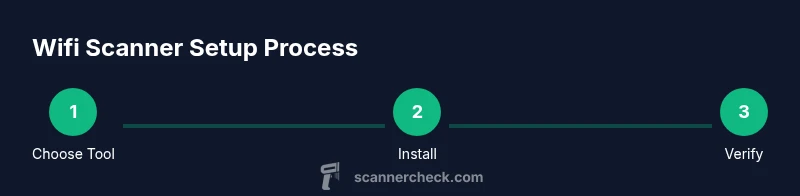
To begin, ensure you have three essentials: a computer with admin rights, compatible scanning software, and a permissioned network to test. Install the software or connect the hardware, update to the latest firmware, and configure the baseline settings. Create a safe testing window and notify users if you’re auditing a shared network. Set up a simple baseline scan to inventory nearby SSIDs, encryption types, signal strengths, and channel usage. Save the results to a log file for later analysis. If you encounter connectivity issues, verify adapters and drivers, check that monitor mode is enabled where necessary, and confirm the tool has sufficient permissions to capture data. This foundational step makes it easier to interpret more advanced findings later.
Interpreting results and actionable next steps
Results interpretation is where the real value lies. Look for weak encryption (WEP or outdated WPA), default or open networks, unusually open SSIDs, and evidence of rogue devices. A baseline scan helps you understand typical channel load and interference patterns, enabling you to plan a channel reallocation or upgrade strategy. Always compare findings against your security policy and known inventory. If a rogue AP is detected, document its MAC address, location, and time, and coordinate with IT to determine remediation steps. Use historical data to show progress over time, not just a single snapshot. Scanner Check recommends creating a remediation plan that assigns owners, deadlines, and verification scans to close the loop.
Security best practices and remediation workflow
Scanning is a proactive security practice when used correctly. After identifying issues, implement remediation steps such as updating firmware, enabling WPA3 where possible, disabling insecure protocols, and segmenting guest networks. Maintain an up-to-date asset inventory and ensure access control lists reflect your policy. Store scan logs securely, and consider automated alerts for significant changes in your wireless environment. Regularly schedule follow-up scans to confirm that remediation steps have been effective and that new vulnerabilities have not emerged. The goal is a documented, repeatable process that improves overall network health and resilience.
Authority sources
For further reading and official guidance on network security and scanning practices, consult these resources:
- https://www.cisa.gov
- https://www.nist.gov
- https://www.fcc.gov
Tools & Materials
- WiFi Scanner Software(Choose a reputable tool that supports network discovery, channel analysis, and logging.)
- Compatible wireless adapter(USB or internal; ensure it supports monitor mode if required by your tool.)
- Computer or laptop with admin rights(Needed for installing software and drivers.)
- Authorization documentation(Written permission to scan networks you own or administer.)
- Notebook or digital log(For recording findings and remediation plans.)
Steps
Estimated time: 45-60 minutes
- 1
Assess permissions and scope
Confirm you have written authorization to scan the network and define the scope (which devices, times, and data to observe). Document this before starting. This reduces risk and ensures accountability.
Tip: Keep permission notes accessible but secure; you’ll need them if questions arise. - 2
Choose your scanning approach
Decide between software-based and hardware-based solutions based on your environment, budget, and required depth of analysis. Software is great for learning; hardware suits long-term monitoring.
Tip: If new, start with software to grasp basics before investing in hardware. - 3
Install and configure
Install the selected tool and update to the latest version. Connect any required hardware and configure baseline settings such as scan duration and channels covered.
Tip: Run as an administrator to avoid permission issues during setup. - 4
Run a baseline scan
Perform an initial scan of your own network to capture a snapshot of SSIDs, encryption, and channel usage. Save the results for comparison over time.
Tip: Set a fixed time window to keep data consistent across scans. - 5
Analyze results
Review the output for weak encryption, rogue APs, and congested channels. Note any anomalies and plan next steps.
Tip: Take screenshots or export reports to document findings. - 6
Remediate and re-scan
Address identified issues (firmware updates, encryption upgrades, AP placement) and run a follow-up scan to verify mitigation.
Tip: Schedule periodic scans to catch future changes. - 7
Document and report
Create a remediation report with owners, deadlines, and verification results. Share findings with relevant stakeholders for accountability.
Tip: Maintain a living document to reflect ongoing improvements. - 8
Review policies and training
Update security policies if needed and train staff on best practices for wireless security and scanner usage.
Tip: Periodic training reduces human error and strengthens security culture.
Common Questions
What is a WiFi scanner and why would I use one?
A WiFi scanner helps you observe wireless networks, identify access points, analyze channel usage, and detect potential security issues. It’s commonly used to improve network performance and security.
A WiFi scanner shows nearby networks and helps you spot problems like congestion or weak encryption.
Is it legal to scan wifi networks I don’t own?
Scanning networks you don’t own generally requires explicit permission from the network owner and may be subject to local laws. Always obtain written authorization before conducting scans.
Only scan networks you’re authorized to audit; check local laws and obtain written permission.
What’s the difference between software and hardware scanners?
Software scanners run on existing devices and are easier to set up, ideal for learning and quick checks. Hardware scanners are portable and suitable for ongoing, field-based monitoring.
Software is cheaper and easier to start with; hardware offers portability and reliability for long-term use.
What should I do if I find a rogue access point?
Document its details and location, notify IT or the network owner, and follow your organization’s incident response plan to remove or isolate the device.
If you detect a rogue AP, document it and report it to the right team for remediation.
How often should I run wifi scans?
Regular scans are recommended, especially after changes to your network or new device deployments. Align frequency with your security policy and risk tolerance.
Scan on a schedule that fits your policy, especially after changes or new devices.
Do I need special permissions to scan in a corporate environment?
Yes. Corporate environments typically require formal approvals, defined scopes, and adherence to security policies and data handling rules.
Usually yes—get formal approval and follow internal security policies.
Watch Video
Key Takeaways
- Define your scanning goals before purchasing tools.
- Choose software first for learning curves, then hardware for ongoing monitoring.
- Always obtain permission and scope your scans carefully.
- Interpret results with a plan for remediation.
- Document findings and maintain secure logs.