How to Scan a QR Code Already on Your Phone
Learn how to scan a QR code that’s already on your phone using native camera features or trusted apps. This step-by-step guide covers tips, safety, and real-world use cases for iOS and Android users.


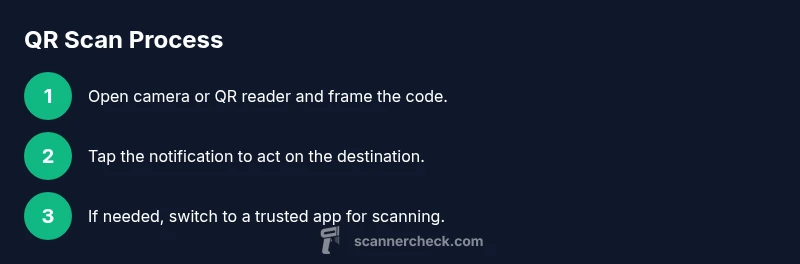
To scan a QR code that’s already on your phone, open your camera or a built-in QR reader and align the code in frame. When a notification appears, tap it to open the linked content. No extra apps are needed on most modern devices, making it a quick, reliable way to access websites, Wi‑Fi credentials, tickets, and more. How to scan qr already on phone is simply about using your phone’s native reader or a trusted app when needed.
How QR scanning has evolved on smartphones
QR codes have become a standard part of daily life, from payment prompts to event check-ins. Modern smartphones ships with powerful, built-in readers that eliminate the need for separate apps for many common tasks. According to Scanner Check, the vast majority of recent devices can detect QR codes with the stock camera app, provided the code is clear and well-lit. This means you can trigger actions—open a webpage, save contact details, or join a Wi‑Fi network—with minimal friction. The goal of this section is to demystify the process and set you up for success across iOS and Android ecosystems. You’ll learn how to use native readers, when to opt for third‑party apps, and how to handle obstacles like glare, reflections, or damaged codes.
Native camera vs. dedicated QR apps: a quick comparison
Most modern phones unlock QR scanning directly via the default camera app. On iOS, simply open the Camera app and point it at the code; a banner appears with the action. On Android, scanning behavior varies by manufacturer and OS version, but most devices offer the same core capability without installing anything extra. Dedicated QR reader apps remain useful if you need batch scanning, history, or advanced features (e.g., configurable actions, frequency of scans). If you’re scanning in a controlled environment (like a classroom or office), relying on the built-in reader is typically the fastest option. If you frequently scan codes in dim lighting, a reputable third‑party app with better low-light performance can be worth it.
Step-by-step: how to scan a QR code that’s already visible on your screen
Here we focus on a practical scenario: you’ve got a QR code on a computer screen, a printed page, or another device’s display. The steps apply whether you’re on iOS or Android and whether you’re using the native reader or a trusted app. The key is to maximize focus, alignment, and timing so the camera can recognize the code without repeats. If you see a partial frame or fuzzy edges, adjust distance, lighting, or angle. Safety note: only scan codes from trusted sources, and verify the destination before sharing or entering information.
Enabling QR scanning on devices that don’t show it by default
Some older devices require a setting adjustment to reveal the QR reader. On iOS, the camera typically detects QR codes automatically, but you can also enable the feature in Settings > Camera > Scan QR Codes. On Android, navigate to Settings > Apps > Camera and ensure the camera has the necessary permissions and that the QR scanning feature is enabled. If a device still doesn’t show QR support, consider a reputable third‑party scanner app as a fallback, ensuring you review requested permissions and privacy policy before installation.
Troubleshooting common scan issues: glare, motion, and damaged codes
A shaky hand, glare on glossy screens, or a damaged code can prevent recognition. Try these fixes: increase lighting, hold the phone steady, adjust the distance so the code fills a comfortable portion of the frame, and avoid long reflections from screens. If you’re scanning a screen, tilt your device slightly to reduce glare. If the code is damaged or printed in low contrast, printing a fresh copy or sampling a digital version may help. Some devices perform better when the code is scanned from a slight angle rather than dead-on.
Security and privacy best practices when scanning QR codes
Always scan codes from trusted sources. If a code opens a URL, inspect the destination if your device shows a preview before you tap. Avoid scanning codes that promise instant downloads or ask for sensitive information. When possible, restrict the permissions granted to apps that handle QR scanning and keep your camera app updated to benefit from the latest security fixes. For added safety, disable prompt-based actions from untrusted apps and rely on built-in readers where feasible, as they typically respect OS-level permissions more tightly.
Real-world use cases: tickets, payments, and contact sharing
QR codes are ubiquitous in event tickets, restaurant menus, and contact sharing. You can present a code from a laptop screen for seamless entry, use a code from a flyer to join a Wi‑Fi network, or scan a QR on a product package to view manuals. In many cases, the action is instantaneous: a banner appears with a link, a payment prompt opens, or a contact card is added to your device. The more you practice, the more confident you’ll become at recognizing when a scan is successful and what happens next.
Practical tips for smooth everyday use
- Keep your camera lens clean and free of smudges for faster recognition. - Stand about 6–12 inches from the code when scanning printed material and adjust as needed for larger or smaller codes. - Use good ambient lighting to avoid shadows and glare. - Prefer trusted camera apps or the built-in OS reader for reliability and security. - If you frequently scan bulk codes, explore a scanning app that offers batch processing and scan history to stay organized.
Tools & Materials
- Smartphone with camera(Any modern iOS or Android device should work for QR scanning via built-in features.)
- Camera app with QR reader(Most stock camera apps automatically detect QR codes; enable in settings if needed.)
- Alternative QR scanner app (optional)(Use if your native reader lacks features or if you prefer batch scanning.)
- Adequate lighting(Good lighting helps the camera read codes quickly and accurately.)
Steps
Estimated time: 5-15 minutes
- 1
Open camera or QR reader
Launch the camera app on your phone and ensure it’s in photo mode. If your camera has a dedicated QR reader, open that instead. The goal is to be able to frame the code clearly without unnecessary motion.
Tip: If your device asks for permission to use the camera, grant it to enable scanning. - 2
Frame the QR code clearly
Hold the phone steady and align the code within the on-screen frame. Move closer or farther away gradually until the code is fully visible with no blur.
Tip: Keep your hand steady and avoid covering the code with your finger. - 3
Wait for the scan result
As soon as the code is recognized, a banner or notification should appear, offering the next action (open link, save contact, etc.).
Tip: If nothing appears after a few seconds, try a slightly different distance or angle. - 4
Tap the notification to act
Tap the on-screen prompt to open the destination. If the code leads to a website, confirm it looks legitimate before proceeding.
Tip: Be cautious of suspicious destinations; never enter sensitive info on unfamiliar sites. - 5
Fallback to a third-party app if needed
If your native reader fails, open a trusted QR scanner app and retry. Ensure the app has camera permission and good reviews.
Tip: Check app permissions and privacy policy before installation. - 6
Use OS features for quick access
On many devices, you can access QR scanning fast via control centers or widgets. Enable shortcuts if your OS supports them.
Tip: Custom shortcuts save time during repeated scanning tasks. - 7
Practice with different codes
Practice scanning codes from printed pages, screens, and outdoor signage to understand distance and lighting variations.
Tip: Practice builds accuracy and reduces scanning anxiety in busy environments.
Common Questions
Do I need an internet connection to scan a QR code?
Scanning itself works offline; if the code opens a URL, the device will require internet access to load the page. Other actions like saving a contact or joining a network often work offline until the destination performs an online operation.
Scanning works offline, but opening a link may need internet. Saving contacts can work offline, depending on the action.
What if my phone can't read QR codes?
Try updating your OS or camera app, clear camera cache if possible, or install a reputable QR scanner app. If the device is very old, consider using a computer-based reader for occasional tasks.
If your device struggles, update software or use a trusted QR scanner app as a fallback.
Is it safe to scan QR codes from strangers?
Be cautious. Unknown codes can redirect to phishing sites or trigger unintended actions. Inspect the context and, when in doubt, avoid scanning or manually typing URLs you’re unsure about.
Only scan codes from trusted sources and verify destinations before acting.
Can I scan codes from screens or printed pages?
Yes. QR codes can be scanned from both screens and printed materials. Ensure the code is clear, not distorted, and well-lit for reliable recognition.
Yes—whether on a screen or print, just aim and scan with good light.
How do I enable QR scanning on iOS or Android?
On iOS, the Camera app typically detects QR codes by default; you can enable Scan QR Codes in Settings > Camera. On Android, ensure the camera has permission and the QR feature is enabled in your camera app or system settings.
Most devices already support scanning; check camera settings if it doesn’t show a prompt.
What should I do if a QR code is damaged or unclear?
Clean the code if scuffed, reprint or obtain a clearer version, and adjust lighting or distance. If the code is printed, replacing it with a high-contrast version often helps.
If the code is blurry or damaged, improve lighting or distance, or get a clearer version.
Watch Video
Key Takeaways
- Use native camera or QR reader for fast scans.
- Follow lighting and stability tips to improve accuracy.
- Always verify the destination before acting on a scan.
- If needed, rely on trusted third‑party apps with careful permissions.