What to Do If GPay Scanner Is Not Working: A Troubleshooting Guide
A practical, step-by-step troubleshooting guide for Google Pay scanner issues, with quick fixes, diagnostic flow, and safe, effective solutions to get your payments scanning again.


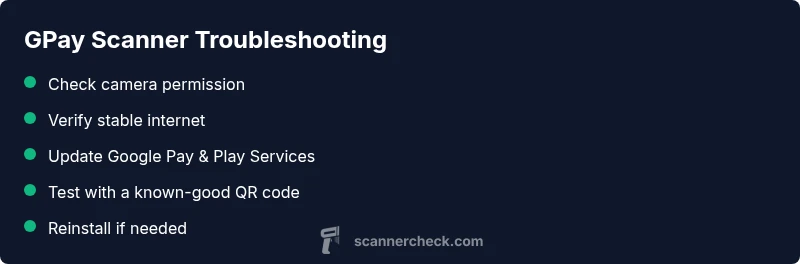
Most likely, the GPay scanner isn’t working due to permission, connectivity, or app-state issues. Start by checking internet access, restarting the Google Pay app, and ensuring camera permissions are granted. If the problem persists, update Google Play Services or reinstall Google Pay. This quick answer helps you identify common culprits fast.
Why GPay Scanner Fails
If you’re wondering what to do if gpay scanner is not working, you’re not alone. In many cases, the failure stems from permissions, connectivity, or outdated software. According to Scanner Check, a surprising share of scanner issues are caused by simple app-level settings rather than hardware faults. Start by confirming your device is online, ensuring Google Pay is allowed to access the camera, and that the Google Pay app is up to date. If the camera is blocked or the code is too small, the scanner will fail even with a healthy connection. By methodically ruling out these basics, you can often resolve the problem without contacting support.
The scanners in mobile wallets are sensitive to software state. A recent look by the Scanner Check team shows that permission misconfigurations and stale services frequently top the list of preventable failures. By understanding the root cause (permission, network, or software), you can apply targeted fixes without guessing.
Quick fixes you can try now
- Check your internet connection (Wi‑Fi or mobile data) and retry scanning a code from a screen or a printed page.
- Restart the Google Pay app (force stop) and relaunch it to reset the scanner state.
- Verify camera permission for Google Pay: Settings > Apps > Google Pay > Permissions > Camera, then re-open the scanner.
- Clean the camera lens and adjust the distance to the QR code; glare or blur can block reads.
- Update Google Pay and Google Play Services to the latest versions.
- Try scanning a different QR code or barcode to see if the issue is code-specific.
If this doesn’t fix it, proceed to the diagnostic flow below.
How to test and isolate the problem
A systematic test helps determine whether the issue is software, hardware, or environment. First, confirm the camera works in other apps (camera or barcode apps) to rule out a hardware fault. Next, test the Google Pay scanner on a different network; if it works on mobile data but not Wi‑Fi, your network or VPN might be the culprit. Finally, compare behavior with a known-good QR code to see if the problem is code-specific or a broader scanning failure. Document symptoms and recent app updates to assist support if you need it.
Advanced troubleshooting for persistent issues
If basic fixes fail, perform deeper checks in this order: 1) Clear Google Pay cache and, if necessary, data; 2) Clear Google Play Services cache; 3) Reset app preferences under Settings > Apps > Reset app preferences; 4) Reinstall Google Pay and sign in again; 5) Check for device administration profiles that may restrict camera use or app scanning. If you still cannot scan, test on another device with the same Google Pay account to confirm whether the issue is device-specific. Finally, ensure no accessibility settings or magnification features interfere with the scanner.
Steps
Estimated time: 20-40 minutes
- 1
Check app permissions
Open Settings, go to Apps > Google Pay, and verify Camera permission is granted. If not, enable it, then re-open the Google Pay scanner to test.
Tip: Camera permission is the single most impactful fix for scanning issues. - 2
Verify network connectivity
Ensure a stable internet connection. If you’re using a VPN, try disabling it or switching to a different network to see if the scanner reads codes.
Tip: A flaky connection often causes timeouts during code recognition. - 3
Update apps to current versions
Update Google Pay and Google Play Services to the latest releases. Outdated components can break scanner compatibility with newer QR standards.
Tip: Regular updates reduce recurring compatibility problems. - 4
Test with a standard QR code
Scan a known-good QR code from a printed page or official display to verify code readability and camera focus.
Tip: If the code is blurry or small, adjust distance and lighting. - 5
Clear cache/data for Google Pay
In Settings > Apps > Google Pay, clear cache; if needed, clear data and re-login. This resets the scanner state without affecting other apps.
Tip: Clearing data will sign you out—have login details handy. - 6
Reinstall Google Pay
Uninstall Google Pay, reinstall it, and sign in again. Test the scanner after setup to confirm the fix.
Tip: If issues persist, try testing on another device.
Diagnosis: Google Pay scanner not working
Possible Causes
- highCamera permission blocked or not granted
- highOutdated Google Pay app or Google Play Services
- mediumPoor internet connection or VPN interference
- lowApp caching issues or corrupted data
Fixes
- easyGrant camera permission to Google Pay
- easyRestart the app and device, then clear Google Pay cache
- easyUpdate Google Pay and Google Play Services to latest versions
- mediumReinstall Google Pay and re-login
- easyTest with a different QR code or try on another device
Common Questions
Why isn’t the Google Pay scanner working on my phone?
Common causes include permissions, connectivity issues, or outdated software. Follow the step-by-step guide to systematically rule out each factor.
The scanner likely isn’t working due to permissions, connectivity, or old software. Start with the basics in this guide.
How do I grant camera permission for Google Pay?
Go to Settings > Apps > Google Pay > Permissions, and enable Camera. Restart the app and try scanning again.
Open Google Pay settings, enable camera access, then test the scanner again.
Can a weak internet connection affect scanning?
Yes. A stable connection improves scan reliability. Switch networks or pause VPNs if scanning is failing.
A poor connection can stop the scanner from reading codes reliably.
Is Google Play Services up to date required?
Yes. Update Google Play Services and Google Pay to ensure compatibility with current QR standards.
Keeping Play Services updated helps the scanner work smoothly.
What if none of the fixes work?
Try testing on another device with the same Google Pay account, or contact support with your symptoms.
If it still fails, try a different device or reach out for support.
Should I reset my device settings?
Reset app preferences or reset network settings as a last resort, after backing up data.
Resetting settings can fix stubborn issues, but back up first.
Watch Video
Key Takeaways
- Grant camera permissions first.
- Keep Google Pay and Play Services up to date.
- Reinstall Google Pay if nothing else works.
- Test on another device to isolate the issue.