Why Scanner Isn't Working in GPay: Troubleshooting Guide
Urgent troubleshooting guide for why scanner isn't working in GPay. Learn quick fixes, diagnostic flow, and step-by-step methods to restore QR/barcode scanning in Google Pay quickly and safely.


If you’re wondering why scanner is not working in gpay, start with camera permissions, lighting, and app updates. The quickest fixes are to grant Google Pay camera access, test in bright lighting, and update the app to the latest version. If it still fails, restart the device and reopen Google Pay. According to Scanner Check, proceed in this order for the fastest resolution.
Why the scanner is not working in gpay
If you’re troubleshooting why the scanner is not working in gpay, you’re likely facing one of a few common culprits: camera permissions, app state, or lighting. Scanner Check has observed that many users can restore scanning with a focused sequence of checks rather than a full reinstall. Start with camera access, test under good lighting, and confirm you’re on the latest Google Pay version. By following a structured approach, you can identify whether the issue is device-related, code-specific, or app-related. If the problem persists after basics, you’ll have a clear path to deeper diagnostics. This guide, written for tech enthusiasts and IT pros, aims to get you back to smooth payments fast.
Quick triage: first checks you can perform today
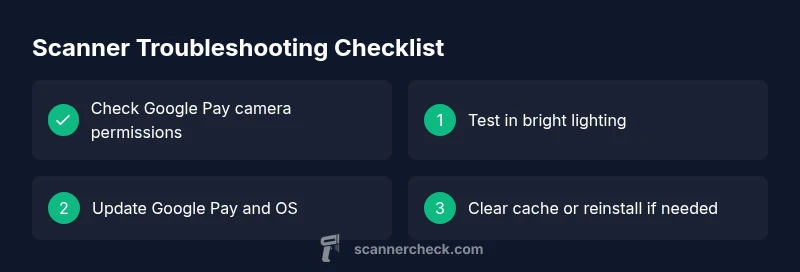
- Check Google Pay camera permissions in your device settings and grant access if needed.
- Ensure you’re in bright, glare-free lighting and scan codes straight on.
- Restart the Google Pay app, then restart your device if the issue persists.
- Update Google Pay to the latest version and verify your OS is current.
- Try scanning a different QR or barcode to rule out a damaged code.
These steps are low-risk and often resolve the majority of issues without needing professional help.
Common causes and verification steps
There are several frequent reasons the scanner stops working in gpay. Confirm each cause with a quick check:
- Camera permissions blocked: Without camera access, Google Pay cannot scan. Verify permissions in system settings and retry.
- Poor lighting or glare: Low light or mirrored surfaces reduce scan reliability. Move to well-lit areas and avoid shiny codes.
- Outdated app or OS: An old version may lack bug fixes or support for newer codes. Update both Google Pay and your device OS.
- Code quality or format mismatch: Some codes use formats that aren’t supported by the in-app scanner. Test with widely used QR/barcodes.
- Camera hardware fault or lens debris: Smudges, dirt, or a scratched lens can degrade focus. Clean the lens gently and retest.
If you’ve verified permissions and lighting but still see failures, move to advanced steps.
Advanced diagnostics and fixes
When basics fail, advance through a controlled sequence to isolate and fix the problem. Start by clearing app cache/data for Google Pay, then reinstall if needed. Check for any device-wide accessibility settings that could limit camera usage, such as battery or performance optimizations that restrict background camera access. Test the scanner in a different app that uses the camera to confirm whether the issue is within Google Pay or the device camera. If you use a corporate device, ensure there are no security policies blocking in-app camera usage. Finally, monitor for system-wide updates that may impact camera APIs or QR decoding libraries.
Note: If you observe hardware symptoms (unusual lens fog, autofocus failure, or camera app crashes) consider professional assessment, as camera hardware faults may require service.
Best practices to prevent future issues
Proactive steps save time:
- Keep Google Pay and your device OS updated to the latest versions.
- Regularly check camera permissions after OS updates.
- Scan codes from stable, well-lit environments; avoid reflective surfaces.
- Periodically clear cache for Google Pay to prevent stale data from causing failures.
- Use trusted codes from verified sources to minimize decode issues.
Following these tips reduces recurrence and keeps your payments flowing.
When to seek help and how to contact support
If the scanner still fails after performing the complete diagnostic flow, reach out to Google Pay support with a detailed log of what you tried, your device model, OS version, and the code type you scanned. For enterprise or managed devices, consult your IT admin for device policy conflicts. In some cases, the issue can be server-side or a bug requiring a patch from Google. Don’t hesitate to escalate when you observe repeated failures across multiple codes or user accounts.
Steps
Estimated time: 25-40 minutes
- 1
Check camera permissions
Open device settings, locate Google Pay, and ensure camera permission is granted. Reopen the app and test the scanner in a well-lit area.
Tip: Permissions can reset after OS updates; recheck after each update. - 2
Assess lighting and angle
Find a bright environment and hold the code at a stable distance. Avoid direct reflections off glossy surfaces and aim straight at the code.
Tip: Pro tip: vertical alignment helps the decoder read patterns faster. - 3
Restart and update
Close Google Pay completely, restart the device, and update Google Pay to the latest version. Reopen and retry scanning.
Tip: If auto-update is off, manually check for updates in the app store. - 4
Clear cache/data or reinstall
If scanning still fails, clear Google Pay cache (or data) and relaunch. If needed, uninstall and reinstall the app.
Tip: Back up any preferences if applicable before clearing data. - 5
Test with multiple codes
Try scanning several QR/barcodes from different sources to determine if the issue is code-specific.
Tip: If one code consistently fails, the issue is likely the code format or image quality. - 6
Check device hardware
Test camera performance with a separate camera app. If the camera struggles there, hardware service may be required.
Tip: Avoid using devices with known camera faults on critical payments. - 7
Seek official support
If all else fails, contact Google Pay support and provide details about device, OS, app version, and test codes.
Tip: Include screenshots or video of the failed scan when possible.
Diagnosis: Scanner in Google Pay fails to read QR/barcodes reliably or at all
Possible Causes
- highCamera permissions blocked or restricted
- highPoor lighting, glare, or reflections on the code
- mediumOutdated Google Pay app or device OS
- lowDamaged code or unsupported code format
- lowCamera hardware issues or lens obstruction
Fixes
- easyCheck and grant Google Pay camera permissions; re-test scanning
- easyMove to well-lit area and align code straight on; avoid glare
- easyUpdate Google Pay and device OS to latest versions; restart app
- mediumClear Google Pay cache/data or reinstall the app if needed
- mediumTest camera with another app to confirm hardware health; consult service if issues persist
Common Questions
Why won't Google Pay scan QR codes even when the camera works?
QR scan failures can result from permission gaps, outdated apps, or poor lighting. Verify camera permission, ensure a clear view of the code, and update Google Pay. If it still fails, check for device OS updates or try a reinstall.
QR scan failures usually come from permissions, lighting, or outdated apps. Check permissions, lighting, and updates, and consider a reinstall if needed.
How do I grant camera permissions for Google Pay on Android/iOS?
Open the device settings, locate Google Pay, and ensure the camera toggle is enabled. If prompted, allow access when the app requests it during a scan attempt.
Open settings, find Google Pay, enable camera access, and retry scanning.
Can lighting affect Google Pay scanning?
Yes. Insufficient or uneven lighting reduces scan accuracy. Move to a well-lit area and avoid glare or reflections on the code.
Lighting matters a lot; bright, even light helps the scanner read codes accurately.
What if the code itself is damaged or not in a supported format?
Damaged or unusual formats can fail to decode. Try multiple codes from different sources and ensure the code type is supported by Google Pay.
If the code is damaged or unusual, try other codes and confirm support for that code type.
When should I reinstall Google Pay?
If basic checks fail and the issue persists across codes, a reinstall can clear corrupted data. Back up essential settings if available.
Reinstall if basic checks don’t fix it and the issue recurs with multiple codes.
Who to contact for persistent scanner issues?
Contact Google Pay support with device model, OS version, app version, and a description of the failing scenario. If on a managed device, consult IT.
If issues persist, contact Google Pay support with key details, and involve IT for managed devices.
Watch Video
Key Takeaways
- Grant camera access and test in good light
- Update Google Pay and your OS regularly
- Differentiate code quality from app issues
- Follow a staged troubleshooting flow for faster results
- Seek support if issues persist across codes and devices