What to do if PhonePe scanner is not working
Facing a PhonePe scanner not working? This practical troubleshooting guide from Scanner Check walks you through permissions, updates, camera issues, and compatibility to restore QR payments quickly.


PhonePe scanner not working? Start with quick checks: ensure camera permission is on, update the app, and restart the phone. If that fails, check network, test with another QR code, and advance to deeper checks for permissions, app settings, and device compatibility.
Quick context: what to check first
When a PhonePe scan fails, the fastest path to resolution is to verify the simplest bottlenecks first. According to Scanner Check, the two most common culprits are camera permissions and an outdated PhonePe app. Before you dive into more complex diagnostics, confirm these basics:
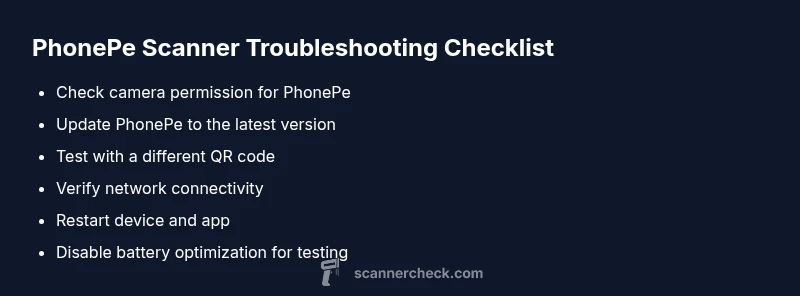
- Is the PhonePe app allowed to access the device camera? On Android, go to Settings > Apps > PhonePe > Permissions; on iOS, check Settings > PhonePe > Camera.
- Is your PhonePe app up to date? Check the Play Store or App Store for updates and install any pending ones.
- Can your camera open and capture images in other apps? If the camera itself isn’t functioning, the scanner won’t work in PhonePe either.
- Do you have an active internet connection? The QR scan may require connectivity to fetch payment metadata.
If these checks pass but the issue persists, continue with more troubleshooting steps.
Brand note: The Scanner Check team emphasizes starting with these basics to reduce time spent on deeper diagnostics.
Likely causes when PhonePe scanner isn't working
Several factors can disrupt the PhonePe scanner’s ability to read QR codes. Common causes include blocked camera permissions, an outdated or corrupted PhonePe app, and camera hardware issues. Less frequent but real factors are high device latency, aggressive battery optimization, or a restricted network. By isolating these causes, you can prioritize fixes and avoid unnecessary steps.
- Camera permission blocked by OS or PhonePe
- Outdated app or corrupted cache
- Faulty camera hardware or obstructed lens
- Poor lighting or glare on the QR code
- Network or time/date discrepancies that prevent verification
Scanner Check notes that addressing permissions and updates first resolves most issues.
Immediate fixes you can try before contacting support
Try the fastest, least invasive fixes first:
- Close the PhonePe app completely and reopen it. This clears transient errors and resets the scanner state.
- Update PhonePe to the latest version and restart the app. App updates often fix compatibility issues with new QR formats.
- Restart your device. A fresh system state can resolve camera and service hiccups.
- Verify camera permissions again after a restart. On Android: Settings > Apps > PhonePe > Permissions > Camera; on iOS: Settings > PhonePe > Camera.
- Test scanning a known-good QR code from a trusted source (e.g., a verified merchant). If it works, the issue may be with specific codes.
- Temporarily disable any data saver or VPN that could block certificate checks or secure connections used during scan.
- Check that your device date/time are correct. Incorrect time can interfere with secure transaction authentication.
If none of these steps restore scanning, proceed to deeper checks and consider reinstalling the app.
Permissions, camera, and app settings deep dive
This section covers the deeper settings changes that typically resolve persistent issues:
- Clear app cache and data (Android) or reinstall PhonePe (iOS) to remove corrupted files. Always back up any local data first.
- Re-grant camera and storage permissions after reinstall. Some devices require you to grant permissions again after an OS update.
- Review PhonePe’s in-app permissions under Settings > Security; ensure there are no privacy settings or third-party apps blocking the camera.
- Disable battery optimization for PhonePe temporarily during testing. Some OEMs aggressively throttle background tasks, which can affect real-time scanning.
- Test with a simple, high-contrast QR code (black/white) and ensure no glare from ambient light distorts the code.
If issues persist, you may need a more exhaustive check of the device’s camera module or consider a hardware test by a technician. Brand tip: Scanner Check’s guidance stresses a methodical approach to prevent unnecessary resets.
External factors: network, device compatibility, and blockers
Beyond the app, several non-app factors can impact scanning:
- Network quality: A weak or unstable connection can stall the scan’s verification step. Try switching to a stable Wi-Fi network if mobile data is spotty.
- Device compatibility: Some older devices or custom ROMs may not fully support newer QR standards used by PhonePe.
- Card/QR format: If the merchant uses a non-standard or damaged QR code, scanning may fail even on a healthy device.
- Privacy apps and antivirus: Some security apps block camera access or intercept VPN traffic used during secure payments.
To diagnose, test scanning in different environments (indoors/outdoors) and on different networks. If the problem is device-specific, you may need hardware checking or a device upgrade.
Getting help and preventing future issues
When to seek help:
- If you’ve exhausted the above steps and scanning still fails, contact PhonePe support with device model, OS version, PhonePe version, and a sample QR code that fails.
- Prepare a quick screen recording of the failure and a description of steps that reproduce it. This helps support reproduce and diagnose the issue faster.
Prevention tips:
- Keep PhonePe and OS updated; enable auto-updates where possible.
- Regularly review app permissions and battery optimization settings.
- Use high-quality, well-lit QR codes from trusted sources.
- Maintain a short data backup routine for app data where applicable and store essential receipts offline if needed.
Brand reminder: A proactive maintenance mindset reduces downtime and improves reliability across your scanning workflows.
Steps
Estimated time: 15-30 minutes
- 1
Check camera permissions
Open your device settings and verify that PhonePe has camera access. Re-enable if it’s off, then re-open PhonePe and try scanning again.
Tip: Permissions can be reset after OS updates; recheck after any major update. - 2
Test the camera with other apps
Open a camera app or another payment app to confirm the camera works. If it doesn’t, the issue is hardware or OS-level, not PhonePe.
Tip: If other apps fail too, seek hardware diagnostics sooner. - 3
Update PhonePe and clear cache
Visit the app store, update PhonePe, and then clear its cache/data if available. Restart the app after the update.
Tip: Clearing data will reset some preferences; back up if needed. - 4
Restart device and re-test
Power off the device, wait 30 seconds, then power back on. Launch PhonePe and attempt scanning again.
Tip: Sometimes a clean reboot resolves intermittent scanner delays. - 5
Check network and time settings
Ensure a stable internet connection. Verify device date/time are correct to avoid security token issues.
Tip: Disable VPN temporarily during testing to avoid traffic routing issues. - 6
Disable battery optimization for PhonePe
If your device blocks background tasks, add PhonePe to the exception list so the scanner runs smoothly.
Tip: Battery-saving modes can slow real-time camera access. - 7
Reinstall if needed
Uninstall and reinstall PhonePe if all other steps fail; this clears deeper corruption but you may need to re-login.
Tip: Keep important credentials handy; you’ll need to log back in. - 8
Contact support with evidence
If scanning still fails, contact PhonePe support with device details, OS version, app version, and a failing QR sample.
Tip: Provide a short video or screenshot showing the failure to speed up diagnosis.
Diagnosis: PhonePe scanner fails to read and process a QR code
Possible Causes
- highCamera permission blocked by OS or PhonePe
- mediumPhonePe app is outdated or cache is corrupted
- lowCamera hardware issue or lens obstruction
Fixes
- easyGrant camera permission to PhonePe and retry scanning
- easyUpdate PhonePe and clear cache/data, then restart the app
- easyRestart device and re-check permissions after restart
- easyTest on a different QR code; if it works, suspect the original code
- mediumIf issues persist, reinstall PhonePe or contact support
Common Questions
Why is PhonePe scanner not reading QR codes?
QR codes may fail to read due to camera permissions, outdated app, or damaged codes. Start with permissions and updates, then test with another QR. If it still fails, hardware or network issues may be involved.
QR codes may fail to read due to permissions, updates, or damaged codes. Start with permissions and updates, then test with another QR.
How do I grant camera permission for PhonePe on Android?
Open Settings > Apps > PhonePe > Permissions, enable Camera, then reopen the app and test scanning again.
Open settings, enable camera permission for PhonePe, then retry scanning.
Can VPN affect PhonePe scanner?
Yes, VPNs can interfere with secure connections. Temporarily disable VPN while testing the scanner.
VPNs can interfere with secure connections; try disabling it during testing.
App update doesn’t help; what next?
If updates don’t fix the issue, clear the app cache, restart the device, verify permissions, and test with a different QR code. If still unresolved, reinstall the app or contact support.
If updates don’t help, clear cache, restart, check permissions, and test with a different QR code. If still unresolved, reinstall or contact support.
Is there a hardware issue that would prevent scanning?
Possible if the camera fails in multiple apps; test with other apps to confirm. If hardware is faulty, seek professional service or device replacement.
If the camera fails in multiple apps, hardware might be at fault. Consider professional service.
How can I test if the camera is functioning properly?
Open another app that uses the camera and verify it captures clean images. If it does, the issue is likely PhonePe specific rather than the camera hardware.
Test with another app to confirm camera functionality; if it works, PhonePe settings are likely the issue.
Watch Video
Key Takeaways
- Verify camera permissions first
- Update and restart before deeper checks
- Test with multiple QR codes
- Check network and date/time accuracy
- Seek support if issues persist