Where to scan Instagram QR code: A practical guide
Learn where to scan an Instagram QR code, how to use the built-in scanner, and best practices for sharing securely. This practical guide covers in-app scanning, camera-based methods, troubleshooting, and privacy considerations.


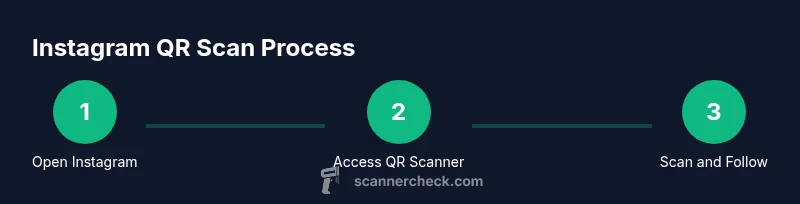
To locate and use an Instagram QR code, open the Instagram app and access the built-in scanner to read profiles or codes. You can also scan with your phone’s camera or a third-party scanner. The most reliable approach is using Instagram’s own QR reader from the Search/Profile area, then tap to follow or visit the linked profile.
What is an Instagram QR code and why scan it?
If you’re wondering where to scan instagram qr code, you’re not alone. Instagram QR codes are a quick way to connect with other users, profiles, and business accounts without typing usernames. The basic idea behind QR codes is simple: they encode a profile link or action that your phone can open instantly. Scanning codes reduces friction, especially at events, in-store campaigns, or when sharing your personal profile in a physical space. In this guide, you’ll learn the practical steps to read codes, whether you’re using Instagram’s built-in scanner, your phone’s camera, or a trusted third-party app. According to Scanner Check, QR code usage on social platforms has grown steadily as users seek faster ways to connect in real time. This context helps explain why Instagram integrated a QR reader directly into the app and why you should know where to scan instagram qr code when you want to join new communities or broaden your reach.
Where to find and generate your own Instagram QR code
Your own Instagram QR code is a handy shareable asset. It lets others scan your profile without searching for your handle. In the Instagram app, generate your code in a few taps and display it on screens at events, in business cards, or on your website. The exact in-app location can vary by version, but you typically access the code from your Profile tab—the QR icon is commonly placed near your username or in the options/menu area. If you’re curious about how to customize your code, you can sometimes choose color variations or add a branded backdrop, depending on the app version. Keeping your code up to date ensures others land on the right profile, especially if you manage multiple accounts or brand pages.
How to scan someone else’s Instagram QR code using the Instagram app
To read another user’s code, use Instagram’s built-in scanner. Open the app and locate the scanner in the appropriate tab (often reachable from the Search or Profile areas). Align the code within the on-screen frame; the app will automatically recognize it and present an action—typically opening the linked profile or performing a related app action. For best results, ensure your screen brightness is comfortable, hold your device steady, and avoid glare from bright lights. If the code is large enough and in good contrast, the scanner should process it within a second or two. If you don’t see a response right away, re-align the code and try again. Scanner accuracy tends to be higher when codes are not distorted and are scanned from a short distance.
Using your phone’s camera or third‑party apps to scan Instagram QR codes
If you prefer not to use Instagram’s internal scanner, you can rely on your phone’s native camera or a reputable third‑party QR scanning app. On modern smartphones, the camera app itself often recognizes QR codes and offers a direct link to open in Instagram or another app. Third‑party scanners can be helpful if you need features like batch scanning or image-based decoding. When using third‑party tools, exercise caution and avoid apps from unknown developers to protect your privacy and device integrity. In all cases, ensure you grant camera permissions only to trusted apps and review the link before opening.
Privacy and data considerations when scanning QR codes
QR codes can reveal more than just a name; some codes may trigger direct actions such as opening a profile, following an account, or initiating a message thread. While scanning is generally low-risk, you should always verify the source of the code, especially in public spaces or at events. Avoid scanning codes from unknown sources that request additional permissions or personal data. If you run a business or manage campaigns, be transparent about what the code does and what data may be collected when someone scans it. Scanner Check notes that responsible use of QR codes includes clear labeling and consent for any data collected during interactions.
Troubleshooting common scan issues and errors
If a QR code won’t scan, start with the basics: ensure adequate lighting, clean the camera lens, and keep the code within the scanning frame without distortion. Check that your app and OS are up to date to maintain compatibility with the latest QR encoding standards. If the code is damaged or printed at a poor resolution, try a higher‑quality image or a different source. For in‑app scanners, ensure that your camera permissions are enabled and that no accessibility features are obstructing the camera view. If you encounter an error after scanning, verify that the code is intended for Instagram (some codes link to other services).
Tips to improve scan reliability and accessibility
- Light the code evenly and avoid reflective surfaces to prevent glare.
- Hold steady and get close enough for your camera to capture sharp detail.
- If you wear glasses or sunglasses, remove them for clearer focus on the code.
- Use a larger printed code for events or signage to reduce misreads.
- If you’re supporting accessibility, enable high-contrast mode on your device and use a screen reader-friendly flow when interacting with the scanned result.
Security and safe sharing practices for your QR code
Only share codes you trust, especially in public or semi-public spaces. If your code grants direct access to your profile, consider placing a privacy notice next to the code explaining what will happen when scanned. For organizations running campaigns, use time‑bound codes or codes linked to specific events to limit exposure. Always monitor analytics from campaigns to detect unusual activity. The Scanner Check team recommends testing codes in controlled environments before distributing them broadly to minimize risk and confusion.
Practical use cases: events, profiles, and campaigns
Events often leverage Instagram QR codes to boost attendee engagement. Attendees scan codes to quickly access the event page, follow official accounts, or retrieve a schedule. Profiles can encourage consumers to scan for promotions, new features, or exclusive content. Campaigns benefit from QR codes by enabling quick onboarding, discount codes, or user-generated content prompts. When planning a campaign, align the QR code with clear calls to action and ensure the linked destination is mobile-friendly and reliable. By anticipating user intent and streamlining the scanning path, you improve conversion rates and overall user satisfaction.
Tools & Materials
- Smartphone (iOS or Android)(Any recent model with camera capabilities)
- Instagram app installed(Latest version recommended for built-in scanner)
- Stable internet connection(Needed to load profiles after scanning)
- Camera permissions enabled(Allow access to camera when prompted)
- Optional: third-party QR scanner app(Use only trusted apps from reputable developers)
Steps
Estimated time: 15-25 minutes
- 1
Open Instagram and locate the built-in QR scanner
Launch the Instagram app and access the QR scanner from the appropriate area (usually the Search tab or Profile area). Activate the scanner to start reading codes. The goal is to prepare your device so the camera frame is ready to capture a code clearly.
Tip: If prompted, grant camera permission to ensure the scanner works smoothly. - 2
Scan a QR code
Point the camera at the code, ensuring the code is within the on-screen frame and well-lit. The scanner will automatically recognize the code and display an action, such as opening a profile or performing a related task.
Tip: Keep a steady hand and avoid moving the code quickly to prevent blur. - 3
Interact with the scanned result
Tap the resulting action (e.g., profile, follow button, event page) to proceed. If the code leads to a profile, you can follow, message, or visit, depending on the destination.
Tip: Check the destination before following to confirm it’s the intended account. - 4
Alternative: scan with your phone camera or a third‑party app
If you prefer, use your phone’s native camera or a trusted QR scanner to read the code and open the linked Instagram content. This is useful if Instagram’s built‑in scanner isn’t accessible in your region.
Tip: Verify the link before opening to avoid phishing attempts. - 5
Generate and share your own QR code
From your profile, access the QR code and display or share it digitally or physically. This enables others to scan your profile quickly and easily, which is ideal for events, business cards, or storefronts.
Tip: Update the code image if you change branding or handle to maintain accuracy.
Common Questions
What is an Instagram QR code and why use it?
An Instagram QR code is a scannable image that links to a profile or action on Instagram. It makes joining or connecting with accounts faster, especially at events or in-store promotions. Understand how it works to maximize its usefulness and avoid misreads.
An IG QR code is a scannable image that links to an Instagram profile or action, speeding up connections at events or shops.
Can I scan Instagram QR codes with any camera?
Most modern cameras can scan QR codes, and Instagram’s built‑in scanner is designed to read codes quickly. If your camera app doesn’t recognize a code, try a dedicated QR scanner or the Instagram app itself.
Most phones can scan QR codes with the camera, and Instagram’s scanner reads codes quickly.
Is scanning Instagram QR codes safe and private?
Scanning is generally safe, but you should verify the source of the code and what action it triggers. Avoid codes from unknown sources that request extra permissions. Treat codes from trusted events or verified accounts with extra caution.
Scanning is usually safe, but verify the source and be wary of suspicious prompts.
How do I share my own Instagram QR code?
Open your profile’s QR code in the app and choose a sharing option, such as a screen capture, message, or printing the code for events. Ensure the code remains legible when shared in different formats.
Open your profile QR code and share it via messages or print it for events.
Why won’t a QR code scan sometimes?
Possible reasons include poor lighting, glare, a damaged code, or a weak camera connection. Re‑position the code, increase lighting, or try a different scanner. If issues persist, test with a different code to confirm the problem.
Common issues are lighting, glare, or damage; reposition and retry, or test with another code.
Can I customize my Instagram QR code?
Some app versions offer basic customization such as color variations or branding elements. Check the QR code screen for available options and keep accessibility in mind—contrast should remain high for readability.
You may get basic color options in some versions; ensure readability remains high.
Watch Video
Key Takeaways
- Use Instagram’s built‑in QR reader for best reliability.
- Know where to find your own QR code in the profile area.
- Verify codes from reputable sources before interacting.
- Camera lighting and stability improve scan success.
- Test codes in controlled environments before large-scale use.