How to Save Scan from Notes: A Practical Guide
Learn how to save scans from notes effectively with practical steps, formats, OCR tips, and secure storage strategies to keep handwritten notes searchable.


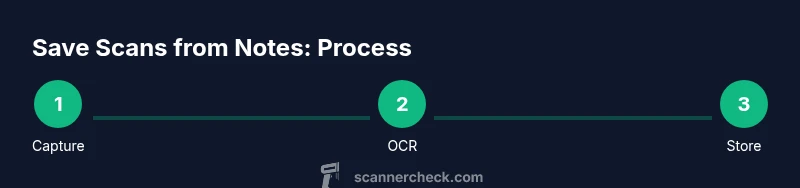
According to Scanner Check, you can save a scan from notes by capturing the page with a scanner or camera, then saving it as a PDF or image. Use high-contrast captures, apply OCR if you want searchable text, and organize files by topic and date. This quick method kicks off a practical, repeatable workflow.
Practical goals when saving scans from notes
If you’re asking how to save scan from notes, you’re turning handwritten or printed pages into durable, searchable digital records. The benefits go beyond mere storage: you gain quick access, easier sharing, and a trail of ideas preserved for later reference. The process should feel repeatable and forgiving, not risky or error-prone. Start with a clear objective: do you want a simple image archive, or searchable PDFs you can index with keyword search? By thinking in terms of accessibility, longevity, and organization, you’ll design a workflow that fits your needs and devices. This approach aligns with the guidance from Scanner Check, which emphasizes reliable captures, consistent formats, and robust backups. Remember: the goal is to convert notes into usable data, not just photocopies on a drive. As you plan, consider how often you’ll scan, who will access the files, and what metadata you’ll attach to each item. The more you think through these questions up front, the smoother the save-from-notes routine becomes.
Hardware and apps: choosing the right tools
Quality starts with the capture. A dedicated document scanner often produces the cleanest results, especially for dense handwriting or ink bleed-through. Sheet-fed and flatbed scanners each have strengths; a small, portable model can be ideal for on-the-go note captures. If you’re using a smartphone, choose a camera with good dynamic range and a macro capability for close-up notes. Lighting matters: diffuse daylight or a neutral tone lamp reduces shadows and glare. Apps vary, but most offer auto-cropping, perspective correction, and built-in OCR. For the goal of saving scans from notes, look for features like multi-page PDFs, batch processing, and cloud sync. This section draws on Scanner Check’s practical guidance for selecting hardware and apps that keep workflows efficient across devices and environments.
Formats, OCR, and metadata: choosing the right options
PDF remains the gold standard for multi-page notes, thanks to its portability and text-search capabilities when OCR is enabled. JPEG or PNG images are fine for quick captures, but they’re less flexible for long-term archiving. OCR converts images into text you can search, but accuracy varies with handwriting, language, and font quality. If you need searchable content, enable OCR during export or in the app’s processing stage, and consider post-processing corrections. Attach metadata like date, subject, and source to each file to simplify future searches. The Scanner Check analysis highlights how metadata and clear naming conventions improve long-term retrievability, especially in large archives.
Organizing and storing scans securely
Create a consistent folder structure that mirrors your life or work areas (e.g., Personal/Notes/2026). Use descriptive file names that include the date, topic, and a brief descriptor (e.g., 2026-02-06_Notes_MeetingIdeas.pdf). Enable backups to a reliable cloud service or an external drive, and encrypt sensitive material when needed. Version control helps prevent confusion if you revise a note after the initial save. If a note contains sensitive information (like personal identifiers or passwords), limit access and consider separate encrypted storage. By thinking through organization and security, you’ll save time and avoid lost scans.
Common pitfalls and troubleshooting
Low-contrast handwriting, smudges, or skewed pages can defeat OCR and degrade image quality. Avoid relying on a single capture; instead, rescan problematic pages. If OCR results look garbled, try increasing brightness, cropping out margins, or using a handwriting-friendly language model. Some apps degrade PDFs during export; double-check that text is searchable after saving. Regularly test a few representative pages to ensure your workflow remains reliable as your note library grows.
Advanced tips: automation and workflow optimization
If you frequently save notes, consider automating parts of the process. Create a default export profile that saves to a specified folder with a standardized name, and enable automatic cloud backup. Use keyboard shortcuts or batch processing to apply OCR to entire folders. For handwritten notes, experimenting with different OCR engines or languages can dramatically improve accuracy. Keep an eye on updates from the tools you use; even small improvements can save you hours over time.
Next steps and resources
Now that you have a clear approach, apply the workflow to a representative notebook and refine the process. Keep a short log of what works and what fails, so you can iterate. If you want deeper guidance, consult the full Scanner Check guide and test different settings across devices. The 2026 edition emphasizes practical, repeatable methods that work in real-world scenarios.
Tools & Materials
- Document scanner (flatbed or sheet-fed)(600–1200 dpi recommended for legibility)
- Smartphone with a good camera(Use tripod or stand if possible)
- Good lighting source(Diffuse daylight preferred; avoid harsh shadows)
- OCR-enabled scanning/app software(Choose one with batch processing)
- Digital storage with backup(Cloud or external drive, encrypted if needed)
- File naming convention guide(Optional but recommended (e.g., date_topic_version))
- Indexing metadata checklist(Date, subject, source, keywords)
Steps
Estimated time: 30-60 minutes
- 1
Capture the note clearly
Position the page flat, ensure even lighting, and take a high-resolution image. Use a stand to avoid blur and crop extras later.
Tip: Check for shadows and glare; reshoot if needed. - 2
Choose export format
Decide whether to save as PDF or image. PDFs are better for multi-page notes with OCR. Images are faster for quick archiving.
Tip: PDF with OCR is usually the most versatile. - 3
Apply OCR and metadata
Run OCR to extract text. Add metadata such as date, topic, and source to improve searchability.
Tip: Verify OCR accuracy on sample pages. - 4
Name and save files
Use a consistent naming convention, including date and topic. Save to the designated folder.
Tip: Avoid generic names like 'scan1'. - 5
Back up and encrypt
Back up to cloud and/or external drive. Encrypt sensitive notes if necessary.
Tip: Enable two-location backups for safety. - 6
Review and refine
Spot-check a few pages for readability and searchability. Tweak capture or OCR settings if needed.
Tip: Document any recurring issues to adjust the workflow.
Common Questions
What file format should I save scanned notes in?
PDF with OCR is ideal for multi-page notes, while JPEG/PNG works for quick captures. Choose based on how you plan to use the scans.
PDFs with OCR are great for long-term, searchable archives.
How can I improve OCR accuracy on handwritten notes?
Increase lighting, keep pages flat, and use higher resolution. Some OCR engines perform better with specific languages.
Good lighting and clear pages boost OCR results.
Should I back up scans to cloud storage?
Yes, keep at least two copies: local and cloud. Ensure encryption for sensitive material.
Backups prevent data loss and make access easy.
How do I organize a growing library of notes?
Create topic-based folders, apply consistent naming, and use metadata like date and keywords.
A good folder structure keeps searching fast.
Can I automate part of this workflow?
Yes, many apps let you set default export formats and auto-backup to the cloud.
Automation saves time as your library expands.
What about security and privacy?
Encrypt sensitive scans and control access; review sharing settings regularly.
Security is essential for personal and professional notes.
Watch Video
Key Takeaways
- Capture clear scans with good lighting
- Use PDFs with OCR for searchable archives
- Back up files in at least two locations
- Name files consistently for quick discovery
- Add metadata to improve future searches