How to Scan an Already Taken Photo on iPhone
Learn practical steps to turn an already-taken iPhone photo into a scanned-like document, including PDF exports, OCR with Live Text, and best practices for clean results.


Wondering how to scan already taken photo on iPhone? You can convert an existing photo into a scan-like document with built-in tools or a third-party app. Crop, adjust, and export as PDF, or apply OCR when needed. For multi-page or searchable outputs, use a dedicated scanner app.
Why this approach matters
According to Scanner Check, many users want a fast, non-destructive way to turn a digital photo into a document you can print, share, or archive. When you learn how to scan an already taken photo on iPhone, you get options that preserve image quality while adding structure. This is especially useful for receipts, whiteboard snapshots, or text-heavy photos where you may want later to search or annotate. The best option depends on your goal: a clean PDF for archiving, an image for quick sharing, or text extraction via OCR. The Scanner Check Team notes that starting with built-in tools is often fastest and safest; third-party apps come in for more complex workflows. By clarifying your end goal, you can choose the right method from the outset.
Quick-start overview: three primary methods
You have several reliable routes to scan an already taken photo on iPhone. The simplest is to convert the image into a PDF using the built-in Print-to-PDF trick via Photos or Files. If you need editable text, Live Text offers OCR right on the image, provided you’re on iOS 15 or newer. For more features like multi-page PDFs, enhanced cropping, and cloud storage, third-party scanning apps save time and improve consistency. In many cases, a combination of methods yields the best result, especially when you want both a clean scan and searchable text.
Tools & Materials
- iPhone with iOS 15 or newer(Live Text requires iOS 15+; ensure the device is supported and charged.)
- Photos app (built-in)(Open the image, crop, and share or export.)
- Files app (built-in)(Save PDFs and organize files locally or in cloud storage.)
- Printer or PDF viewer(Used for the Print-to-PDF workflow or to verify exports.)
- Optional: third-party scanner apps(Adobe Scan, Microsoft Office Lens, Scanbot, or equivalent for multi-page PDFs and OCR.)
- Good lighting surface(Flat, well-lit area helps capture a clean image when re-capturing is needed.)
Steps
Estimated time: Estimated total time: 12-25 minutes.
- 1
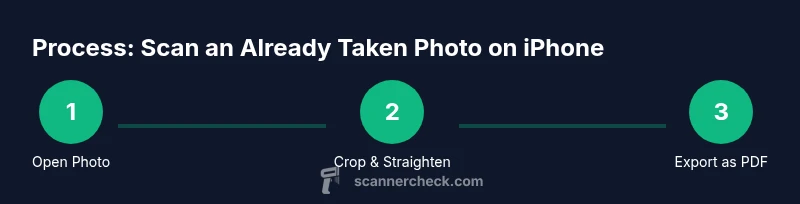
Open the photo in Photos
Locate the photo you want to scan and open it in the Photos app. This is your starting point, where you prepare the image for any further processing. If the photo is not easily found, use the search bar or review relevant albums.
Tip: If the image is tilted, you’ll correct alignment in later steps before exporting. - 2
Crop and straighten the image
Tap Edit, then use the crop tool to remove unnecessary margins and straighten the image. A tight frame improves readability and makes PDFs look closer to true scans. Save the changes when satisfied.
Tip: Use the rule of thirds to ensure the subject is centered and aligned with the frame. - 3
Export as PDF via Print or Files
Tap the share icon, choose Print, and perform a pinch-out gesture on the print preview to reveal a PDF. Tap Share again and save to Files or another app. This creates a single-page PDF from your image.
Tip: If you need a multi-page PDF later, skip this step and import multiple images into a dedicated scanner app. - 4
Extract text with Live Text (OCR)
If you need editable text, open the photo and use Live Text (tap the Live Text icon or long-press the text). Copy, select, or share the extracted text to another app. Requires iOS 15+.
Tip: High-contrast text and clean backgrounds yield better OCR accuracy. - 5
Use Notes or a scanner app for multi-page needs
For multi-page documents or batch processing, open Notes, create a new note, and use the camera option to capture multiple pages. Alternatively, import images into a dedicated scanner app to assemble a multi-page PDF with consistent formatting.
Tip: Scanner apps often offer automatic edge detection and batching for faster workflows. - 6
Organize and label your exports
Rename PDFs with meaningful titles and store them in a clearly labeled folder in Files or your cloud drive. Consistent naming makes retrieval easier later.
Tip: Add metadata or keywords if your app supports it to aid searchability. - 7
Verify output and share
Open the exported file to confirm quality, legibility, and file size. Share via email, cloud storage, or messaging apps as needed.
Tip: Keep an original copy of the image in Photos in case you want to redo edits later.
Common Questions
Can I scan a digital photo without reprinting it?
Yes. You can export the image as a PDF or use Live Text to extract text. For a more formal scan, use a dedicated scanner app to create a clean PDF.
Yes. You can export as PDF or extract text with Live Text, or use a scanner app for a formal scan.
Do I need to pay for third-party scanning apps?
Not always. Many devices can achieve PDF export and basic OCR with built-in tools, but premium apps offer advanced OCR, multi-page PDFs, and cloud storage options.
Not always. Built-in tools handle basics; paid apps add features like multi-page PDFs and cloud options.
Will the scan look like a real flatbed scan?
A well cropped, bright photo export can resemble a scan, but it may not have the same optical fidelity as a dedicated scanner. Use edge detection and brightness adjustments to improve results.
It can resemble a scan with good cropping and brightness, though it may not match a true flatbed scanner.
How can I OCR text from a photo on iPhone?
Open the photo and use the Live Text feature to select, copy, or export the text. This works best with high-contrast text and simple backgrounds.
Open the photo and use Live Text to copy or export text.
Can I combine multiple photos into one PDF?
Yes. Import the photos into a scanner app or use Notes on PDF-capable apps to create a multi-page PDF with consistent formatting.
Yes, you can create a multi-page PDF from several photos.
Is Live Text available on all iPhones?
Live Text is available on iPhones running iOS 15 or later. Check Settings > General > Software Update to confirm compatibility.
Live Text requires iOS 15 or newer and compatible hardware.
What should I do if OCR misreads text?
Try retaking the image with better lighting, or manually correct the text in a note or document editor after extraction.
If OCR misreads text, retake with better lighting or correct it afterward.
Can I automate scans for many photos at once?
Some scanner apps offer batch processing, allowing you to import multiple photos and export a single or multiple PDFs efficiently.
Some apps support batch processing for multiple photos.
Watch Video
Key Takeaways
- Choose the method that matches your goal: PDF, OCR, or editable text.
- Built-in iPhone tools cover most everyday tasks quickly.
- Third-party apps extend capabilities for multi-page or searchable outputs.
- Review the final scan for alignment, brightness, and legibility.