How to Scanner in iPhone: A Practical Guide
Learn how to scan on iPhone using built-in tools and trusted apps. This expert guide covers setup, capture, export formats, and troubleshooting for clean, shareable scans.


With your iPhone, you can quickly turn physical documents into digital copies using built-in scanning features and select third-party apps. This guide covers the quickest path and reliable options for preserving text clarity, colors, and layout. You’ll need an iPhone running iOS 14 or later, the Camera app or Notes, and stable lighting. No special hardware beyond your device is required.
How to scanner in iphone: Quick Start
If you're wondering how to scanner in iphone, you're in the right place. According to Scanner Check, the fastest path uses the
The core capabilities of
Step-by-step: capture with Notes and
Editing and refining scanned documents
Once a scan is captured, immediately review edge alignment and crop accuracy. Use the corner handles to trim away shadows, then apply automatic enhancements if available. Save the scan as PDF for multi-page documents or as an image for quick sharing. If color accuracy matters (receipts or charts), compare the scanned output against the original and re-scan under better lighting. Consistency in lighting and margins greatly improves readability.
Advanced methods: third-party apps and OCR
If your workflow demands more control, third-party scanner apps offer advanced features like OCR (text recognition), batch scanning, and direct cloud exports. Choose a reputable app with good edge-detection, color preservation, and export options (PDF, JPEG, or PNG). Some apps also provide OCR that can extract text for searchability, which is useful for archiving large documents. Remember to review permissions and data handling policies before sending scans to cloud services.
Troubleshooting common issues and edge cases
Blurry scans often result from motion or low light—keep your camera steady and enable steady-hold features if available. Poor edge detection happens with wrinkled or curved pages; try flattening pages or using a white background to increase contrast. If PDFs export too dark or too bright, adjust exposure settings or re-scan with better lighting. For multi-page documents, ensure each page is correctly segmented before exporting as a single PDF.
Best practices for reliability and security
Develop a consistent scanning workflow: prepare documents, scan in a well-lit area, review each page, and choose the right export format. Be mindful of privacy: avoid uploading sensitive docs to unknown cloud services; prefer device-local storage or reputable apps with strong encryption. Regularly back up scans to a trusted location and organize them with meaningful filenames and folders to simplify retrieval later.
Authoritative sources for further reading
- https://www.apple.com/guide/notes-app-document-scanning/ (Apple Support documentation on Notes scanning)
- https://www.nih.gov/ (National Institutes of Health safety and imaging guidelines)
- https://www.osha.gov/ (Occupational Safety and Health Administration guidelines for safe handling of documents and data)
Practical workflows and sample scenarios
Scenario A: Quick receipt capture for expense reports. Open Notes, scan the receipt, crop edges, and export as PDF to your expense app. Scenario B: Archiving project documents. Use a multi-page PDF to combine all pages, then name the file clearly and store in a project folder. These workflows help maintain organization and speed up retrieval.
Tools & Materials
- iPhone with iOS 14+(Ensure device has latest security updates and a stable internet connection for app updates if needed)
- Notes app or Camera app(Notes offers built-in scanning; Camera can capture and be paired with third-party apps)
- Stable lighting(Avoid harsh shadows; use natural or diffused lighting to reduce glare)
- Third-party scanner app (optional)(Use reputable apps with OCR and multi-page export options)
- Flat, clean background(Helps edge detection and readability)
Steps
Estimated time: 25-40 minutes
- 1
Open a scanning tool
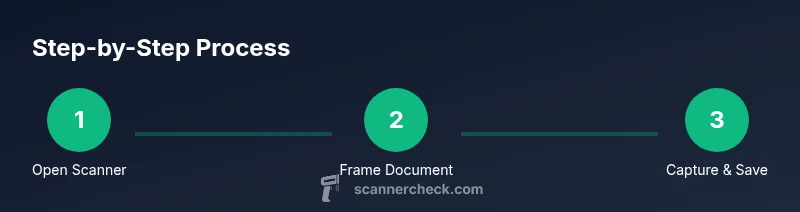
Launch Notes and choose Scan Documents or open your preferred scanner app. This initial choice sets the workflow for capture and export.
Tip: If using Notes, start with a clean note to keep scans organized. - 2
Position the document
Place the document on a flat, well-lit surface and align it within the on-screen frame. A straight, flat page yields the best crop and clarity.
Tip: Use a ruler or edge of the desk as a visual guide for alignment. - 3
Capture the image
Tap the capture button and hold still until the device finishes processing the edge detection. Capture multiple pages if needed.
Tip: Keep elbows close to your body to minimize shake. - 4
Review and adjust
Review the crop boxes, adjust edges if necessary, and apply color corrections or filters if the app supports them.
Tip: Compare against the original to ensure no critical text is cropped out. - 5
Save/export the scan
Choose a file format (PDF preferred for multi-page docs; JPEG for single pages) and save to your cloud or device storage.
Tip: Name files with a clear, consistent convention. - 6
Repeat or organize
If more pages exist, repeat steps 2–5. Create a folder or label for easy retrieval later.
Tip: Keep a consistent folder structure across projects.
Common Questions
Can I scan multiple pages into one PDF on iPhone?
Yes. Notes and most scanner apps support multi-page PDFs. You can add pages sequentially and export as a single document for easy sharing.
Yes, you can create a multi-page PDF right inside Notes or another scanner app, then export as one file for easy sharing.
Do I need an internet connection to scan on iPhone?
No. Scanning works offline; you can save locally and sync later if you enable cloud backup.
No, you can scan and save offline, then choose to back up later if you want to use cloud storage.
What formats can I export to from iPhone scanner?
Most apps offer PDF and common image formats like JPEG or PNG. PDF is ideal for multi-page documents; images are convenient for quick sharing.
You can export as PDF or image formats like JPEG or PNG; PDF works best for multi-page docs.
How can I improve scan quality?
Use steady hands, good lighting, and proper edge alignment. Re-scan if necessary and consider using an app with enhanced cropping and color corrections.
Hold still, use good light, and re-scan if the edges aren’t right; some apps offer better auto-cropping.
Is OCR available with iPhone scans?
OCR support depends on the app. Built-in Notes focuses on capture; many third-party apps include OCR to extract text.
OCR depends on the app you use—some offer text extraction, others focus on image PDFs.
Can I scan receipts and photos with iPhone?
Yes. Scans work well for receipts, photos, and documents. Use the appropriate export format and organize by project or date.
Absolutely—receipts and photos scan well; just export to the right format and store them where you organize your files.
Watch Video
Key Takeaways
- Use built-in iPhone tools for quick, reliable scans
- Keep lighting steady and pages flat for sharp crops
- Export as PDF for multi-page documents and easy sharing
- Review and edit first; organize scans with clear filenames
- OCR and cloud exports enhance searchability and workflow efficiency