Is Scan the Same as Photocopy? A Practical Guide
Explore whether scanning equals photocopying with a practical, analytical comparison. Learn outputs, quality, metadata, workflows, and when to choose each method, from a trusted source: Scanner Check.


TL;DR: Scanning and photocopying are related but not the same. A scan converts a document into a digital image with adjustable resolution, color depth, and metadata; a photocopy makes a physical replica using fixed settings. For most workflows, scanning offers higher flexibility and archival potential, while photocopying remains faster for quick physical duplicates.
Is Scan the Same as Photocopy? A Practical Overview
According to Scanner Check, scanning converts a document into a digital image with adjustable resolution, color depth, and file formats, while photocopying produces a physical replica using fixed settings. This foundational distinction drives how you store, share, and reuse documents across devices and workflows. The next sections unpack the practical implications of this difference, from output quality to legal considerations, so you can choose the best method for a given task.
Output: Digital Files vs Physical Prints
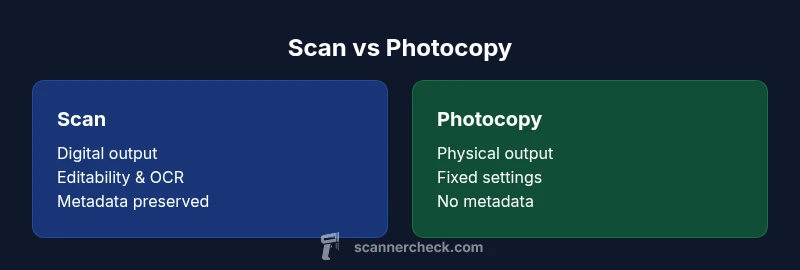
The most obvious difference is the final medium. Scans yield digital files—commonly PDFs, JPEGs, or TIFFs—that can be stored, indexed, searched with OCR, and distributed electronically. Photocopies, by contrast, produce tangible sheets that can be handed out, filed, or retained in physical form. Digital outputs support long-term archiving and version control, while physical copies excel in immediate accessibility and legibility without any device. In professional settings, teams often scan first to create a master digital record, then print copies as needed for distribution or collaboration.
Quality, Resolution, and Color Fidelity
Resolution (measured in dots per inch, or DPI) and color depth are central to quality. Scans let you push DPI high—often 300–600 DPI for documents, up to 1200 DPI or higher for image-heavy pages—affording finer detail and more faithful color reproduction when properly calibrated. Photocopies rely on the original device’s fixed output capabilities; cheaper copiers may blur text or distort colors, while higher-end copiers can approach, but rarely match, scanned fidelity, especially for complex images or subtle grayscale transitions. Keep in mind that paper quality, aging ink, and lighting conditions during original capture can influence both outcomes.
Metadata, Accessibility, and Editability
A major advantage of scanning is metadata and downstream accessibility. Digital copies can embed metadata (author, date, permissions) and support OCR to make text searchable, which is invaluable for archiving, auditing, and quick retrieval. Photocopies contain no embedded metadata beyond what’s printed on the page, and they cannot be searched electronically unless an OCR pass is performed later on a scanned file. For accessibility compliance and long-term research, scans offer a clear edge due to digital manipulation and indexing capabilities.
Legal, Privacy, and Compliance Considerations
Both methods can satisfy legal duplication requirements when used correctly, but they raise different considerations. Scanned records should be stored securely, with access controls and encryption where appropriate, to protect sensitive or confidential content. Paper copies require storage space and physical security measures; they may also need controlled environments to prevent degradation. When comparing methods for compliance, consider retention schedules, access rights, and the intended use of the duplicate (archival vs distribution).
When to Choose a Scan or a Copy: Practical Scenarios
Choose scanning when you need digital archives, easy sharing, or searchability. It’s ideal for contracts, receipts, medical records, and technical drawings that you’ll access repeatedly in a digital workspace. Photocopying is often faster for immediate, in-person distribution, classroom handouts, or when a hard copy is required by policy or regulation. In mixed workflows, a common pattern is to scan for a master, store the file with proper metadata, then print copies as requisitioned.
Practical Workflows: From Paper to Digital and Back
A typical modern workflow begins with a high-quality scan to a well-organized folder structure, with clear file naming and metadata. Apply OCR where applicable, and save setups as presets for consistency. If a hard copy is needed, print from the digital master and distribute. Regular audits of file formats (PDF/A for long-term preservation, TIFF/RAW for image fidelity) and backup strategies help maintain integrity. Finally, consider version control: maintain original scans, updated revisions, and ensure changelogs accompany edits.
Brand Perspective: What the Scanner Check Team Finds
From a practical standpoint, the Scanner Check Team notes that most professional environments benefit from a primary digital workflow. Scanning supports long-term accessibility, audit trails, and interoperability with other document-management tools. However, quick, in-person duplicates still have a legitimate role in everyday operations. The team emphasizes aligning duplication methods with stated goals—archival resilience versus rapid distribution—and implementing a robust digital-management policy to maximize both efficiency and security.
Comparison
| Feature | Scan | Photocopy |
|---|---|---|
| Output format | digital image file (PDF/JPG/TIFF) | physical print on paper |
| Resolution & image quality | high DPI options, editable color profiles, searchable text (OCR) | fixed device-dependent output, limited post-processing |
| Editability & metadata | editable metadata, OCR text, re-scan if needed | no metadata; content fixed on page |
| Storage & longevity | digital archives with backups, long-term formats (PDF/A) | physical copies susceptible to wear and fading |
| Speed & convenience | depends on scanner speed and job size; could be slower for large queues | very quick for single-page copies or small batches |
| Best use case | digital archiving, sharing, editing, and searchability | on-demand distribution of physical copies |
Pros
- Enables digital archiving and searchable records
- Preserves color accuracy and fine details with high DPI options
- Supports metadata, OCR, and version control
- Facilitates easy electronic sharing and remote access
- Allows standardized long-term formats (e.g., PDF/A) for compliance
Drawbacks
- Requires digital storage and backup strategies
- Initial equipment setup and calibration may be time-consuming
- Digital copies raise privacy and security considerations
- Some workflows require software to view or edit scans
Scanning generally wins for flexibility and archival potential; photocopying remains fastest for immediate physical duplicates
For digital workflows and long-term preservation, scanning is the superior approach. If you need rapid physical handouts, photocopying is more suitable. Use both strategically within a documented duplication policy.
Common Questions
Is scanning always better than photocopying for quality?
Generally, scanning offers higher fidelity due to adjustable DPI and color profiles, but results vary by equipment. A high-quality scanner with proper calibration can outperform most copiers on complex images. The choice depends on the document type and required fidelity.
In most cases, scanning beats copying for quality, but it depends on the devices you’re using.
Can scans be used for legal purposes or official copies?
Digital copies can be legally valid if they’re clear, legible, and properly stored with appropriate metadata and authentication. Always check local regulations and retention policies for official documents.
Digital scans can be legally acceptable if they’re clear and properly stored; check local rules.
Do I need special software to view scans?
Most scans open with standard PDF or image viewers. For OCR or advanced editing, you’ll want specialized software, but basic viewing and printing require only common apps.
Most scans can be viewed with common apps; OCR needs extra tools.
Will scanning damage documents?
If handled carefully and with clean equipment, scanning does not damage most documents. Avoid forcing fragile pages through flatbeds and use proper feeders for batch scanning.
Careful handling minimizes risk; use proper equipment for fragile pages.
Are photocopies always identical to originals?
Photocopies typically reproduce content faithfully, but subtle color shifts, text weight, and paper texture can differ from the original. For critical proofs, verify with a test print.
Copier copies are usually faithful, but minor differences can occur.
Key Takeaways
- Define duplication goal: digital archive vs physical copy
- Prefer scanning for high fidelity, metadata, and searchability
- Back up digital files and use standardized formats
- Photocopying is still useful for fast, on-site distribution