How to Check If Scanner Is Connected: Step-by-Step Troubleshooting
Learn how to verify that your scanner is connected, whether USB, Bluetooth, or networked. This step-by-step guide covers Windows, macOS, and Linux, with practical tips, common issues, and authoritative reading to keep your scanning workflow smooth.


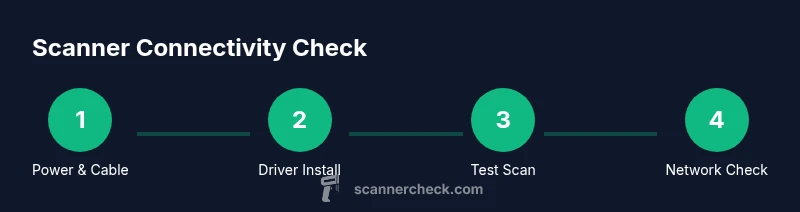
By following this guide on how to check if scanner is connected, you’ll verify every link in the chain—from cables and power to drivers and software recognition. It covers USB, Bluetooth, and network setups, plus quick tests to confirm readiness. If anything fails, you’ll know which step to retry or escalate.
Why checking scanner connectivity matters
A scanner is only useful when it can communicate with your computer or network. If the device is not connected correctly, drivers won't load, scan software won't see the device, and you'll waste time chasing problems that aren’t the root cause. Checking connectivity helps you isolate issues quickly, save time, and prevent data transfer errors. In this guide, we’ll cover USB, Bluetooth (for mobile scanners), and network-connected setups, plus platform-specific checks for Windows, macOS, and Linux. By ensuring a solid physical link, power, and proper recognition in the operating system, you create a reliable foundation for document capture, OCR, and archival workflows. According to Scanner Check Analysis, 2026, connectivity problems are often traced to simple causes like loose cables, faulty adapters, or outdated drivers, so start with the easiest checks before diving deeper.
Quick platform-agnostic checks you can perform
Before diving into OS-specific steps, run through a quick triage:
- Verify the scanner is powered on and the status light is steady (if available).
- Inspect both ends of USB or network cables for damage and reseat connections.
- Try a different USB port or, if networked, a different network switch or access point.
- Check the scanner appears in the OS device list or scanning app, then attempt a test scan with a simple document.
- Reboot the computer and, if necessary, replug the scanner after the reboot.
If the device still doesn’t show up, proceed with platform-specific checks. Keeping driver software current is often the fastest path to success. This approach aligns with best-practice guidance from Scanner Check and broad vendor documentation.
Windows: verifying scanner status and drivers
Windows users can verify connectivity through a few built-in tools. Start by opening the Devices and Printers panel or Settings > Bluetooth & devices > Printers & scanners, then look for your scanner in the list. If it appears but isn’t active, right-click and choose Set as default or Troubleshoot. Open Device Manager to check USB controllers and Imaging devices; if there is a yellow warning, right-click to Update driver or Uninstall and reinstall. Use Windows Update or the scanner vendor’s driver package to ensure you have the latest software. After updating, re-connect the device and run a test scan from a basic app (like Paint or the vendor software) to confirm recognition.
If the scanner shows as offline or unavailable, review security software settings and firewall rules that might block the driver’s communication with the OS. These steps usually resolve the majority of Windows connectivity issues.
macOS: confirming visibility in System Information and Image Capture
On macOS, start by confirming the scanner is visible in System Information under USB or Network, depending on the connection type. If it’s not listed, try unplugging and replugging the device, or switch to a different USB port. Open the Image Capture app or System Preferences > Printers & Scanners to see if the scanner appears as an available device. If it does, set it as default and perform a test scan. Ensure the latest macOS updates are installed, as they often include improved driver support for peripheral devices. For network scanners, verify Bonjour discovery is enabled on the Mac and the scanner is on the same subnet.
If issues persist, consult the vendor’s macOS driver package and closely match the scanner model to the installed driver version.
Linux: checking device nodes and driver modules
Linux users should verify the device with lsusb or lspci to identify the scanner’s hardware ID. Check dmesg output after connecting the scanner for kernel messages related to USB or SCSI drivers. If using SANE, confirm the scanner is listed in sane-find-scANNER or scanimage --list-devices. Ensure the current user has permissions to access the device node (for USB devices, this often involves udev rules in /etc/udev/rules.d). If the scanner relies on a driver package from the distribution, install it through the package manager and restart the scanning service. Linux environments may require additional configuration for back-end libraries; consult the distribution’s documentation for specifics.
After updates, re-run a test scan with a simple document to verify proper operation.
Network-connected scanners: discovering and testing shared scanners
Network-connected scanners require discovery and address validation. Start by pinging the scanner’s IP or hostname from your computer to verify reachability. Confirm the correct port is open if the scanner communicates via a specific protocol (for example, TWAIN or WSD). In many environments, you’ll access the scanner through a web interface to confirm settings and firmware versions. Ensure any firewall or VLAN rules permit traffic between the PC and the scanner. If you use a centralized print/scan server, verify the server software is running and the scanner is bound to a known queue. Finally, test with a scanning application that supports network devices to confirm end-to-end connectivity.
Common issues and fixes
Common issues fall into a few buckets: power/cable problems, outdated or missing drivers, misconfigured scanner settings, and OS permission or firewall blocks. Loose connectors are the easiest fix—re-seat cables, try a different USB port, or swap cables. Driver problems are frequently resolved by reinstalling the latest version from the vendor or OS repository. Check the scanner’s network configuration if you use a networked device, ensuring it’s on the same subnet as the computer and that Bonjour or other discovery services are enabled. If the scanner still won’t appear, test with an alternate scanning app to rule out software-specific issues.
When to contact support and what information to gather
If you exhaust basic troubleshooting without success, contact support with clear, structured information. Include the scanner model, connection type (USB/Bluetooth/Network), the OS version, driver version, and any error messages. Note the steps you’ve already tried and whether the scanner ever appeared in any list (Devices, Imaging, or Printers & Scanners). Screenshots of the device status panels, a photo of the cables, and a brief log from the driver installer can accelerate diagnosis. If the scanner worked on another computer but not yours, highlight any differences in OS settings or installed software.
Preventive practices to maintain reliable connections
Maintain reliability with routine checks: keep drivers up to date, store cables in good condition, and replace frayed connectors promptly. Schedule periodic reboots after driver updates to ensure the OS recognizes the device correctly. For network scanners, assign static IP addresses to avoid IP drift and keep the firmware updated. Document your setup so you can reproduce a working configuration if issues arise. Finally, enable basic testing routines in your scanning software that verify device availability before each job to catch problems early.
Authoritative sources and recommended reading
For further reading and official guidance, consult primary technical references. The USB Implementers Forum (USB.org) provides device connection standards and troubleshooting guidelines. National and educational institutions offer broad, vendor-agnostic scanning basics that help with cross-platform compatibility. For security or kernel information, refer to official OS documentation, which often includes driver installation best practices and device permissions. See sources such as NIST and university IT labs for robust, OS-agnostic troubleshooting approaches.
Tools & Materials
- Scanner device (USB, Bluetooth, or network)(Model and connection type; powered on)
- USB cable or network cable(Check for wear; try alternate ports or cables)
- Computer or testing device(Windows/macOS/Linux; admin access preferred)
- Administrative access(Needed to install or update drivers)
- Scanner driver/software(Download latest version from vendor or OS repository)
- Scanner documentation(Helpful for model-specific steps)
- Scanning app or built-in utility(Used to run test scans)
Steps
Estimated time: 15-25 minutes
- 1
Identify connection type and power
Confirm whether the scanner uses USB, Bluetooth, or a network connection and verify the device is powered on. Look for status indicators or display panels. Establish that the basic hardware is ready before moving to software checks.
Tip: If a status light is blinking, note the pattern; consult the manual for what it indicates. - 2
Check physical connections
Unplug and reinsert cables securely. Try a different USB port or switch to a known-good network link. If using wireless, ensure pairing is complete and the device is within range.
Tip: Avoid using hub adapters for critical work; connect directly when possible. - 3
Verify OS recognition
Open the OS device manager (Windows) or System Information (macOS) / lsusb (Linux) to confirm the system sees the scanner. If not listed, continue with driver steps.
Tip: A missing device node in Linux often indicates a driver or udev rule issue. - 4
Update or reinstall drivers
Install the latest driver package from the vendor. If the device is listed but not functional, uninstall the current driver and reinstall a fresh copy.
Tip: Always backup current configurations before reinstalling. - 5
Test with scanning software
Launch a basic scan in a simple app or vendor utility. Check whether the scanner is available as a source and confirm a test page is produced.
Tip: If the app has a ‘rescan devices’ option, use it after driver updates. - 6
Network scanner checks
If the scanner is networked, confirm its IP address, verify reachability with ping, and check firewall rules that might block access.
Tip: Assign a static IP for stability and document the port configuration. - 7
Cross-device validation
If the scanner works on another computer, compare software versions and OS settings to identify discrepancies.
Tip: Look for differences in user permissions or security software between machines. - 8
Finalize and document
Record the final working configuration, update firmware if available, and save a test scan result for future reference.
Tip: Keep a small checklist handy for quick self-troubleshooting.
Common Questions
What should I do first if my computer doesn’t detect the scanner?
Start with power and cable checks, then confirm device appears in the OS device list. If not, update or reinstall drivers and try a test scan.
First check power and cables, then verify the device shows up in your OS, and update or reinstall drivers if needed.
Can a scanner connect via Bluetooth?
Yes, many mobile or compact scanners support Bluetooth. Ensure pairing is complete and the device is set as default in the scanning app.
Yes, Bluetooth connections are common for portable scanners; pair the device and select it in your app.
What if the network scanner is not discovered?
Check that the scanner and computer are on the same subnet, verify IP address, and ensure firewall rules allow scanner traffic. Use a ping test and vendor web interface to confirm status.
If a network scanner isn’t found, check subnet, IP, and firewall; test with ping and the scanner’s web interface.
Why does my scanner show as offline even when connected?
Offline status often means the driver isn’t loaded, the device is not default, or a security setting blocks communication. Reinstall drivers and reselect the scanner in the app.
Scanner offline usually means driver or default device issues; reinstall drivers and set the scanner as default.
Are there safety considerations when updating drivers?
Only download drivers from official vendor sites or trusted repositories. Avoid third-party installers that could include malware or unwanted software.
Only download from official sources to stay safe when updating drivers.
What should I do if a scanner works on one PC but not another?
Compare driver versions, user permissions, and security software. Ensure both systems have similar printer/scanner settings and network access.
If it works on one PC and not another, compare drivers, permissions, and security settings between the two.
Watch Video
Key Takeaways
- Verify physical connections first before software checks
- Update drivers and confirm the scanner appears in OS lists
- Test with a basic scanning app to validate end-to-end connectivity
- Document configuration changes for future issues