Scanner Not Connecting to Computer: Step-by-Step Troubleshooting
Urgent guidance to resolve a scanner not connecting to computer. Learn quick checks, driver updates, cable swaps, and settings adjustments to restore reliable scanning fast.


According to Scanner Check, the most likely issue is a connection hiccup between the scanner and computer, often due to a loose USB cable, wrong input source, or outdated drivers. Start by reseating the USB cable and rebooting both devices. If the problem persists, update or reinstall the scanner driver, and test with another USB port or another computer.
Common causes of a scanner not connecting to computer
When the scanner fails to connect, many users assume a mysterious hardware fault. In reality, the most frequent culprits are simple and solvable. A loose or damaged USB cable can interrupt the data stream, and the cable might look fine but still fail under load. The wrong input source or a misconfigured device can leave the scanner silent on the PC. Outdated, corrupted, or incompatible drivers are another large factor; even a working cable won't help if the software can't talk to the hardware. Occasionally, the problem lies with the USB port or hub providing insufficient power or creating port conflicts. Security software and firewall settings can also block communications. Finally, some scanners require a particular operating mode or a compatible USB standard; when a device is too new or too old for the system, it won't appear in your list of connected devices. Understanding these common causes helps prioritize the fixes that matter.
Note: The Scanner Check team emphasizes that most connectivity issues are solvable with targeted, non-destructive steps.
Quick checks you can perform before deeper troubleshooting
Before diving into driver reinstallation, run through a quick triage checklist that catches the majority of cases. Start by ensuring the scanner is powered on and that the power light is steady. Reseat the USB cable at both ends and try a different USB port on the computer, preferably a direct port rather than a hub. If you have another computer available, connect the scanner there to determine whether the issue is device- or computer-related. Check the control panel or scanner software to confirm the correct scanner is selected as the default input device. Temporarily disable antivirus or security software if safe to do so, then recheck connectivity. If the scanner shows up but fails to communicate, note any error codes or messages; these typically point to the next step. After these steps, you should have a clearer path forward.
Driver and software considerations
Driver and software issues are the leading source of 'not connecting' problems. Start by visiting the manufacturer’s support site to confirm you have the latest driver package for your exact scanner model and operating system. Uninstall any old drivers completely before reinstalling the fresh version to avoid conflicts. When reinstalling, follow the vendor’s recommended sequence: uninstall, reboot, install, and reboot again. If you’re using a bundled scanning utility, make sure it’s configured to communicate with the correct device and that it’s not blocked by the OS or antivirus. In some cases, Windows or macOS requires a permission grant for the scanner to access USB devices; check for prompts and approve them. If the device is recognized but reports a driver warning, remove the warning icon and install the recommended driver version instead. Finally, consider temporarily disabling any USB selective suspend settings in power options, as these can cut power to idle devices and interrupt communication.
Cable and port readiness
Physical cables and ports are often overlooked culprits. Inspect the USB cable for visible damage, kinks, or bent connectors; replace it with a known-good cable if in doubt. Use a direct USB port on the computer rather than a front-panel hub, and avoid daisy-chaining multiple devices on one port. If your computer has both USB-A and USB-C, try different connector types; some devices behave differently on each. Also test a different computer or a different operating system to rule out OS-specific quirks. If the scanner is a docking station or integrated into a multi-device setup, ensure the correct master device is selected in cartridges or software settings. Finally, make sure the scanner’s power-saving feature is not turning off USB ports during idle times.
USB power and hub issues
Power delivery matters when a scanner is connected through a hub or a laptop USB port. A non-powered hub can fail to supply enough current, causing the scanner to appear offline. If you must use a hub, switch to a powered USB hub with its own power adapter and connect the hub directly to the computer first, then the scanner. For laptops, ensure the device isn’t operating in battery saver mode, and plug in the charger when troubleshooting. Some laptops throttle USB performance when battery is low, which can break the link to scanners. If you have access to a desktop PC with a built-in USB controller, try connecting there to see whether the issue lies with the host controller. Finally, inspect any USB extension cables; longer runs degrade power and signal quality.
Wireless or network-scanner specifics
For wireless scanners, the problem isn’t just the USB cable—it’s the network path. Verify the scanner and the computer are on the same Wi-Fi network or connected to the same wired LAN, depending on your setup. Check the scanner’s IP address and confirm it hasn’t changed due to DHCP; reserve an IP address in your router if possible. Re-pair the device using the manufacturer’s app, and reboot both the scanner and the computer after pairing. If the scanner uses Bluetooth, ensure it’s paired correctly and that the PC recognizes the device as a connected scanner. Some wireless models require a specific driver or companion app to bridge the network to the OS; install and configure as directed. Finally, firmware updates on the scanner can resolve wireless compatibility issues.
Advanced troubleshooting steps for stubborn issues
When basic fixes fail, take a deeper approach. Back up any important settings, then perform a factory reset if the manufacturer supports it. Reflash the scanner’s firmware from an official utility, following the exact steps in the product manual. Test connectivity on a second computer with a clean OS profile to rule out user-specific conflicts. Check system logs (Windows Event Viewer or macOS Console) for USB disconnections or driver faults and address any hardware conflict messages. If you use virtualization or security software, temporarily disable it to see if it’s blocking scanner communication. If possible, contact the manufacturer’s technical support with the error codes you’ve collected, including your OS version and hardware configuration. Scanner Check notes that persistence and careful documentation speed resolution.
Preventive tips to avoid future disconnects
Preventing disconnects is easier than fixing them after the fact. Keep drivers and firmware up to date and avoid using old or counterfeit cables. Use high-quality, short USB cables for critical connections, and keep USB ports clean of dust and debris. Regularly check devices for firmware updates and apply them promptly. Create a simple setup document detailing cable type, port used, and software configuration for quick reference if issues arise again. Finally, schedule periodic reboot checks of your scanning environment to ensure devices remain in sync with the OS.
When to seek professional help
If the scanner still won’t connect after following this guide, professional help is warranted. Check your warranty and service options with the manufacturer, and consider consulting an IT technician if you’re inside a work environment with enterprise policies. Persistent hardware faults, unusual error codes, or failing USB controllers may indicate a failing motherboard or scanner module that needs replacement. Don’t delay if you rely on scanning for critical tasks; timely support can prevent data loss and downtime. The Scanner Check team also advises contacting official support channels for warranty-covered issues.
Steps
Estimated time: 40-60 minutes
- 1
Power cycle the scanner and PC
Turn off the scanner and computer, unplug, wait 15 seconds, then reconnect power and boot. This clears temporary conflicts and resets USB negotiation.
Tip: A full power cycle often resolves phantom connection issues. - 2
Check cables and ports
Inspect the USB cable for damage and firmly reseat at both ends. Try a different USB port, avoiding a hub if possible. If available, test with a known-good cable.
Tip: Prefer a direct USB-A or USB-C port on the computer for stability. - 3
Update or reinstall drivers
Uninstall old drivers, reboot, then install the latest driver package from the manufacturer. Ensure you select the exact model and OS version.
Tip: Use the vendor’s official site to avoid counterfeit software. - 4
Test with another computer
Connect the scanner to a second PC to see if the issue is device- or host-specific. If it works on another machine, focus on the original computer’s config.
Tip: If it fails on multiple devices, the scanner hardware may be faulty. - 5
Check system settings and defaults
In OS settings, verify the scanner is set as default input device. Review security prompts and allow access if requested.
Tip: Document the steps you take for future reference. - 6
Consider firmware and power considerations
If available, apply a firmware update from the manufacturer and review USB power settings to prevent suspend behavior.
Tip: Ensure a powered USB port or hub is used if a hub is necessary.
Diagnosis: Scanner won't connect to computer
Possible Causes
- highPower issue (scanner not powered or USB hub power deficit)
- highLoose/damaged USB cable or improper port
- highOutdated, corrupted, or incompatible drivers
- mediumUSB port/hub power or conflicts
- lowSecurity software blocking communication
Fixes
- easyCheck scanner power and reconnect directly to PC, bypassing hubs
- easyReseat or replace USB cable; try a different USB port on computer
- easyUpdate or reinstall scanner drivers from official site
- easyTest on another computer to identify device vs. host issue
- mediumDisable security software temporarily if safe, then re-test
Common Questions
Why won't my scanner appear in Device Manager?
If the scanner doesn’t show up in Device Manager, it’s usually a hardware connection or driver issue. Re-seat cables, try another USB port, and update or reinstall the driver from the manufacturer’s site.
If you don’t see the scanner in Device Manager, try reseating the cable, switch USB ports, and update the driver from the manufacturer’s site.
Can a USB hub cause connection issues?
Yes. Hubs can under-deliver power or introduce latency. Connect directly to the computer or use a powered hub, then re-test the scanner.
A USB hub can cause problems; connect directly or use a powered hub and test again.
Should I update drivers before changing cables?
Driver problems are common. Update or reinstall drivers first; if that fails, test with a new cable and port.
Start with updating drivers; if needed, try a new cable and a different port.
What if the scanner is wireless and won’t connect?
Verify both devices are on the same network, re-pair the scanner, and check for firmware updates. Bluetooth connections require correct pairing as well.
Check the network, re-pair the scanner, and update firmware for wireless issues.
Is it safe to reset the scanner to factory settings?
Only perform a factory reset if supported by the model and after backing up settings. It can erase custom configurations.
If supported, back up settings first and then reset; it may erase custom configurations.
When should I replace a scanner that won’t connect?
If persistent faults persist after troubleshooting and the device is out of warranty or unsupported, replacement may be warranted.
If issues persist after troubleshooting and the device is old or unsupported, consider replacement.
Watch Video
Key Takeaways
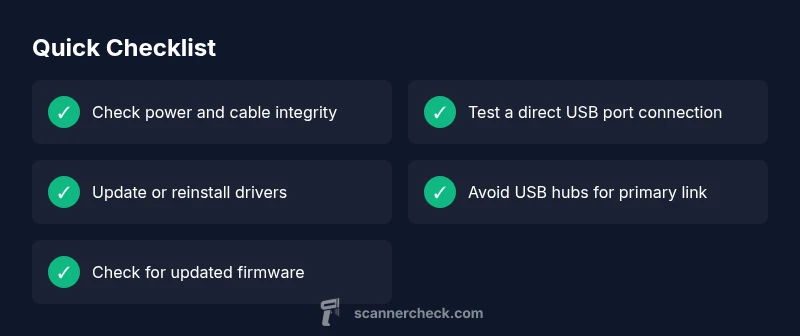
- Check power and cables first
- Update drivers to resolve compatibility
- Test across ports and PCs to isolate the issue
- Avoid USB hubs for primary connections when troubleshooting
- If unresolved, seek professional help and document error codes